You can use XSLT to transform your XPDL source to handle any specific functionality that may be unique to a particular third party vendor. To do this, iProcess Workspace (Windows) provides you with a customization facility. It enables you to use a custom file format to transform your XPDL source. You can create some XSLT and specify this as a custom file format. Then, when saving or loading, you can specify that this XSLT file be used to transform the XPDL source.
The source does not necessarily have to be XPDL. The customization facility enables any XML input document to be transformed into a valid iProcess procedure.
To use the custom file format, you need to create some XSLT to perform the transformation on the XPDL when loading to or saving from iProcess Workspace (Windows). How you create your XSLT depends on the XPDL source you want to transform.
If the XSLT file creates an invalid iProcess XPDL document, this will either cause the transformation from XPDL into an iProcess procedure to fail or the loading of the internal procedure XML file will fail. This is because the schema would not validate which would result in a schema validation error.
The most likely cause of this is that the XSLT transformation has placed iProcess XPDL extended attributes in the XPDL that are not valid against the
XPDLExtAtt.xsd schema. See
Using Extended Attributes for an explanation of the extended attributes that can be defined in the XPDL source.
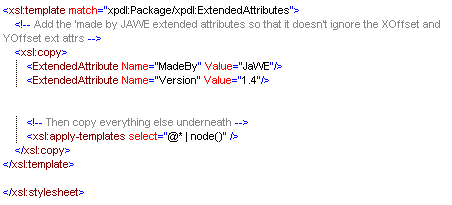
This section describes an example of custom file format which is an XSLT file that has been created to transform XPDL generated by iProcess for third party vendor, Enhydra JaWE (Java Workflow Editor).
This particular XSLT copies the XPDL produced by the iProcess Workspace (Windows) and adds a
MadeBy extended attribute to it. Enhydra JaWE uses the same extended attributes to define X and Y co-ordinates of activities on screen. However, JaWE ignores these attributes unless the
Made By extended attribute is present in the source XPDL. Therefore this transformation adds a
MadeBy = JaWE attribute to the XPDL, as shown below:
When you use the Load From and
Save As dialogs, progress meter boxes display the progress of the transformation to XPDL. See
Saving and Loading iProcess Procedures as XPDL. Your XSLT can take advantage of these progress meter boxes. You can specify the text that you want to be displayed in one or all of the 3 progress meter boxes. The table below describes the progress meter boxes:
To specify text for a progress meter box, you need to create an XSL Message element in your XSLT. An example of an
xsl:message element is shown below:
Separate custom file formats need to be defined for the Save As and
Load From dialogs, as different configuration may be required depending on whether you are saving or loading. You can create custom file formats for the
Save As or the
Load From dialogs or for both dialogs, depending on your requirements. To create custom file formats for the
Save As and
Load From dialogs, do the following:
|
|
|
|
|
|
|
Defines the extra support files that the output file needs at run-time. For example, you may have a list of . gif files to support the HTML document. You can specify multiple files in the copyfiles parameter.
The value of this parameter is a semi-colon separated of files that are to be copied from the transform type's directory into the location for the output file. This is performed before the specified XSLT transformation.
The specified copy files can be in sub-directories relative to the transform type directory. In this case, the sub-directory path should be specified. When a sub-directory path is specified, the same directory structure is created in the output location.
|
|
|
description of the custom file format. For example:
|
|
|
|
|
Defines the valid extensions for this file type. You can define multiple extensions. Each extension must be separated by a semi-colon.
|
|
|
|
This is used with the xsltoutput parameter. It defines the file that is referencing the XSLT output file defined in the xsltoutput parameter.
|
|
|
|
By default, when the source XML is created data items that contain references to fields, for example, expressions, scripts and EAI Step Type data, are not transformed into pieces of text and field reference elements. If you want to force full field references in the source XML, enter the following parameter in the transformtype.txt file:
|
|
|
pathname of image directory. For example:
|
Defines the directory into which the procedure image files are saved. The pathname of the file is relative to the location of the image file. This means that ImageDirectory=Procedure_Images is interpreted as c:\PROCDOC\Procedure_Images. If no image directory is specified then the image files are created in the same location as the output file.
|
|
|
|
|
•
|
ImageZoom=50. This means that procedure images will be reduced by 50%.
|
|
•
|
ImageZoom=200. This means that procedure images are enlarged by 200%.
|
|
|
|
|
Enables the %FILE% tag to be used in the finalfilesource parameter.
|
|
|
|
By default, procedure images are not produced. To produce and output graphical images for each of the procedures, define the wantimages parameter, as follows:
The image files are created in the same location as the output file. To change this, use the ImageDirectory parameter. The image files are in .png (Portable Network Graphics) format and the format of the name is procedurename_Image.png.
The image files are produced before the XSLT transformation is performed. This means they are available for you to use in the source XML before the XSLT transformation is performed.
|
|
|
|
By default, image maps are not produced. To produce image map files for each of the procedure images, define the wantimagemaps parameter, as follows:
This is used with the wantimages parameter. The wantimages parameter must be set to yes to produce the image maps.
The image files are produced before the XSLT transformation is performed. This means they are available for you to use in the source XML before the XSLT transformation is performed.
The specified XSLT can be coded to make use of image maps to locate and reference individual objects within the procedure image (for example, creating hyperlinks from objects in the procedure image to textual data regarding an object elsewhere in the output file).
The image maps are created in the transform type's directory and are deleted on completion of the Save As operation.
The image map files formatted as XML, each object has an obj node that contains the following attributes:
|
|
|
pathname of XSLT output file. For example:
|
Defines the name of the XSLT file that performs the transformation to or from iProcess. The pathname of the file is relative to the location of the transformtype.txt file. This means that, as shown in the example below, swxpdljawe.xslt is interpreted as c:\swclient\PMSaveAs\JaWE\swxpdljawe.xslt.
|
|
|
pathname to alternative XSLT output file. For example:
|
Defines an alternative file for the XSLT transformation output. This is parameter can be used if you want your XSLT transformation output to be output to a different file that you don’t want you users to see. For example, you may want them to view the XSLT transformation from a file that references the output rather than letting them see the output itself.
You can specify a sub-directory relative to the transform type directory. In this case, the sub-directory path should be specified. When a sub-directory path is specified, the same directory structure is created in the output location.
|
An example of a transformtype.txt configuration file for transforming some XPDL from a 3rd party vendor called Enhydra JAWE is shown below: