Copyright © Cloud Software Group, Inc. All Rights Reserved


Chapter 13 Transforming iProcess Procedures into the Workflow Standard XML Process Definition Language (XPDL) : Saving and Loading iProcess Procedures as XPDL

Saving and Loading iProcess Procedures as XPDL
This section describes how to transform XPDL into iProcess procedures and vice versa. This section describes:
Loading XPDL into iProcess Workspace (Windows) to create iProcess procedures. You can take any XPDL source and load it into iProcess Workspace (Windows). Once the XPDL has been loaded into iProcess Workspace (Windows), you can amend the procedure as you require - see Loading XPDL into iProcess Workspace (Windows).
Saving iProcess procedures as XPDL from iProcess Workspace (Windows). Once an iProcess procedure has been saved as XPDL, it can be used with any vendor application that supports XPDL - see Saving a Procedure as XPDL.
Loading XPDL into the iProcess Workspace (Windows)
This section describes how to load XPDL into iProcess Workspace (Windows).
Before Loading XPDL into iProcess Workspace (Windows)
This section describes some points you need to consider before loading XPDL source into iProcess Workspace (Windows).
If you import some XPDL for a procedure that does not already exist in iProcess Workspace (Windows), then the procedure is created as version 0.0. This is true, even if the XPDL specifies another version number.
If you load some XPDL source for a procedure that already exists in iProcess Workspace (Windows), you must create a new version. You can either create a new minor version or a new major version.
If you create a new minor version number, the procedure is created with the next minor version of the procedure that already exists in iProcess. For example, if the existing procedure has a version of 2.1, iProcess creates the new loaded XPDL as a procedure with a version of 2.2. To do this, from the Procedure Exists dialog, click OK.
the latest major version on the procedure that already exists in iProcess is used. For example, if the existing procedure has a version of 2.1, iProcess creates the new loaded XPDL as a procedure with a version of 3.0.
To do this, from the Procedure Exists dialog, select Create new major version.
See TIBCO iProcess Modeler Procedure Management for information about version control.
If the procedure already exists in another library but you would like to import it into a different library, you are prompted to create a shortcut to the procedure in the original library from the new library. To do this, from the Procedure Exists dialog, select Create shortcut here if procedure is located elsewhere.
Before loading XPDL source into iProcess Workspace (Windows) you need to understand the status of the procedures that are created when the XPDL source is loaded.The available options depend on whether or not the procedure is complete:
If the procedure already exists and has a status of Incomplete or Unreleased, then the existing procedure’s status is changed to Withdrawn-Incomplete or Withdrawn, respectively.
Before loading XPDL into iProcess Workspace (Windows), TIBCO recommend that you set the following extended attributes in the XPDL source:
made by. This is used to improve load performance in certain areas (for example, activity id’s in iProcess procedure XPDL are always output as numeric (and must be numeric in the equivalent procedure object id). If the MadeBy attribute is included, the load assumes that activity id’s are numeric and therefore no special processing is required in order to ensure that they are converted to numeric).
XOffset and YOffset. If you do not specify the XOffset and YOffset extended attributes the objects are automatically arranged in rows and columns in the order that they appear in the XPDL document rather than in the order that they should be processed.
Loading XPDL into iProcess Workspace (Windows)
To load XPDL into iProcess Workspace (Windows), do the following:
1.
From the Procedure Manager, browse to the procedure library where you want to save the procedure that is to be created from the XPDL.
2.
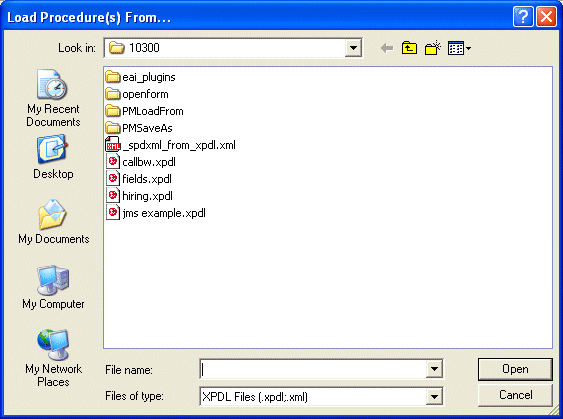
Click Procedure Management > Load From. The Load Procedure(s) from... dialog is displayed.
3.
In the Files of type: box, select the file format that you want to use to perform the translation. If you have defined any custom file formats, select the custom file format you want to use from this box. See Amending Third-Party Vendor’s XPDL for more information about custom file formats.
4.
5.
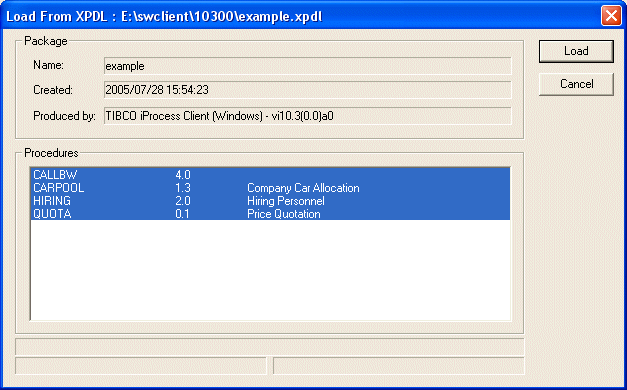
Click Open. The Load From XPDL: pathname dialog is displayed where pathname is the path to the XPDL file you have selected. The Load From XPDL: pathname dialog displays information about the Package you have selected
XPDL has the concept of a package. A package acts as a container for a number of different procedures. Therefore, when you are loading some XPDL source, you are loading a package of XPDL source.
6.
The Procedures box lists the procedures available to be loaded in the Package you have selected. Select one, some or all of the procedures, depending on your requirements, and click Load.
A progress meter displays the progress of the transformation to iProcess.
Saving a Procedure as XPDL
This section describes how to save an iProcess procedure as XPDL.
Before Saving a Procedure as XPDL
Before saving a procedure as XPDL, you need to understand which procedure objects can be saved as XPDL:
Saving Referenced Sub-procedures of a Procedure
When saving a procedure as XPDL, you can decide whether or not to save the procedure's referenced sub-procedures as XPDL. To configure this option for all saving operations, follow these steps:
1.
Highlight the Procedure Manager panel from iProcess Workspace (Windows). Then select Options > Windows Options.... The Procedure Management Configuration dialog is displayed.
2.
To save the referenced sub-procedures, check the Save Referenced Sub-procedures checkbox from the Load From/Save As section of the dialog. Click OK. Otherwise, uncheck the checkbox and click OK.
After you make this configuration, you can still choose to save or not to save the sub-procedures in each saving operation. See the following section for details.
Saving a Procedure as XPDL
To save a procedure as XPDL, do the following:
1.
From the Procedure Manager, browse to the location of the iProcess procedure(s) that you want to save as XPDL.
2.
3.
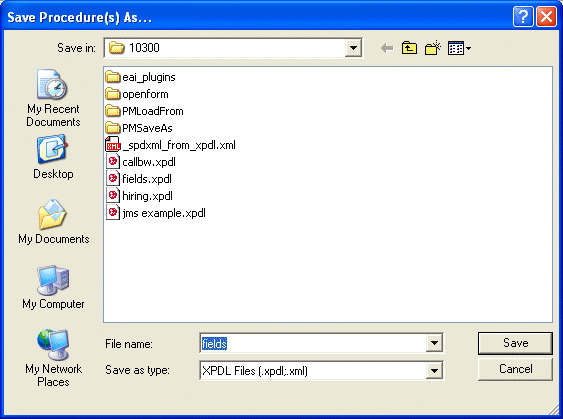
Click Procedure Management > Save As XPDL.... The Save Procedure(s) As dialog is displayed.
4.
5.
In the Save As Type: box, select the file format that you want to use to perform the translation. If you have defined any custom file formats, select the custom file format you want to use from this box. See Amending Third-Party Vendor’s XPDL for more information about custom file formats.
6.
7.
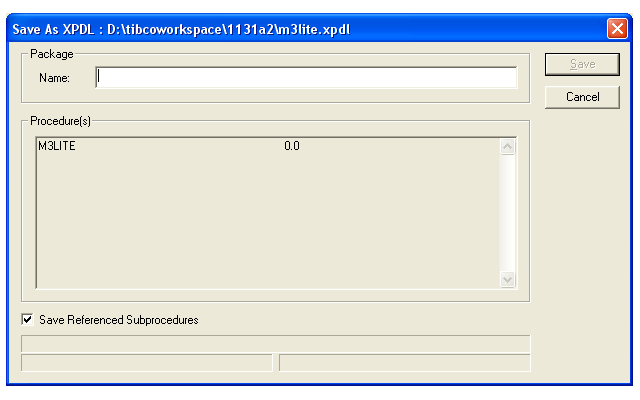
Click Save. The Save As XPDL: pathname dialog is displayed where pathname is the path to the XPDL file you have selected.
8.
In the Name field, enter the name that you want to call the XPDL package.
9.
Check the Save Referenced Subprocedures checkbox if you want to save the sub-procedures.
The configuration made through this checkbox takes precedence over the Save Referenced Subprocedures checkbox in the Procedure Management Configuration dialog. Through the Procedure Management Configuration dialog, you can choose to save or not to save the sub-procedures for all procedures. You may then customize each saving operation with this checkbox in the Save As XPDL dialog.
10.
Click Save.
XPDL has the concept of a package. A package acts as a container for a number of different procedures.Therefore, when you are saving an iProcess procedure as XPDL, you are saving it as a package of XPDL.
A progress meter displays the progress of the transformation to XPDL.

Copyright © Cloud Software Group, Inc. All Rights Reserved