Configuring Columns Displayed in Various Tables
Many screens provide the
Configure icon
 that allows you to add, remove, and reorder the columns displayed in the table. You can also revert to the default columns.
Note: On those screens where the table consists of columns displaying data from a repository, only those attributes marked as
Display in record list are listed in the configuration dialog.
By default, 5 attributes are selected for display in any of the record lists. If more than 5 attributes are marked as Display in record list, these 5 attributes are selected based on a specified attribute position and sorted in ascending order.
For example, the Inbox page displays the
Configure icon
.
- Procedure
- Click the
Configure
icon. The Configure page is displayed:
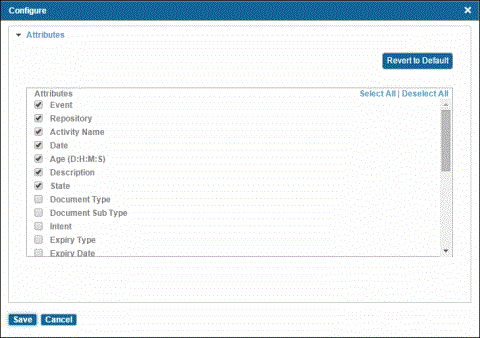 Note: The attributes with an asterisk are repository-specific attributes and they are displayed if you have selected a repository in the Filter by Repository drop-down list.
 - Click Select All to select all attributes or Deselect All to deselect all attributes.
- Click Revert to Defaults to revert to the default columns displayed in the table.
- Click Save. Attributes selected in the Selected Attributes list are displayed in the table.
Subtopics