Editing Retrieved Records
After records are searched and retrieved, the following page is displayed:
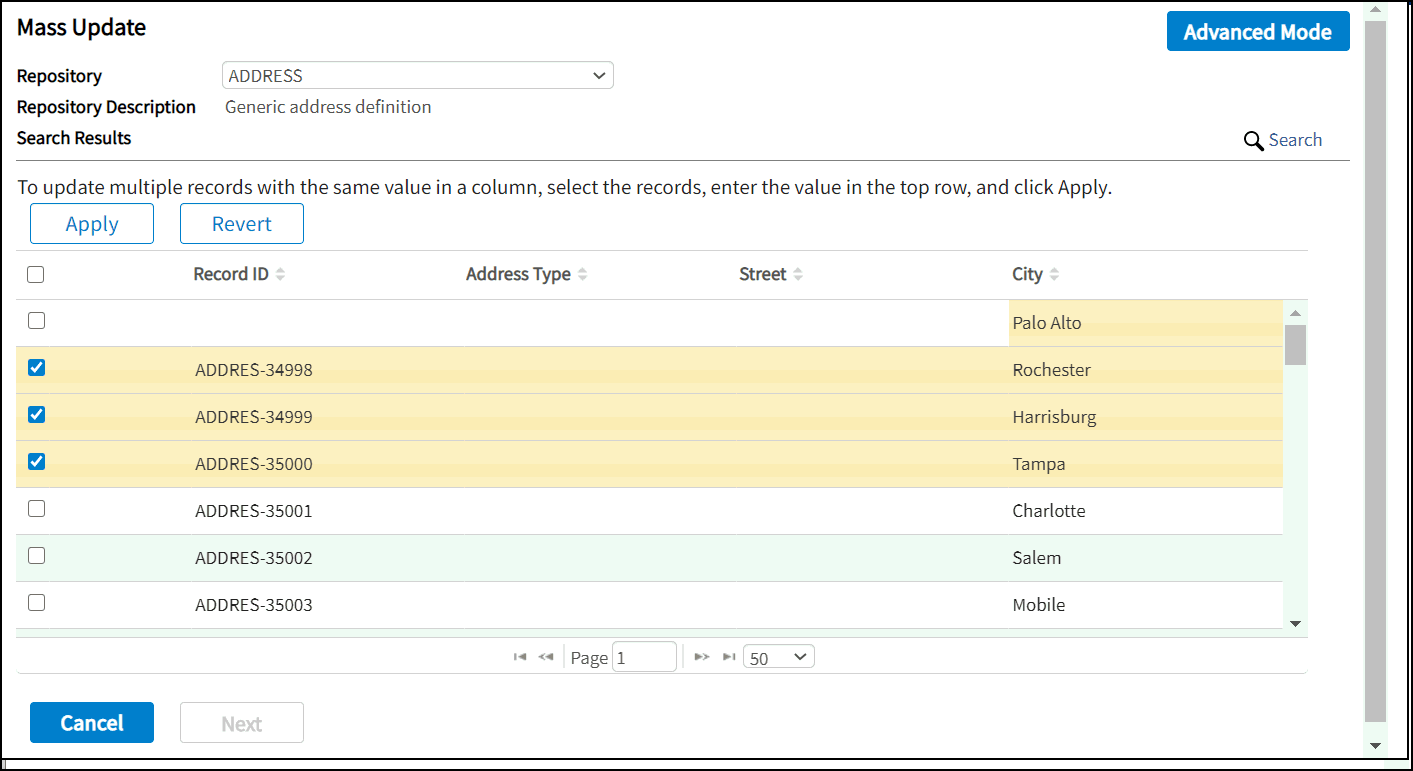
The Results table allows cell-level editing, as well as mass editing.
- Procedure
- To update more than one record with the same value in a column, select the records, enter the value in the topmost row, and click
Apply.
You can select individual rows by checking the corresponding check boxes. You can also select all the rows on the page or page by checking the check box on the table header.
- Click
Next when all the changes have been made on all the records. An asterisk (*) indicates a row change. Also, values on the mass edit row are re-initialized to blank.
Note: Only non-empty values can be applied using the mass edit row.
If the field value in the mass edit field row is empty, it is ignored. To apply an empty value, individually enter the corresponding record field. All the selected records are added to the master list.
Modifying a record field value without selecting the record automatically selects the record and adds it to the master list.
- Click Revert to revert the selected records where they were before being added into the search session.
- Click Cancel if you want to go to a new session of the Mass Update page.