Viewing Data Cleanup Utility History
The utility history is enterprise-specific and all administrators can view the history of purge commands that are executed by using the Data Cleanup utility.
Before you begin Run purge commands. See Running the Data Cleanup Utility.
- Procedure
- Navigate to Tools > Utilities.
- From the Utilities list, select the Data Cleanup utility.
The Utilities page is displayed. - Click the View History link in the upper-right corner.
The Utility History page is displayed, with the search information at the top.
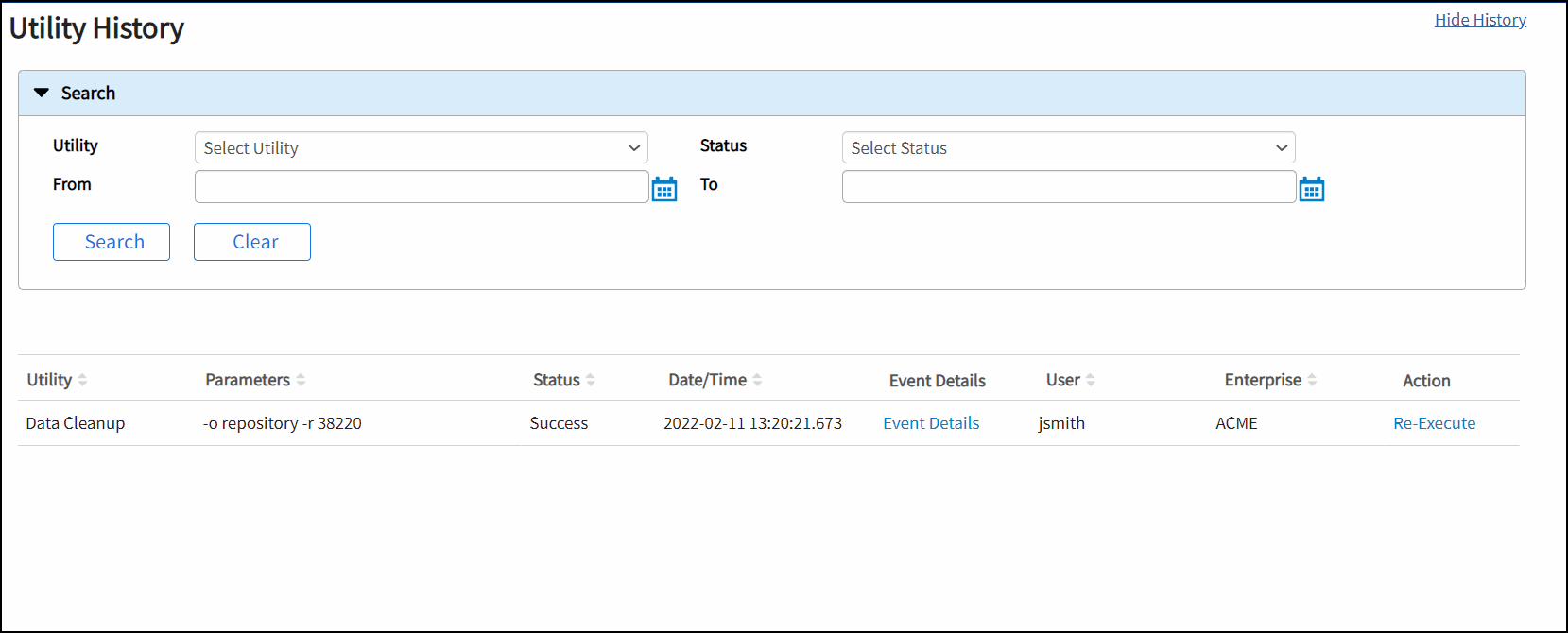
- To filter by specific criteria, use the search options in the Search section:
- Success: Displays a list of successful commands. No remedial action is required.
- Error: Displays a list of commands for which error occurred. This status indicates a problem that must be corrected. You can correct the error and run the Data Cleanup utility again.
- Click Search.
The utilities that meet the filter criteria are displayed.
If the command is successful, the Event Details link is displayed in the Event Details column. - Click the Event Details link to check the utility event details.
- If you want to run the command again, from the Action column, click the Re-Execute link.
The selected command is copied in the Parameters section of the Utilities page. You can run the copied command. See Running the Data Cleanup Utility.
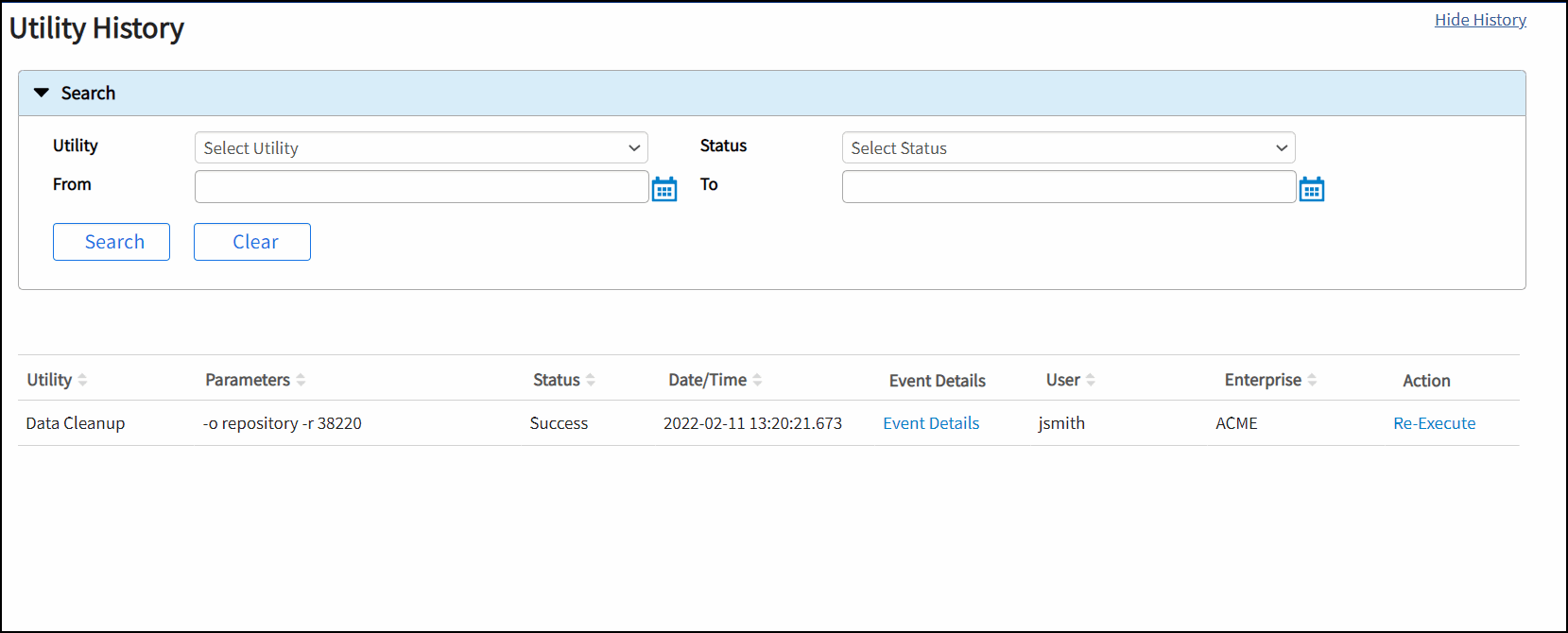
| Search Options | Description |
|---|---|
| Utility | To view the Data Cleanup history, select the utility as Data Cleanup. |
| Status |
After running the utility, you can track the status of the selected utility. From the Status list, select any one of the following options: |
| From |
Select the From and To dates to specify when the utility was executed from the UI. Note: If you do not select From and To dates, all utilities executed until the current date are listed in the Search result.
|
| To |