Using the REST API and Swagger UI
TIBCO's Avro serialization library is contained in the JAR file. The library
directs REST requests via the TIBCO FTL server to the Schema Repository that is accessible at
ftl_server_host:port/schema/v1/.
To access the online REST API documentation, start the Schema Repository, then use a browser to view
https://ftl_server_host:port/schema/v1/openapi.yaml. You can use the Swagger UI to access tibschemad documentation on the REST API. You can paste in a bearer token to authorize with for schema repository servers running with OAUTH2.
Use the Swagger UI to perform live queries and monitor and update the Schema Repository. You can quickly try different requests and see the results in real time. This way, you interactively build and test REST requests before incorporating them into your applications and scripts.
Swagger serves up the pages and curl makes REST requests. For example, you can browse the Schema Repository or delete a schema. You can view the parameters, the request URL, the server response, the response header and body, example values, and more. The curl commands listed can be used to call the Schema Repository API.
Access to the Swagger UI
To access the Swagger UI, start the Schema Repository and use a browser to view https://ftl_server_host:port/schema/v1/swagger. For example, https://localhost:8585/schema/v1/swagger/.
The Swagger UI shows the entire REST API. To use the API,
-
Scroll to the command of interest.
-
Click Try it out.
-
Add the appropriate options and parameters.
-
Click Execute.
The results are shown on the page for review.
REST API Examples Using Swagger
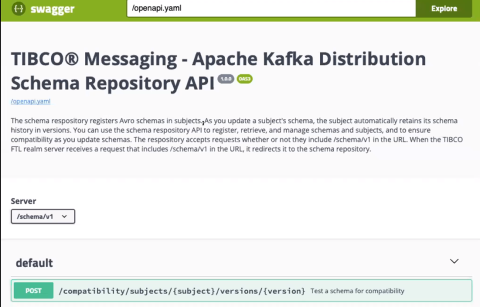
The following screen shows the /openapi.yaml which is the open API definition for this Schema Repository. It can be imported into an app if you want to use it directly rather than using the TIBCO Avro client JAR file.
Example: Get Global Default Compatibility Level
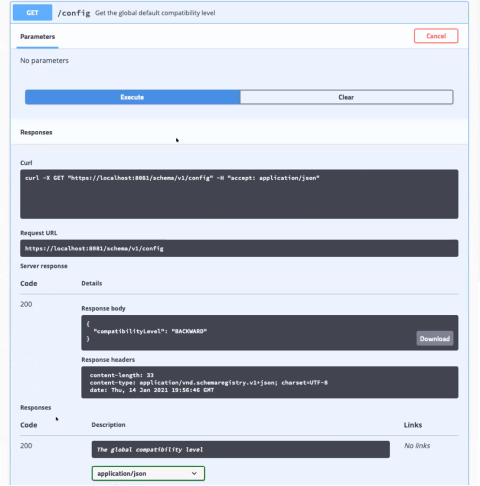
The following example shows how to retrieve the global schema compatibility level response. This is useful to configure how the Schema Repository generates new versions of schemas in terms of the compatibility type, which may be BACKWARD, FORWARD, FULL, BACKWARD_TRANSITIVE, FORWARD_TRANSITIVE, FULL_TRANSITIVE, or NONE. (For details on each type, see Compatibility Types.) In this example, a command takes no parameters and returns the results as part of the response body for parsing by the requesting application. The example shows a complete curl command line to request this information directly from the Schema Repository (not using the Swagger UI) together with:
-
The request URL
-
The return code (which varies in accordance to the request itself or the validity of any supplied parameters indicating success or non-success of the overall request)
- The response headers and body contents
Example: Get Compatibility Level for a Subject
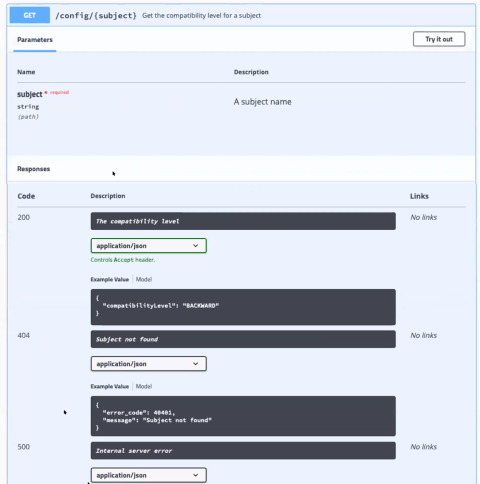
The following example shows how to use the Swagger UI to see descriptions of the API, what is expected, and what can be returned as an error. This is useful to get the compatibility settings for a specific subject rather than the overall global setting. The parameter {subject} must be specified for successful execution. You can use an invalid subject to see the error result.
Example: Get List of All Subjects
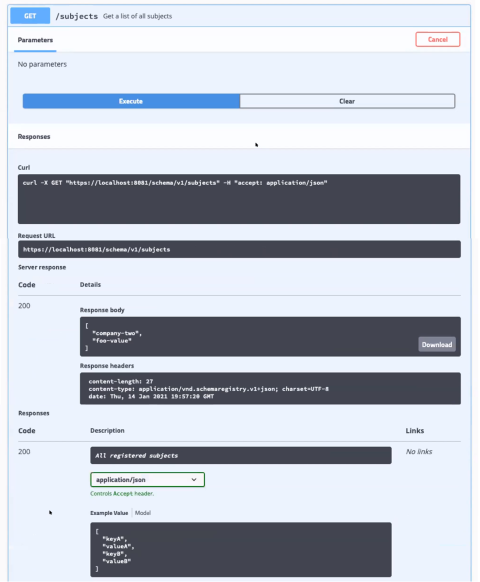
The following image illustrates getting a list of all schema subjects. This is a good example of where a list of items is returned in the body of response. Depending on the type of request, the body may be empty, contain a single value, or contain a list of values.
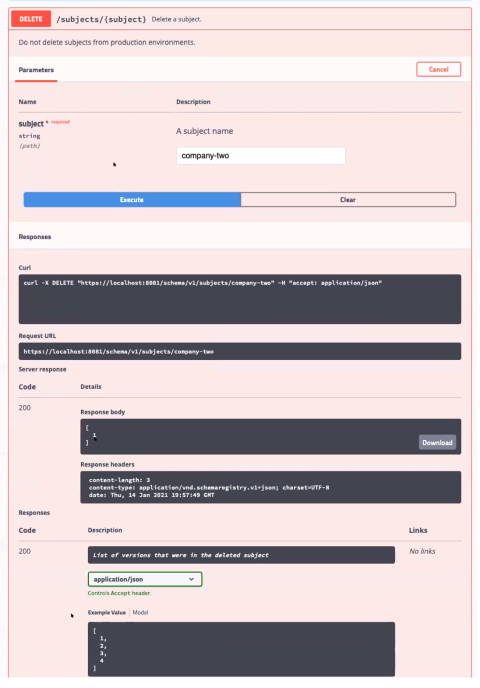
Example: Delete a Subject
To delete a subject, use the delete command and identify the subject name. When you click Execute, you see the number of versions deleted and other details. Deleting a schema removes the versioned instances, but the schema (MD5 hash) still exists and you can run a lookup on the deleted schema on the API.