TIBCO GEMS™ Quickstart
Introduction
TIBCO GEMS™ (Graphical EMS, GEMS further in the text) is a monitoring, observability, and management solution for TIBCO Enterprise Message Service™ (EMS further in the text) and is included as part of the product package.
The command-line tool (gemsctl) is used to install and configure the secure, containerized environment for running GEMS.
The GEMS container application packages GEMS user interface, the monitoring application, and Prometheus, along with system services to assist in continuous operation.
Requirements
- Container Engine:
gemsctlrequires Podman or Docker to be installed and running on the host system.gemsctldetects which container engine is available.gemsctluses Podman by default. - Operating System: The command-line tool
gemsctlis available for Linux and Windows. The container image is only available for Linux. - Disk Space: Ensure adequate space in the data directory for Prometheus data and component logs.
Download
Download the GEMS file for your platform from the TIBCO download site and extract it.
- Linux
- Windows
unzip TIB_msg-gems_1.1.0_linux_x86_64.zip
powershell Expand-Archive -Path TIB_msg-gems_1.1.0_win_x86_64.zip -DestinationPath .
Installation and Starting GEMS
From the extracted package directory, run the following command:
- Linux
- Windows
bin/gemsctl start
bin\gemsctl.exe start
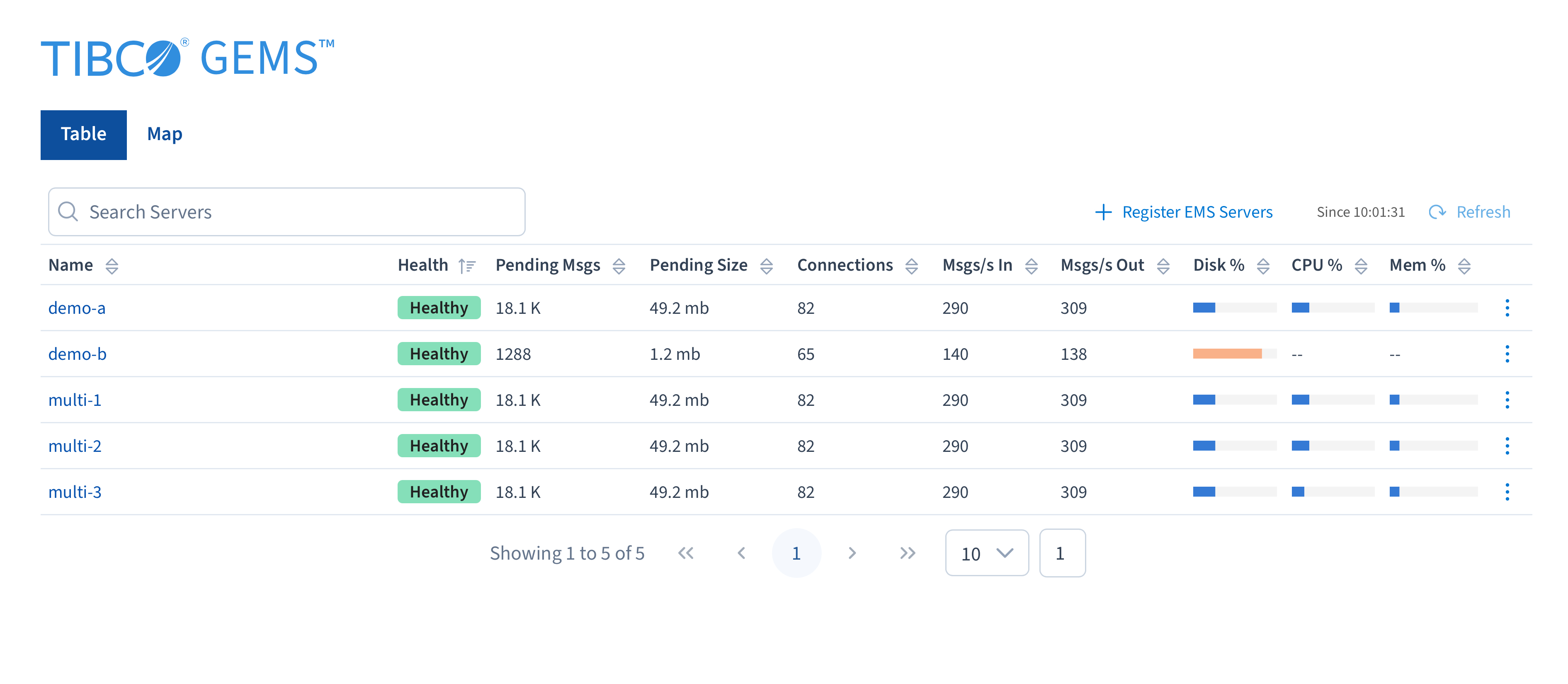
gemsctl automatically loads the container image, starts GEMS, and opens the user interface in the default browser if it is available on your platform, as shown in the following image.
Registering EMS Servers
Click the Register EMS Servers button to enter the EMS registration page.

To register EMS servers, a YAML file is required. This can be created/modified directly in the provided YAML editor. The YAML can also be pasted into the YAML editor.
The minimum required information to register an EMS server is as follows: group name, client URL, monitor URL, and registration user fields.
More detailed information on registering the EMS Servers is provided in the EMS Registration Guide.
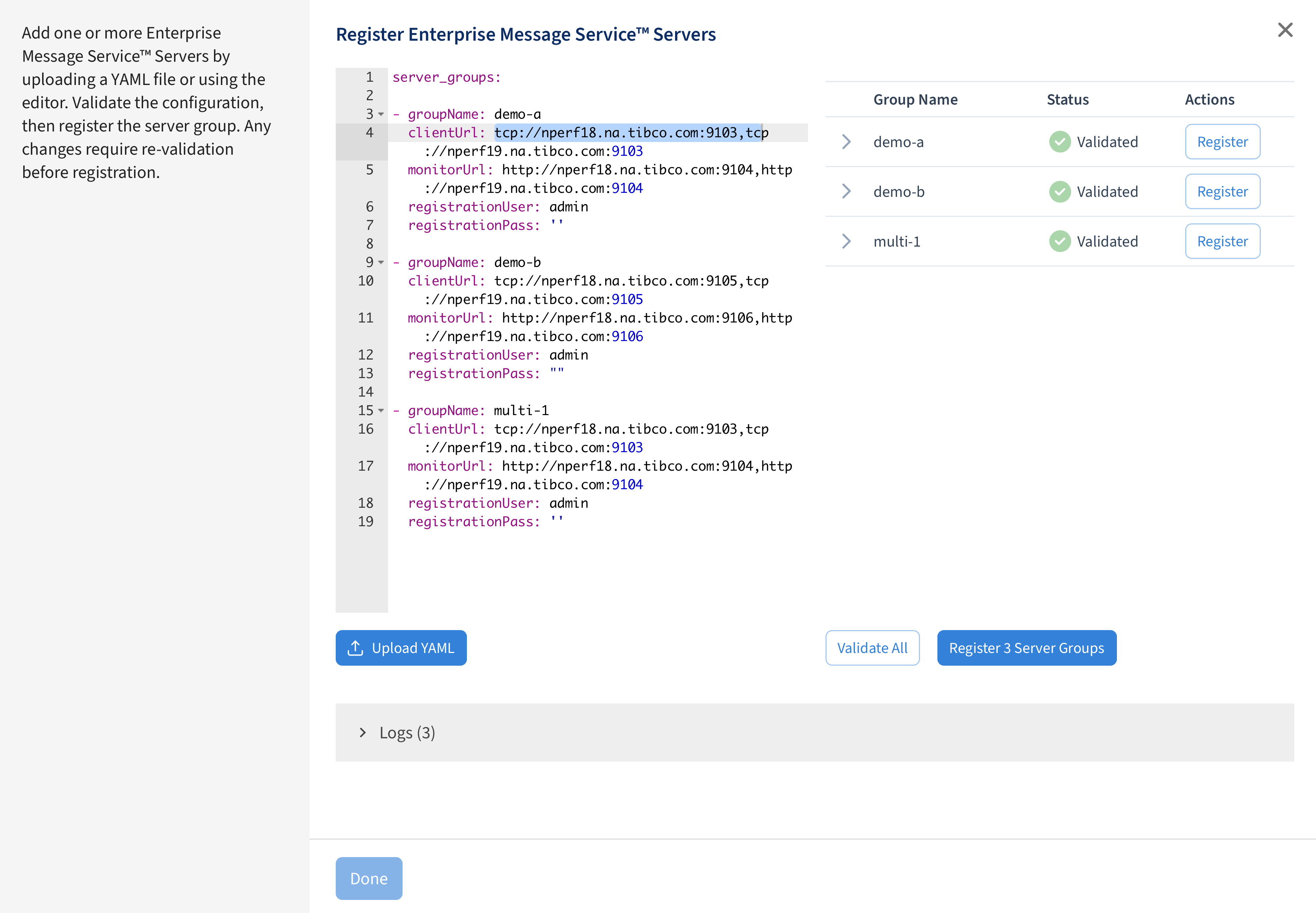
When a YAML file with valid syntax is entered, each EMS server group in the configuration is automatically detected and can be validated individually. Validation performs a quick check to ensure the server is reachable and the credentials are valid. If multiple EMS server groups are provided, they may all be validated at once by clicking Validate all.
Press Done to return to the home page, where all registered EMS Servers will be shown.
Stopping GEMS
From the extracted package directory, run the following command:
- Linux
- Windows
bin/gemsctl stop
bin\gemsctl.exe stop