Schedules Tab
A schedule is a configuration object that defines when a rulebase, rule, test, or action is active. The Schedules tab enables you to define a schedule and deploy the schedule.
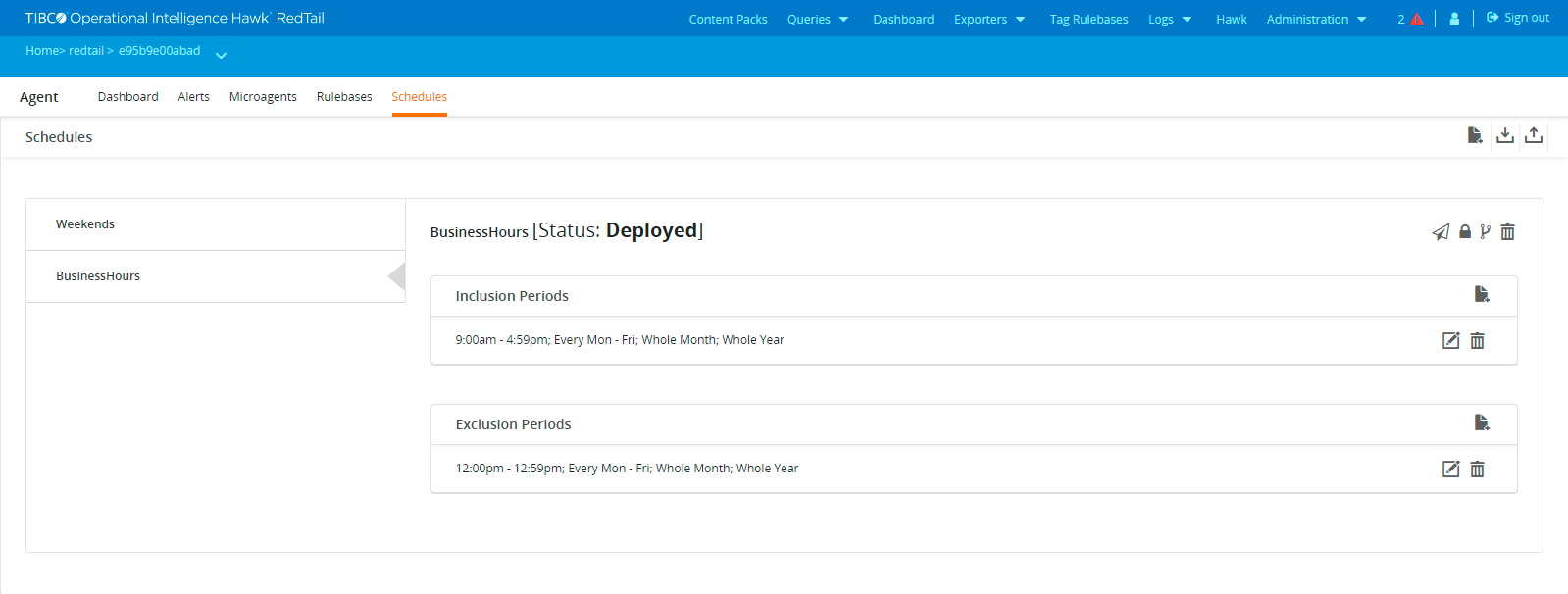
The Schedules tab lists the schedules in the left pane. Select the schedule to view its inclusion and exclusion period.
The Schedules Tab for the Hawk Agent
Actions
The following actions are available on the Schedules tab for schedules:
|
•
|
Add new schedule - Click the New Schedule ( ) icon to create a new schedule for the Hawk agent. For details, see Adding a Schedule. ) icon to create a new schedule for the Hawk agent. For details, see Adding a Schedule. |
|
•
|
Export schedules - Click the Export Schedules ( ) icon to export an existing schedule. Use this option if you want to create the same schedules in another Hawk agent. You can use the exported schedule ( ) icon to export an existing schedule. Use this option if you want to create the same schedules in another Hawk agent. You can use the exported schedule (.hsf) file to import these schedules to another Hawk agent and this saves you time to recreate the same schedules. For details, see Exporting a Schedule. |
|
•
|
Import schedules - Click the Import Schedule ( ) icon to export an existing schedule. Use this option if you have some exported schedules from another Hawk agent which you want to use in your Hawk agent. For details, see Importing a Schedule. ) icon to export an existing schedule. Use this option if you have some exported schedules from another Hawk agent which you want to use in your Hawk agent. For details, see Importing a Schedule. |
The following actions are available for each schedule:
|
•
|
Deploy schedule - Click the Deploy Schedule icon ( ) to deploy the schedule to the Hawk agent. After deployment, the schedule can be applied to the rulebases and rules for the Hawk agent. For details, see Deploying a Schedule to an Associated Hawk Agent. ) to deploy the schedule to the Hawk agent. After deployment, the schedule can be applied to the rulebases and rules for the Hawk agent. For details, see Deploying a Schedule to an Associated Hawk Agent. |
|
•
|
Deploy schedule to another agent - Click the Deploy To icon ( ) to deploy the schedule to another Hawk agent registered in the same Hawk RedTail Console. After deployment, the schedule can be applied to the rulebases and rules for the Hawk agent to which the schedule is deployed. ) to deploy the schedule to another Hawk agent registered in the same Hawk RedTail Console. After deployment, the schedule can be applied to the rulebases and rules for the Hawk agent to which the schedule is deployed. |
|
•
|
Send to repository - Click the Send to Repository icon ( ) to send the schedule to the rulebase repository. ) to send the schedule to the rulebase repository. |
|
•
|
Delete schedule - Click the delete icon ( ) to delete the schedule. For details, see Deleting a Schedule. ) to delete the schedule. For details, see Deleting a Schedule. |
|
•
|
Add inclusion period - Click the Add icon () on the inclusion period, for the selected schedule, to specify the time period when you would like the system to apply the rule or rulebases depending on whether the conditions are met. You can define parameters in the inclusion period of a schedule such as time of the day, day of the month, week day of the month or month of the year. For details, see Adding Inclusion Periods to a Schedule. |
|
•
|
Add exclusion period - Click the Add icon () on the exclusion period for the selected schedule to specify the time period when you would like the system to ignore the rule or rulebases. For details, see Adding Exclusion Period to a Schedule. |