Subscribing to a Microagent Method
Subscribe to a microagent method to view its results over time. Creating a subscription is useful when you want to test a range of return values before specifying boundaries in a rule or to identify general patterns of activity.
Prerequisites
Ensure that the return type is defined for the microagent method that you want to subscribe to.
For more information on the microagent methods, either view the microagent method details on the Microagents tab or see TIBCO® Operational Intelligence Hawk® RedTail Microagent Reference.
Procedure
| 1. | In the TIBCO OI Hawk RedTail UI, navigate to the Hawk Agent page for which you want to subscribe to a microagent method. For steps, see Viewing the Agent Details. |
| 2. | On the Agent page, select the Microagents tab. |
All the microagents for the Hawk agent are displayed on the tab. For details, see Microagents Tab.
| 3. | Select the microagent whose method you want to invoke. |
The right pane displays the microagent details and all its methods.
| 4. | Under the Actions column, click the Subscribe ( ) button to start a subscription of the microagent method. ) button to start a subscription of the microagent method. |
The Subscribe window is displayed with all the required parameters for the microagent method.
| 5. | In the Subscribe window, enter the details of the fields, select the subscription interval, and click Start Subscription. The fields displayed on the window vary depending on the arguments required for the subscribed method. For reference information on all the microagent methods, either view the microagent method details on the Microagents tab or see TIBCO® Operational Intelligence Hawk® RedTail Microagent Reference. |
The result of the method is displayed in the window with a new line added after each subscription interval. If required, you can also select the Update same line option to display every result after updating the same line.
| 6. | Click the Minimize icon to minimize the Subscription window while the results are published in the background. |
After minimizing, you must click the Subscribe () icon to restore the Subscription window.
| 7. | In the Subscription window, click Stop Subscription to stop receiving the subscription results. After stopping the subscription, click the Close icon to close the subscription window. |
Example
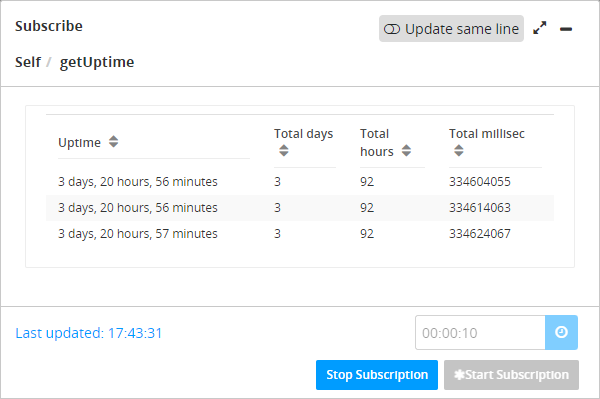
For example, the following figure shows the sample subscription result for the getUptime method of the Self microagent with the subscription interval set to 10 seconds.
getUptime method