Task 9: Uploading Metadata file, App Properties, Config Files through Configurator UI
Once you start the Configurator UI, you can upload the metadata file, application properties, and configuration files through the UI. These files are present in the $OM_HOME/seed-data directory.
Metadata: It defines the required application properties and configuration files for each application.
App properties: These are application properties in json format.
Config files: These are logback configuration files in XML format.
Logging in to Configurator UI
- Procedure
- To access the Login page, visit
http://<host>:<port number>, where:
hostis the computer where you have started Configurator UI serviceportis the port number of the machine where Configurator UI listens for therequests. (Default: 9104)

- Enter the credentials in the TenantID, Username, and Password fields and then click
LOGIN.
The UI dashboard opens.
Upload Metadata file
- Procedure
- Click
SEEDING to upload the metadata file.
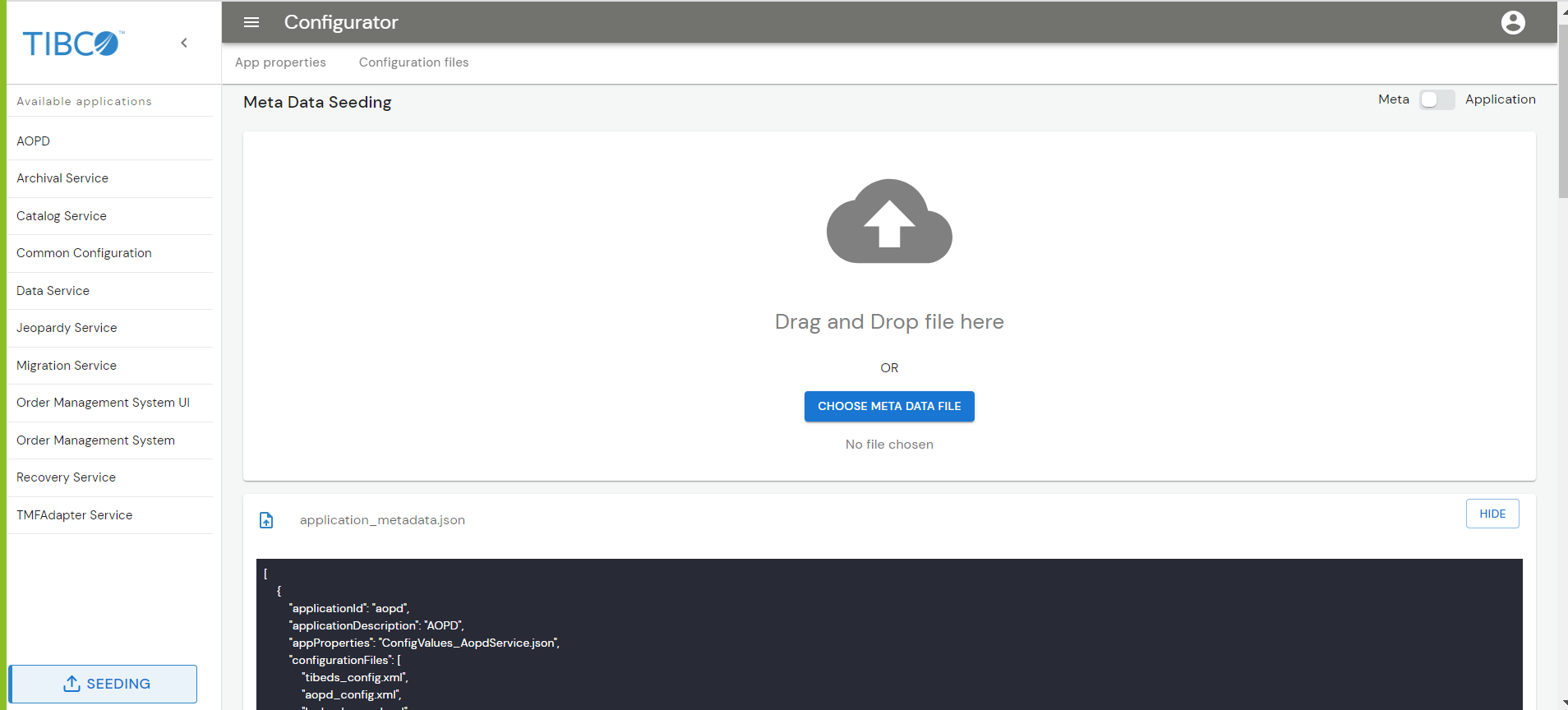
- Use the drag-and-drop function or click
CHOOSE META DATA FILE to select the
application_metadata.jsonfile from the$OM_HOME/seed-datadirectory. - Finally, click UPLOAD to upload the file.
Upload Application Properties
- Procedure
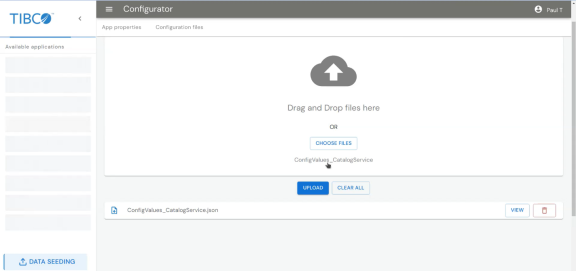
- Toggle the switch to select Application and click
SEEDING to upload the app properties files.
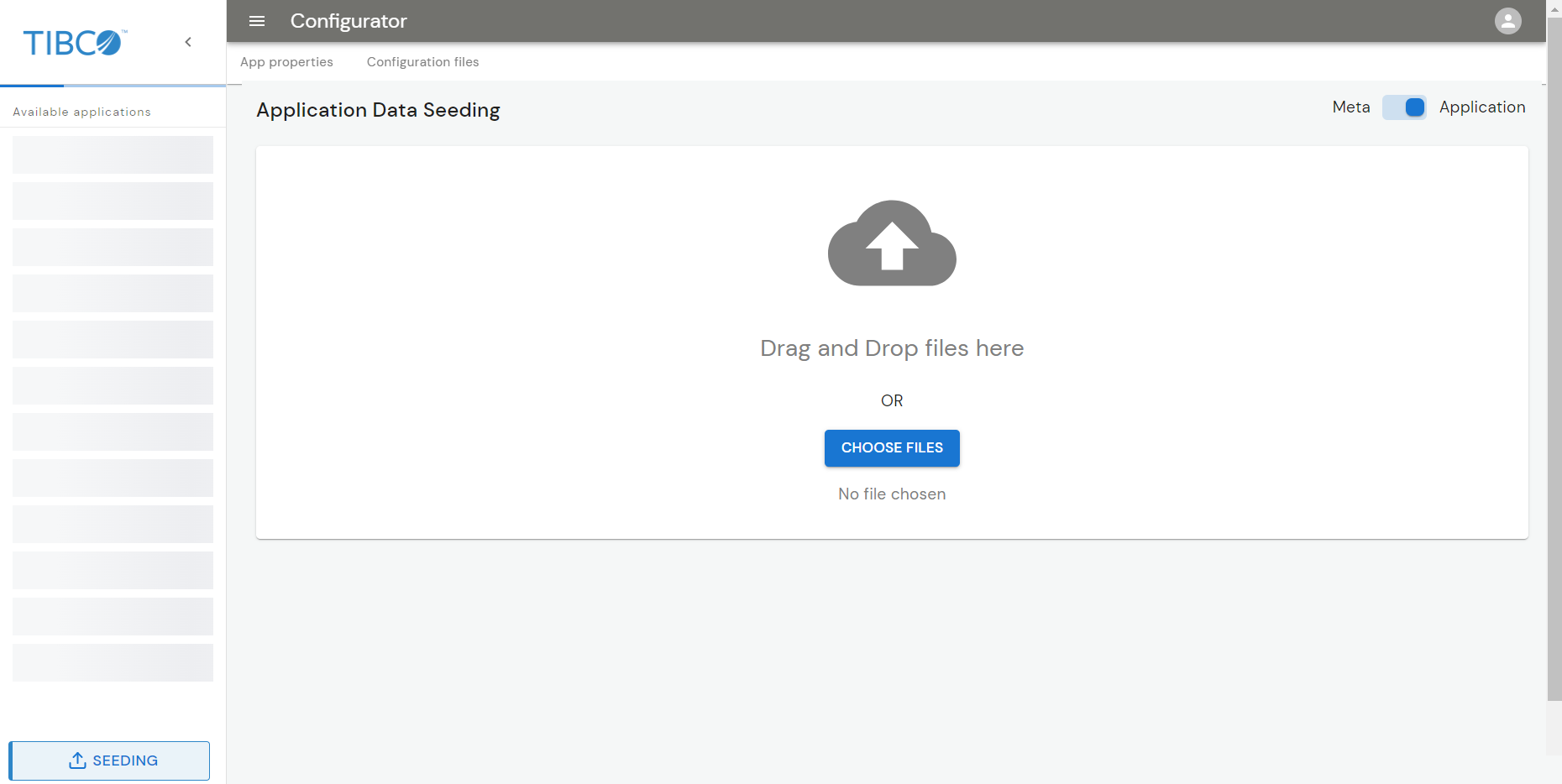
- Use the drag-and-drop function or click
CHOOSE FILES to select the app properties files from the
$OM_HOME/seed-data/app-propertiesdirectory.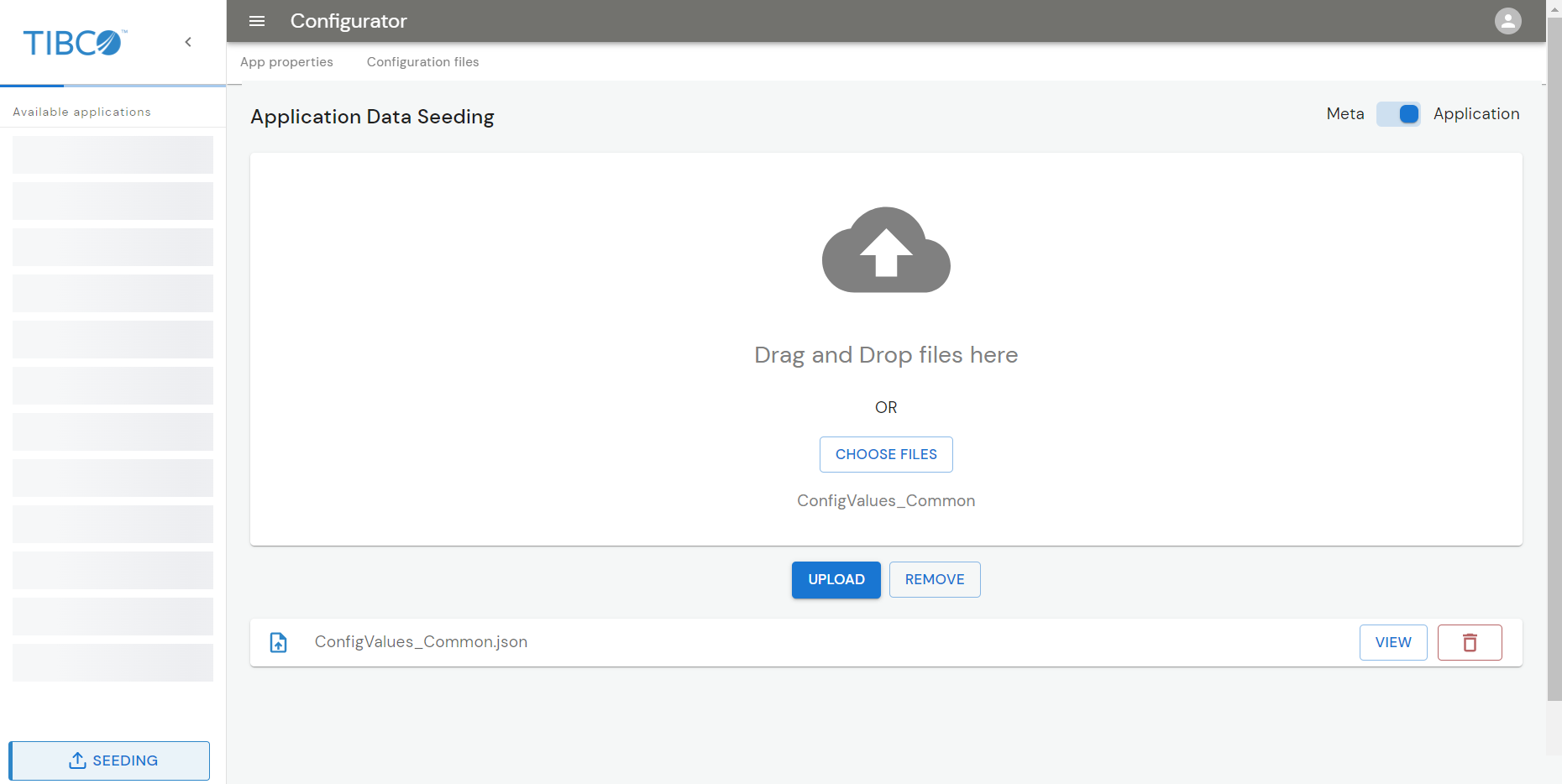
- To view an application property file, click
VIEW. The file opens in text editor mode. The left pane is the editing pane and the right pane is the preview pane.
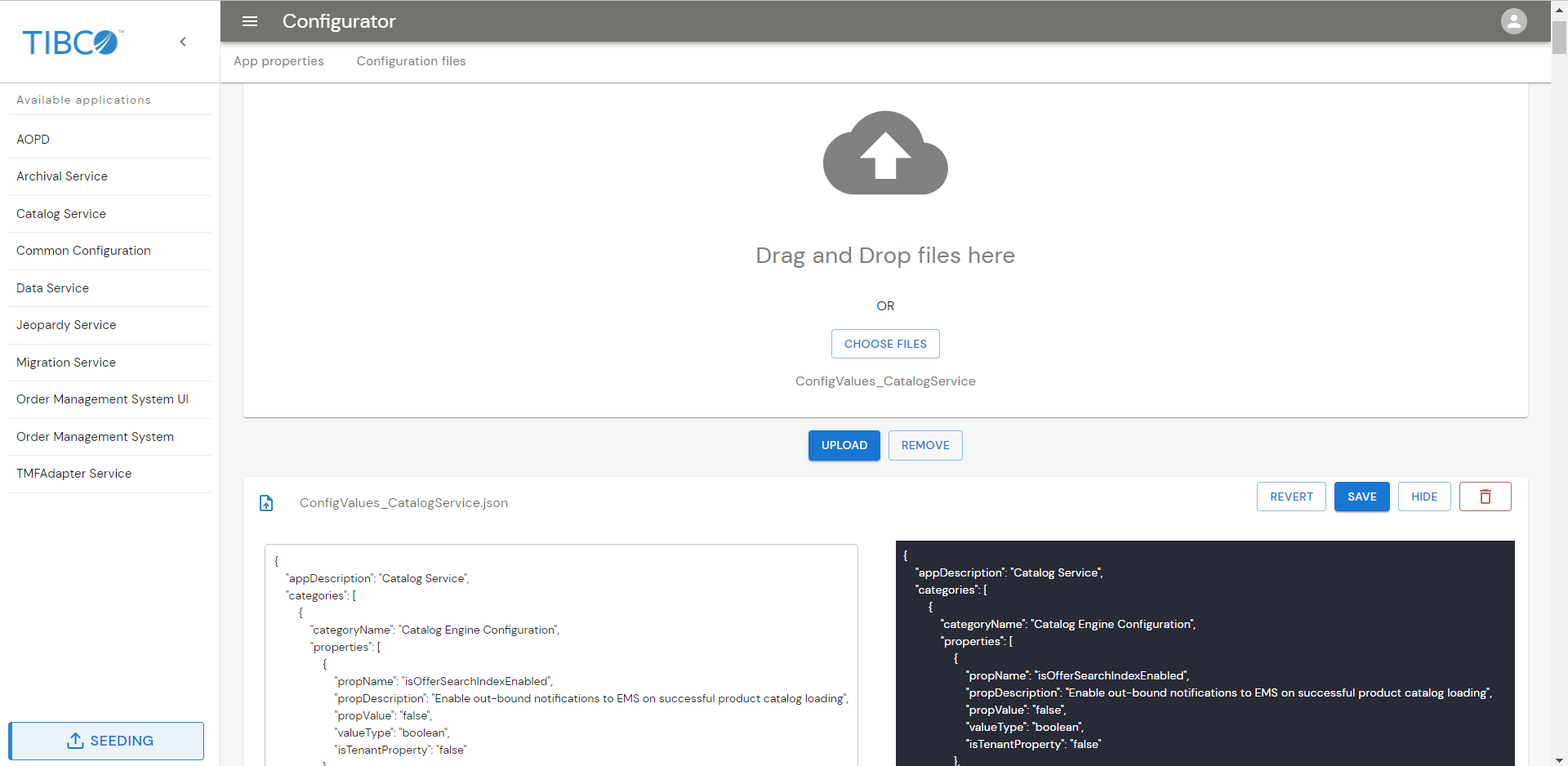
- To discard or save the changes, click REVERT or SAVE.
- To hide or delete the files, click HIDE or DELETE.
- Finally, click
UPLOAD to upload the files. You can also use the
UPLOAD ALL or
CLEAR ALL option to upload or remove all the files at once.
Upload Configuration Files
- Procedure
- To add a configuration file from the
$OM_HOME/seed-data/config-filesdirectory, click DATA SEEDING.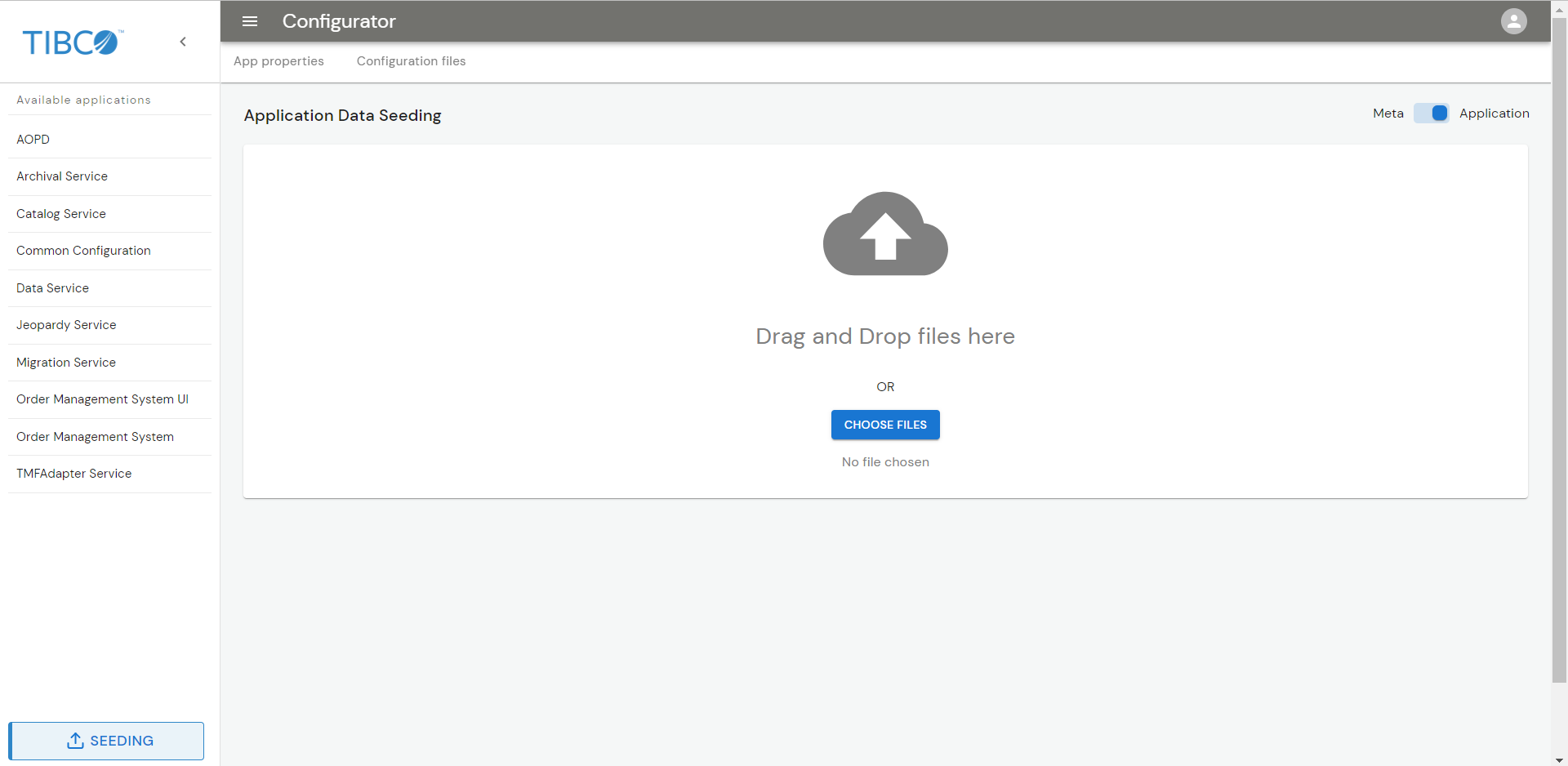
- Use the drag-and-drop function or click
CHOOSE FILES to select the app properties files from the
$OM_HOME/seed-data/config-filesdirectory. - To view an application property file, click
VIEW. The file opens in text editor mode. The left pane is the editing pane and the right pane is the preview pane.
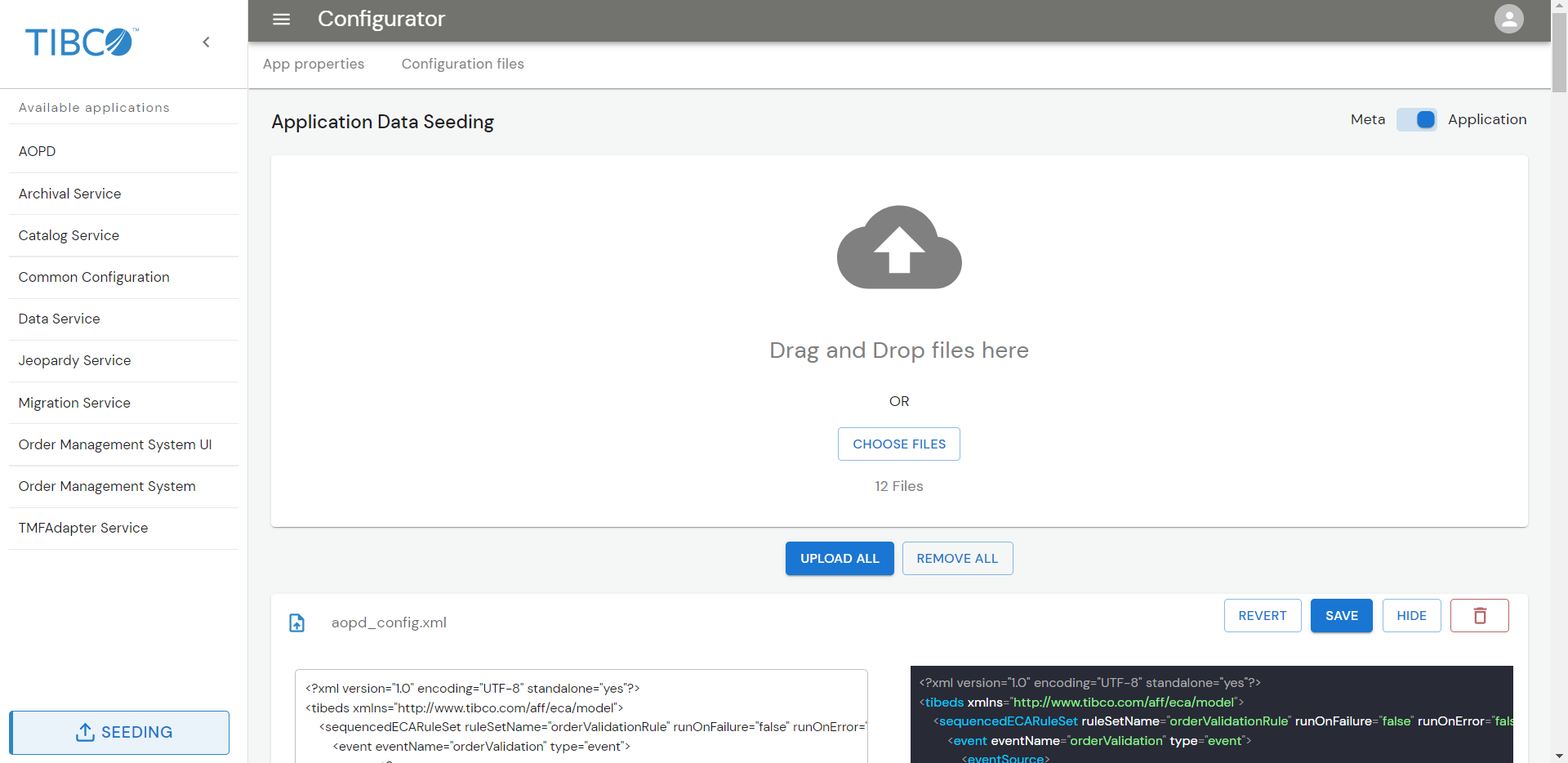
- To discard or save the changes, click REVERT or SAVE.
- To hide or delete the files, click HIDE or DELETE.
-
Click UPLOAD ALL to upload all the config files.
Note: On the Configuration files tab, you can verify all the config files are present or not and accordingly you can add the missing files.