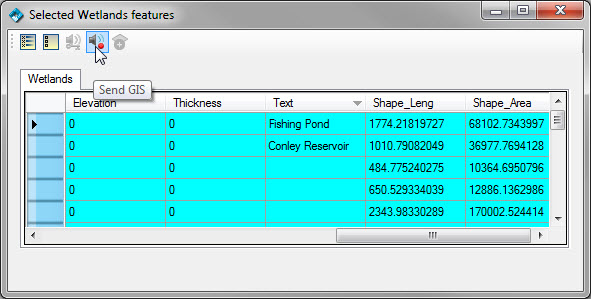
If you select features from one or more feature classes and click on this toolbar button:
You will see a table displayed for each feature class as below:
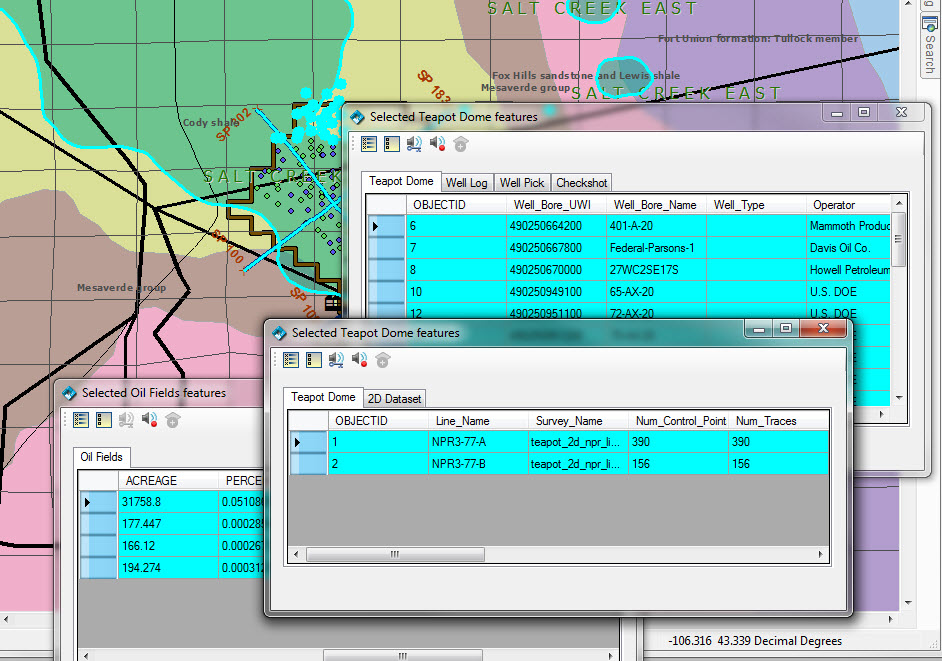
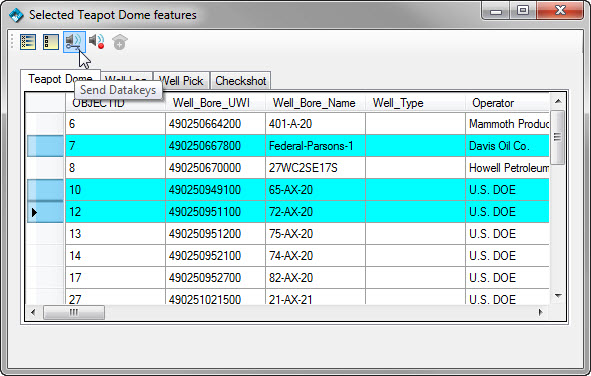
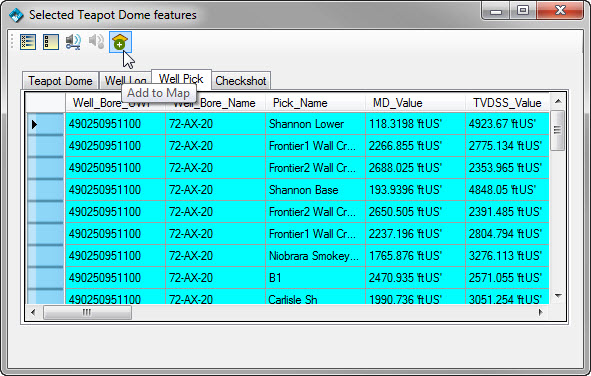
If you have selected features from feature classes that have OpenSpirit datakeys as a feature attribute and represents wellbores, 2d seismic lines, or 3d surveys then you will see additional tabs in the selected features window that allow you to drill down and see related objects (see screen shot above). In order to see the related data (e.g. logs, picks or checkshots from selected wellbores) an OpenSpirit data connector process will be started. The first time a connection to a project is made it may take 20-40 seconds to initiate this process. This also requires that you have access rights to the underlying project and have set up your OpenSpirit data server activation preferences and supplied any required passwords.
The selected features dialog also allows you to: