Provisioning Subscription through Wizard
In provisioning subscription through wizard, you need to enter the details on the provided panel.
- Procedure
- On the subscription page, click Provision via Wizard.
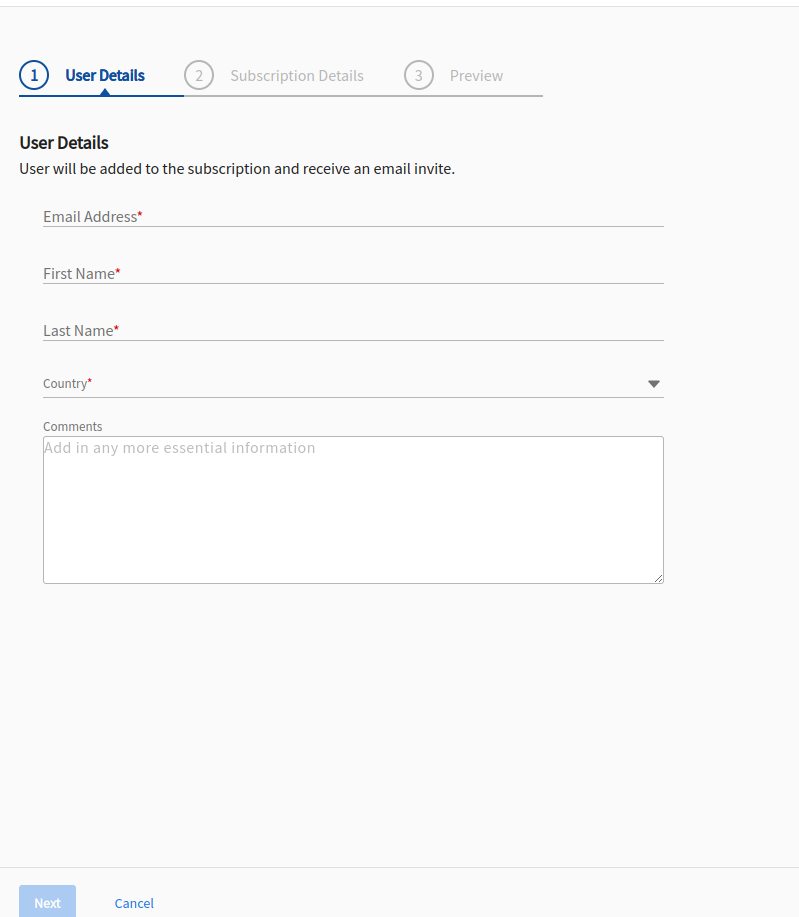
- On the User Details screen, enter the following information and click Next.
- On the Subscription Details page, provide the following details:
- Organization Name: The name of the organization.
- Owners allowed: The number of owners allowed in a subscription. You can have maximum of 10 owners.
- Host prefix: The unqualified hostname of the TIBCO Control Plane. All TIBCO Control Plane subscriptions are part of the same domain.
- Select Use Default IdP or Configure corporate IdP.
- Click Next to preview the subscription.
- On the Preview page, you can view the user and subscription details. Before provisioning, check the details, click the
 icon to modify them.
 - Click Provision.
For example: <myhostprefix.company.com>.
If you choose default IdP, when TIBCO Control Plane gets installed, it uses the Default IdP that ships with it for configuring or adding users. For configure IdP, see Configure IdP.
ResultYou can view the subscription card on the Subscription page with all the information.