Configuring Alerts
This section talks about configuring alerts using TIBCO Control Plane. Follow the steps below to configure your first alert in TIBCO Control Plane.
- Procedure
-
In TIBCO Control Plane UI, navigate to Data Planes > Global Configuration > Alert Receiver Configuration. Add an alert receiver.
-
Click the Alerts menu from TIBCO Control Plane left navigation.
-
If no alerts are configured, then click Configure Alert. You can also copy an existing alert to create your own alert.
-
Specify the required information as displayed in the following screen:
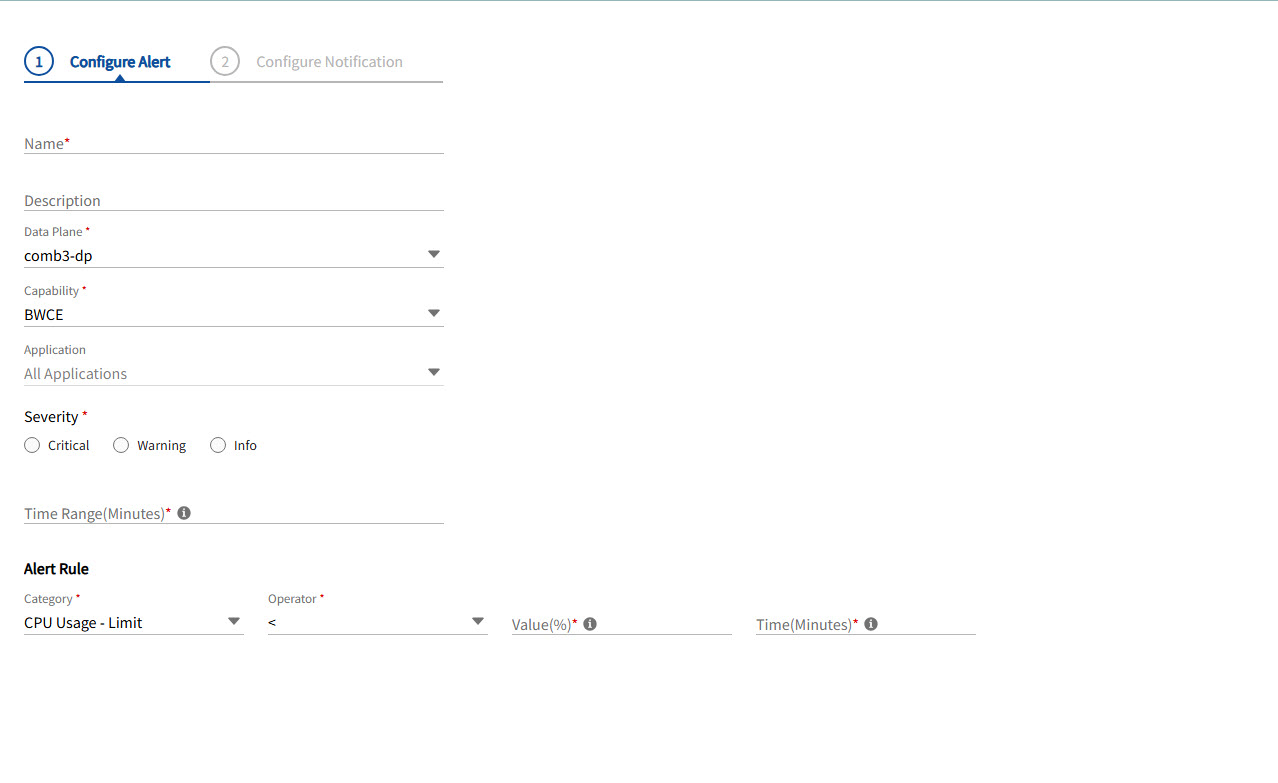
Field Description Name Name of the alert Description Provide some description of the alert Data Plane Data plane for which the alert is applicable Capability Capability for which alert is applicable Applications By default, alert is applied on all the applications of that particular capability provisioned in the data plane.
If no applications are deployed in the particular data plane, then the alert will be applied on all the applications which will be deployed in that particular capability in the data plane.
Severity Select severity for an alert Time Range Enter the time range for your alert. The minimum value can be 5 minutes.
The time range is the amount of historical data used to evaluate the alert rule.
Alert Rule Create your unique Alert Rule. Select the following fields:
-
Category: Select the application metric you want to monitor.
-
CPU (Request/Limit) utilization percentage (Alert generated per instance).
-
Memory (Request/Limit) utilization percentage (Alert generated per instance).
-
Fault Percentage (Alert generated per application). For example: Total request failure percentage of any application processed within the last 5 minutes has exceeded the percentage threshold.
-
-
Operator and Value: Select the comparison operator with threshold value.
-
Time: Specify the time for which condition specified in a rule must persist before the alert is triggered.
-
-
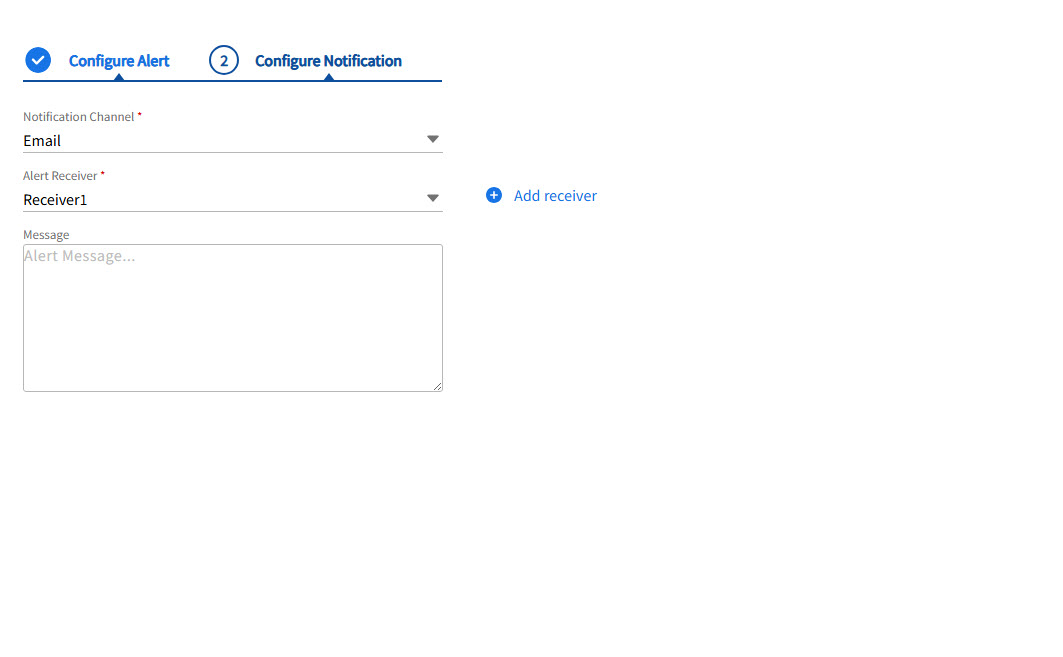
On the Configure Notification tab, configure the notification details.
-
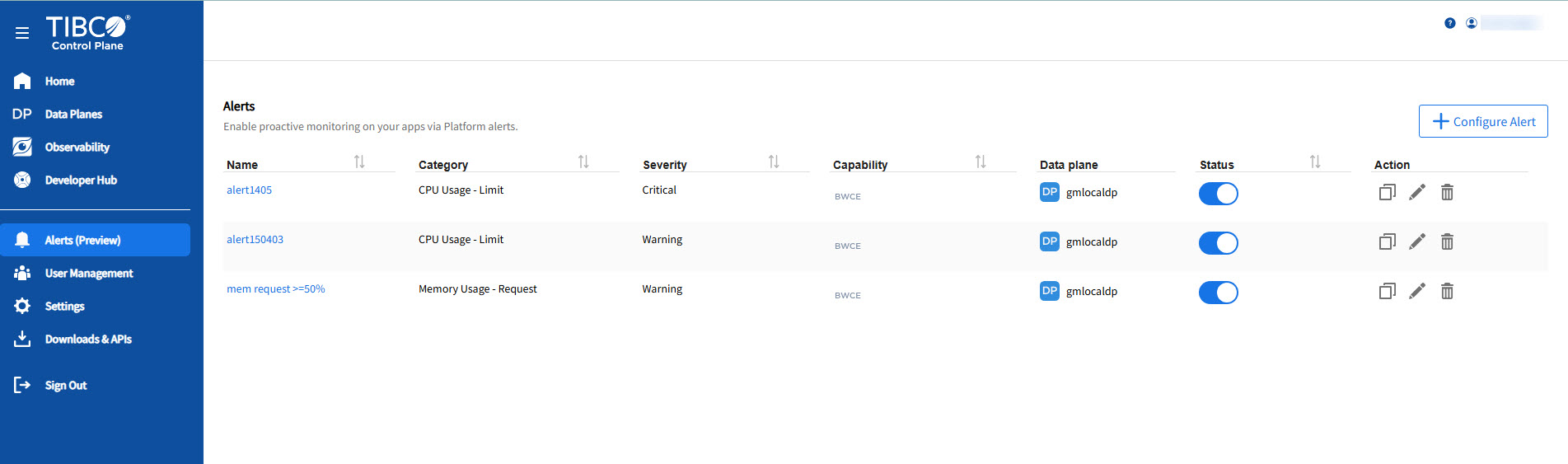
Click Configure. An alert is created and you can see it in the alerts table.
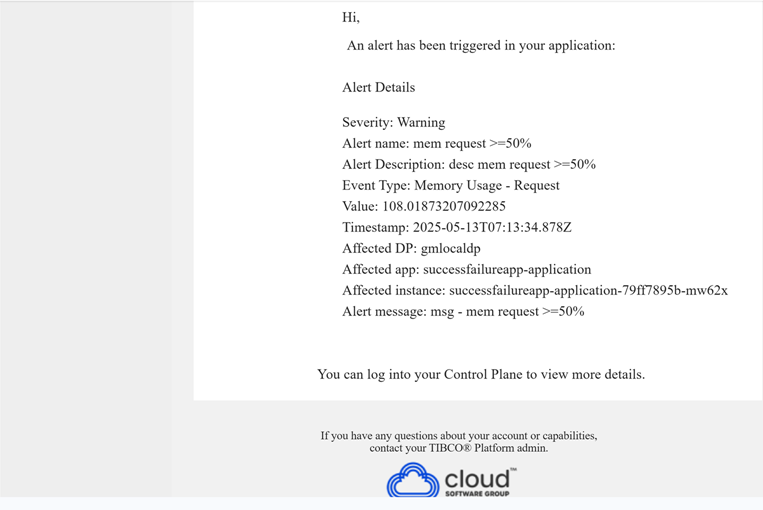
Sample Email Notification
You can configure email notifications for alerts in TIBCO Control Plane.
The configured users receive an email notification as displayed below: