Upload and Configure an Application
To upload and configure an application in TIBCO Control Plane, you must import an enterprise archive file, which is created in TIBCO Designer or by using command line utility. An archive file typically contains a project that includes one or more configured adapter services, TIBCO BusinessWorks processes, or both.
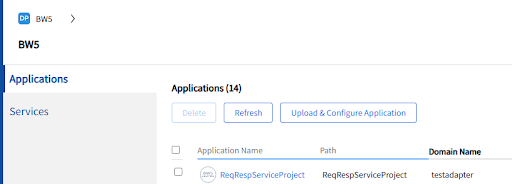
After creating the application, you must specify deployment configuration information, such as which machines to be run and which services and processes to be used in the application. You then deploy and start the services and processes from TIBCO Control Plane.
You can use the same enterprise archive file to create multiple applications; configure and deploy each application separately with different deployment options. You can also modify a deployed application; redeploy, and then revert to an earlier deployment if the changes you made do not have the expected results.
To Upload and Configure an Application:
- Procedure
-
Click Applications.
-
Click Upload & Configure Application.
-
Click Browse and select an enterprise archive file, and then click Next. For example, the next diagram shows a new application, ready for deployment.
- Now configure Application Parameters in the next screen and accept the EUA agreement. Then click Next. Now preview all the configuration done and then click Configure.
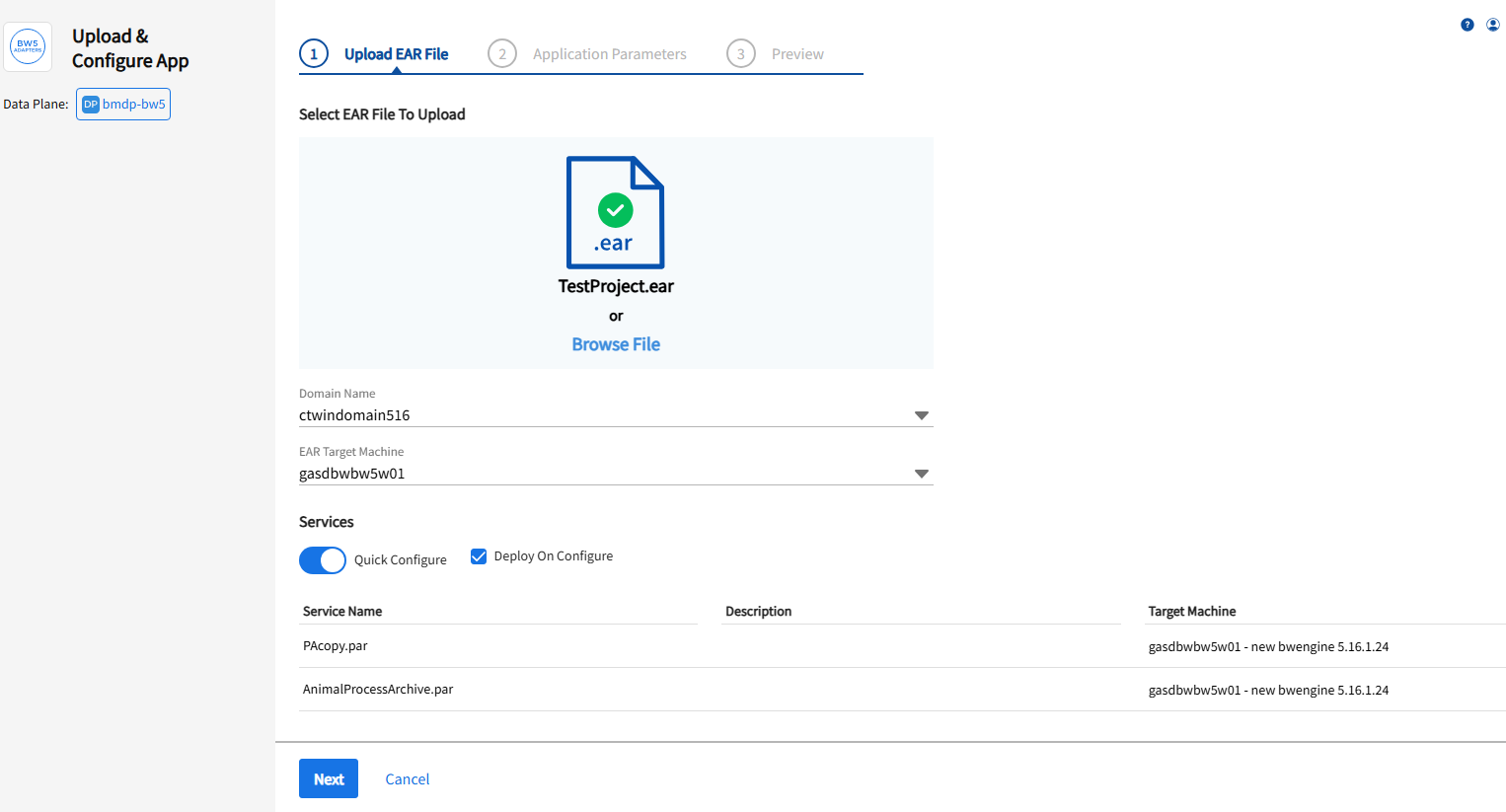
New Application Configuration Dialog
The following tabs are available: Upload EAR File, Application Parameters, and Preview.
Upload EAR File
| Fields | Description |
|---|---|
| Domain Name | Name of the domain. |
| EAR Target Machine | Name of the machine where EAR will be deployed. |
| Quick Configure | This option allows you to quickly assign target machines to each service. If selected, the components accept the defaults for global variables, options, and so on as set in the enterprise archive file. If cleared, components must be explicitly assigned to targets using the Configuration Builder for the application. |
| Deploy on Save |
Available only if Quick Configure is selected. If selected and Quick Configure is selected, and then, when the Save button is clicked, the application is created and immediately deployed to the target machines. All variables, logging and other configuration values use defaults. If this box is cleared, the application must be explicitly deployed using the application’s Configuration Console. |
| Service | The Service column lists the services made available for this application. For example, if you included two TIBCO BusinessWorks process archives in your Enterprise Archive when you configured it in TIBCO Designer, each is displayed as a service in this column. |
| Description | The Description column lists the description specified for the service when defining the enterprise archive file. |
| Target Machine |
The Target Machine column offers a pop-up of potential service instances. For example, if you have TIBCO BusinessWorks on machine A and machine B, the pop-up for a TIBCO BusinessWorks service would show A-process_name and B-process_name. You can also choose to disable the service initially, and then enable it later. Note: If this column is empty for the service, TIBCO Control Plane cannot find the associated software or it cannot find the correct version of the associated software. Check that the correct version of the associated software is on a machine in the TIBCO Administration domain. For custom adapters, you must also make sure the software has been added to the administration domain.
|
Application Parameters
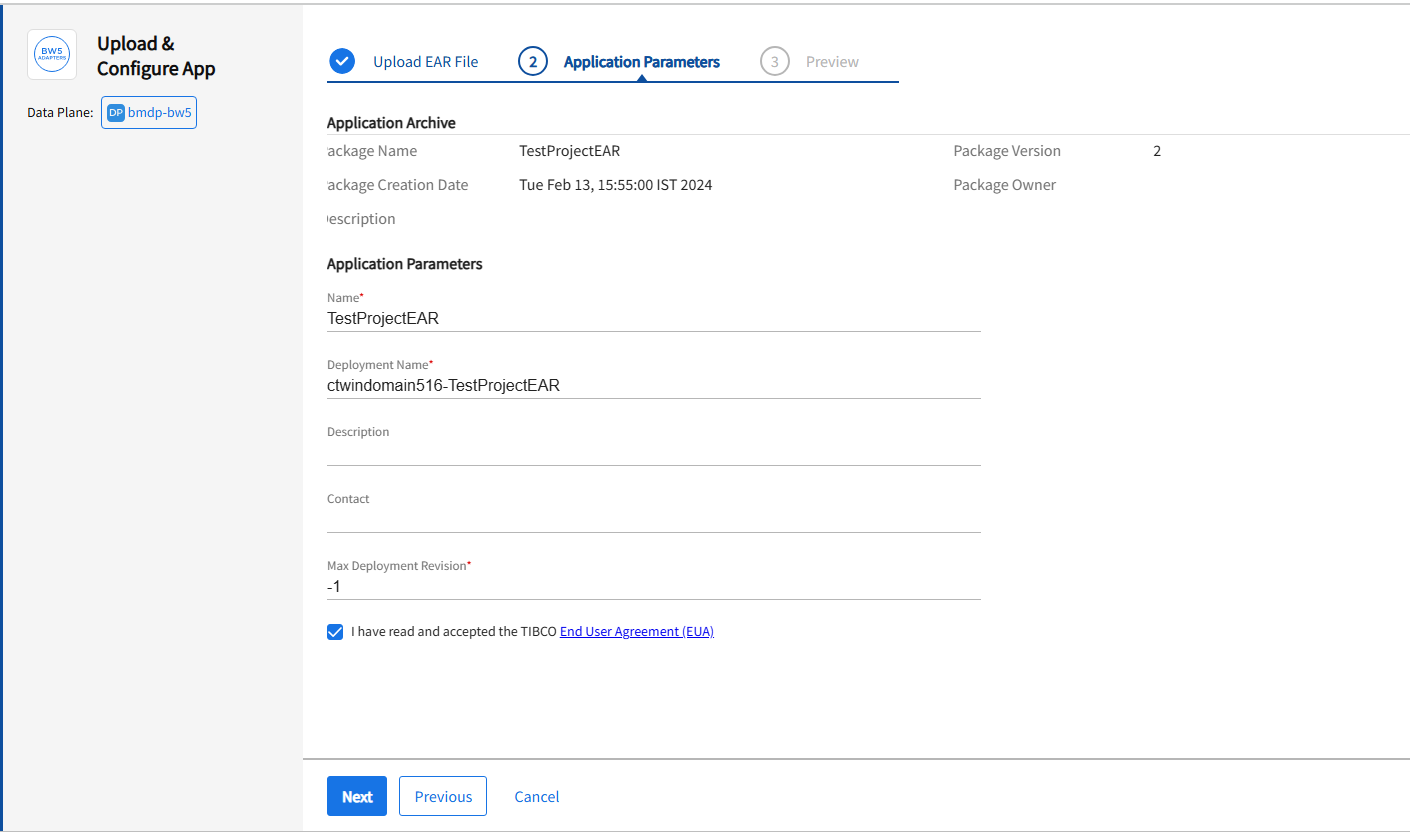
Application Archive: Displays information about the Enterprise Archive that was uploaded for this application.
-
Package Name: Name of the enterprise archive file, as specified in TIBCO Designer.
-
Package Version: Version of the enterprise archive file, as specified in TIBCO Designer.
-
Package Description: Description of the enterprise archive file, as specified in TIBCO Designer.
-
Package Creation Date: Date on which the enterprise archive file was created.
-
Package Owner: Owner of the enterprise archive file, as specified in TIBCO Designer.
Application Parameters
-
Name: Name that this application has in TIBCO Control Plane. Defaults to the name of the enterprise archive file, but can be changed.
-
Deployment Name: Name of the application repository similar to that is generated by TIBCO Control Plane when you deploy the application. This file contains information about the application configuration. The file name defaults to the package name, with a number appended if more than one instance of the package has been deployed.
-
Description: Description of this application.
-
Contact: Contact person for this application.
-
Max. Deployment Revision: The maximum number of revisions to keep in the revision history for this application.
Preview
This shows the details of all the configuration applied to the uploaded application through the Upload EAR File and Application Parameters section.