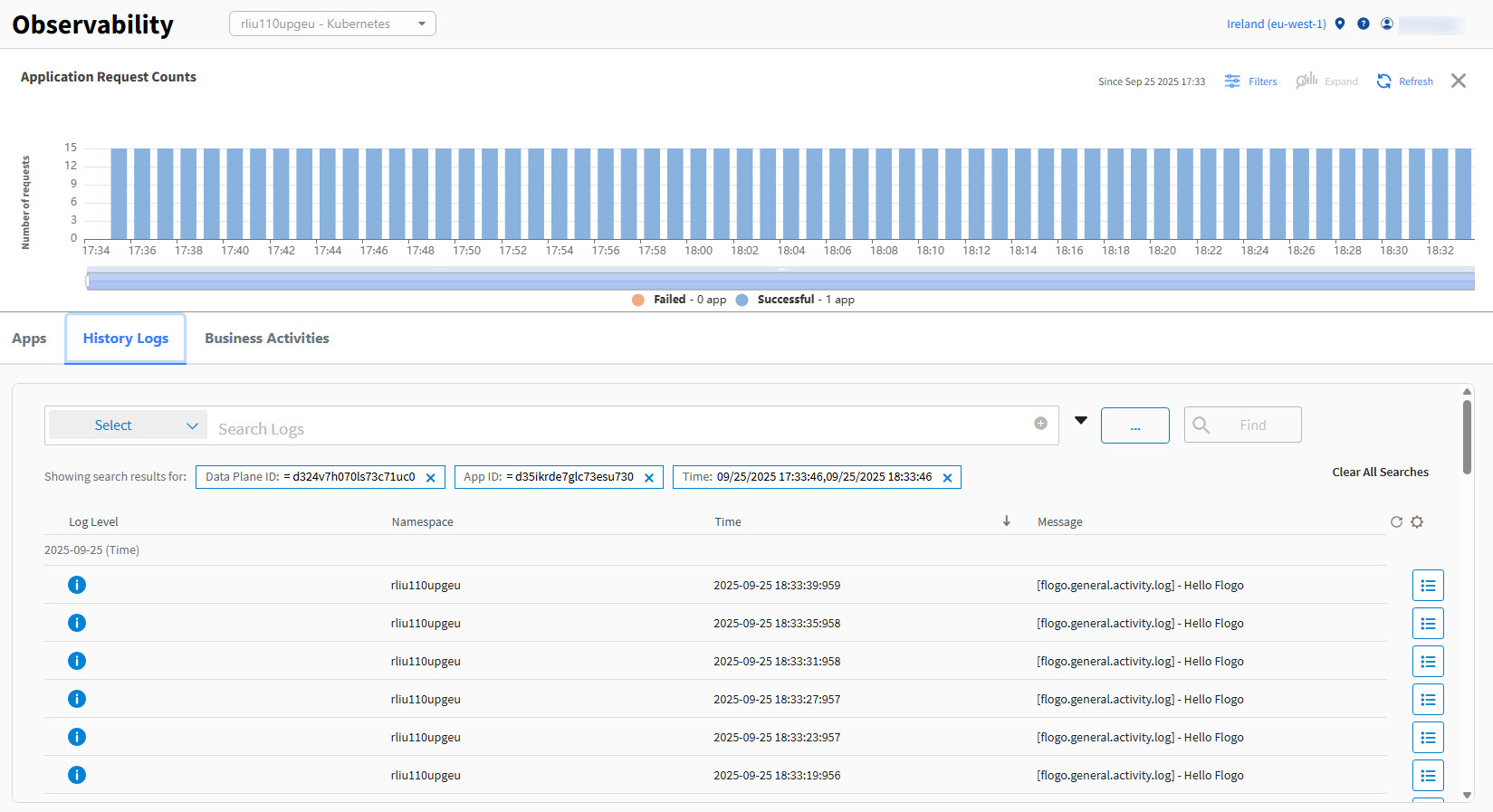
History Logs
History logs card displays collected logs from various user applications of all capabilities at a single place. This card provides a single, convenient location to view all collected logs, eliminating the need to navigate through specific application instances.
To add History Logs card on the Observability dashboard, click Add Card button in the top-right corner and select History Logs card from the General section.
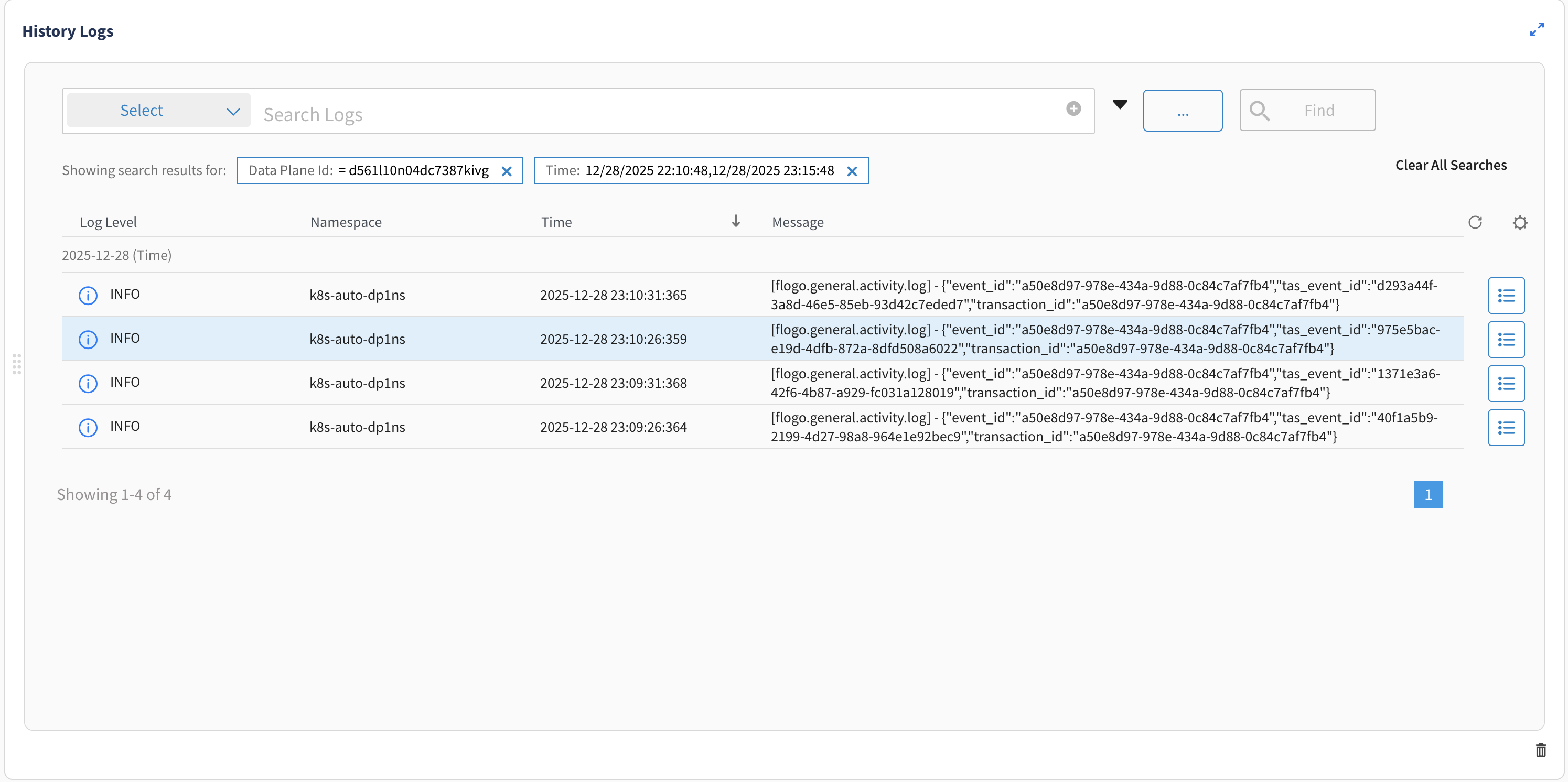
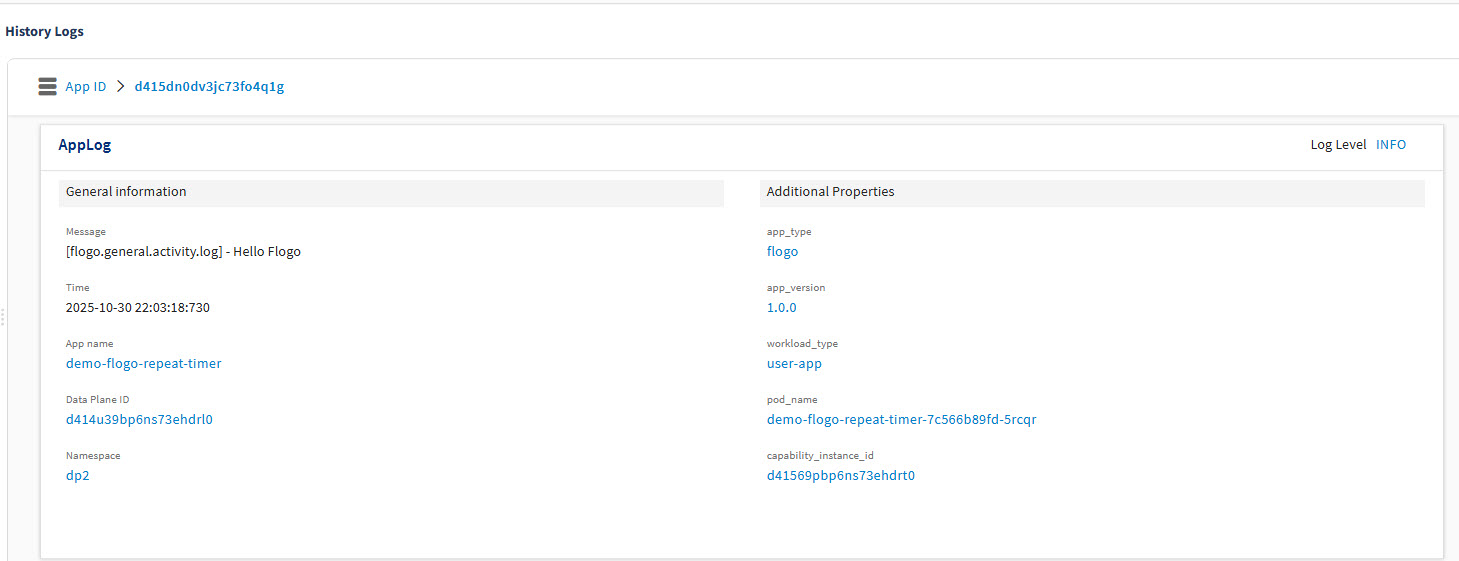
If you click  next to the log, you can view the details page:
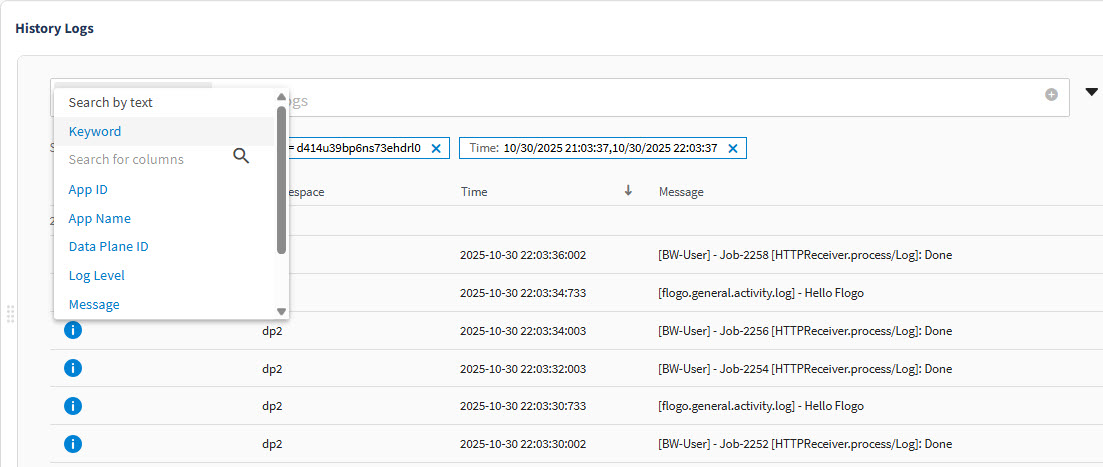
You can search in the logs by using keyword or different search criteria available.
You can save the search criteria by using Save Search Criteria option.
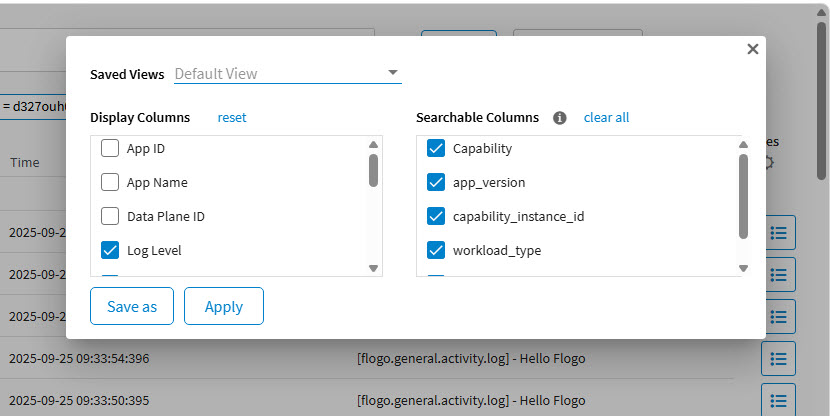
To change view of card, click settings icon  .
.
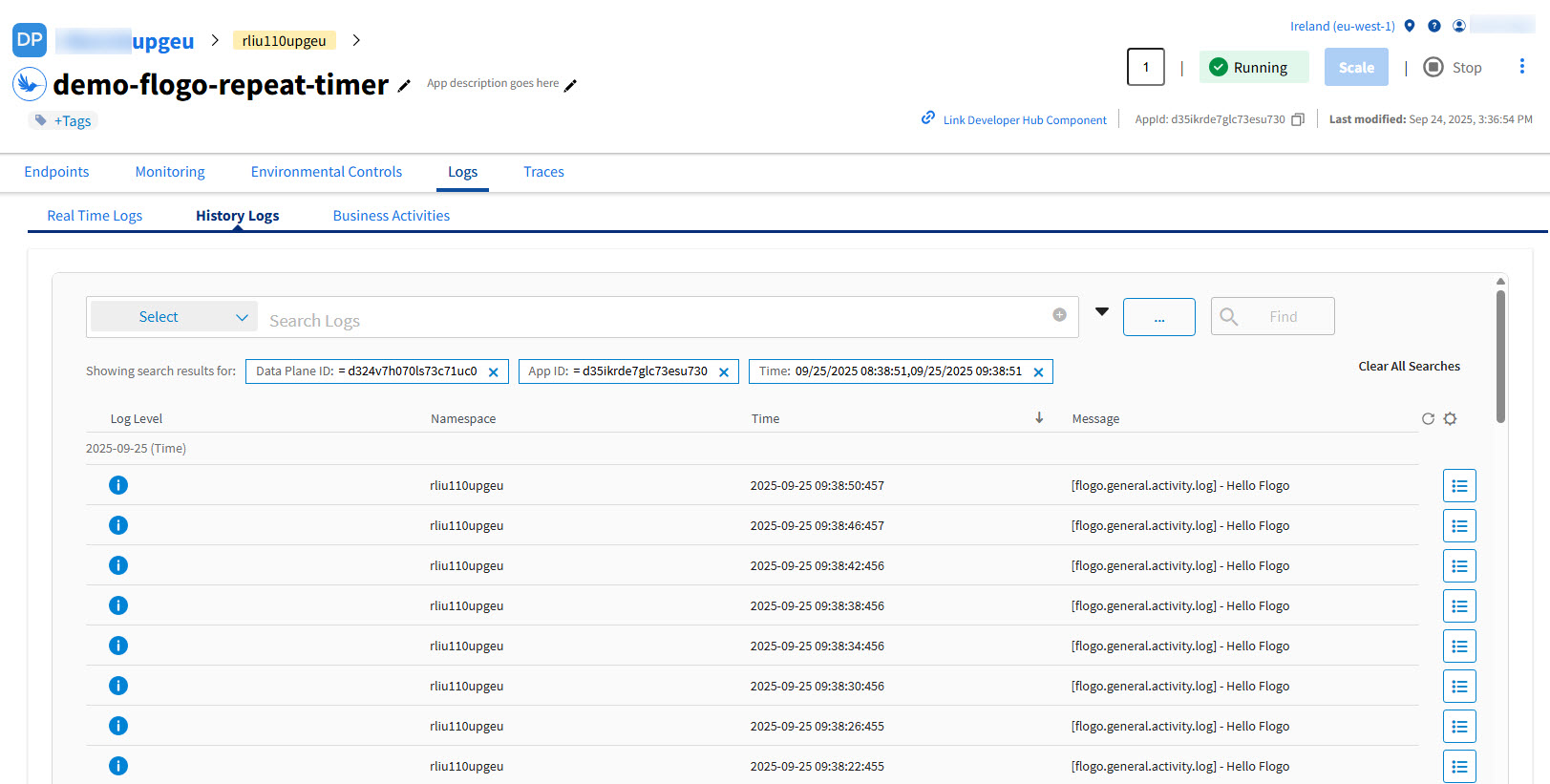
Accessing the History Logs from the Application Details Page
On the application details page, click History Logs tab to view the Logs data for an application.
Accessing the History Logs from the Card Details Page
On the card details page, click History Logs tab to view the Logs data for the app list.