Managing Teams
Teams are collections of individual users or other teams. They access TIBCO Control Plane resources and capabilities based on permissions. You create a team within your organization. Assign existing individual users or other teams to this new team. After team creation, you assign or update permissions for that team.
- You must have Team Admin permission to manage teams and team permissions.
-
The user must be a member of the same subscription to view and select available teams during the team creation process.
Creating a Team and Assigning Permissions
- Procedure
-
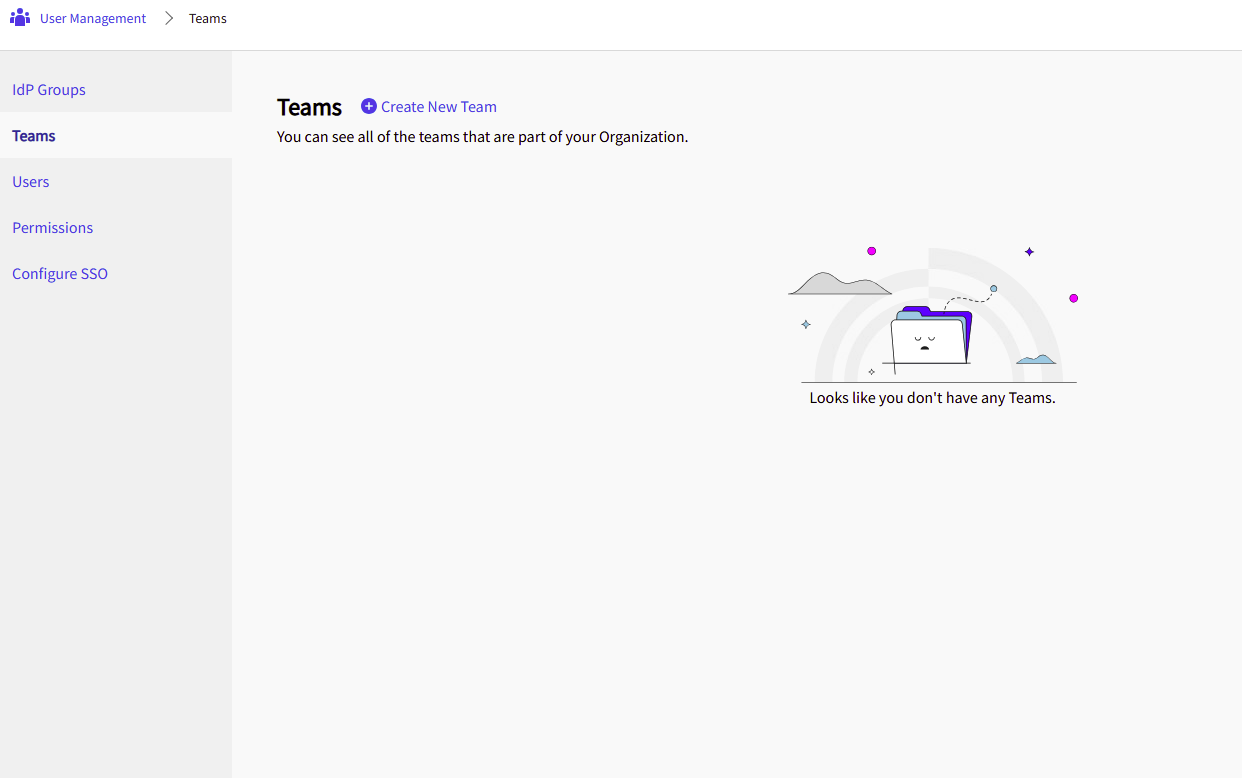
In the TIBCO Control Plane, navigate to User Management > Teams.
-
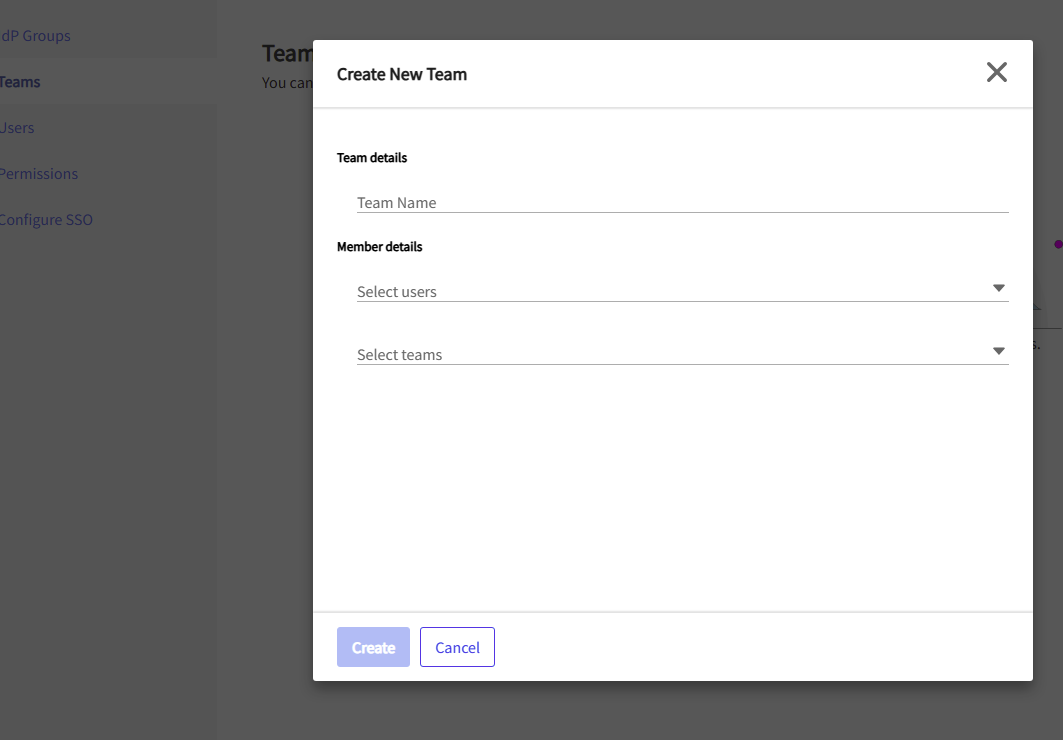
Click Create New Team. Specify the team name. Select existing individual users and teams to assign to the new team.
-
Click Create to assign permissions to the new team. For more information about assigning permissions, see Managing Users.
Updating Team Member Details or Team Name
To update team member details or the team name:
- Procedure
-
In the TIBCO Control Plane, navigate to User Management > Team.
-
Select a specific team. Click the vertical ellipsis icon next to the team.
-
Click Edit Team.
-
Update the team name. Select or unselect users or teams.
-
Click Update.
Updating Team Permissions
To update team permissions:
- Procedure
-
In the TIBCO Control Plane, navigate to User Management > Team.
-
Select a specific team. Click the vertical ellipsis icon next to the team.
-
Click Update permissions. For more information about assigning permissions, see Managing Users.
Note: If you update the team permissions and if the user is already signed in, the user must reload the page for the changes to take complete effect in the UI.
Viewing Team Member Details and Permissions
To view team member details and permissions:
- Procedure
-
In the TIBCO Control Plane, navigate to User Management > Team.
-
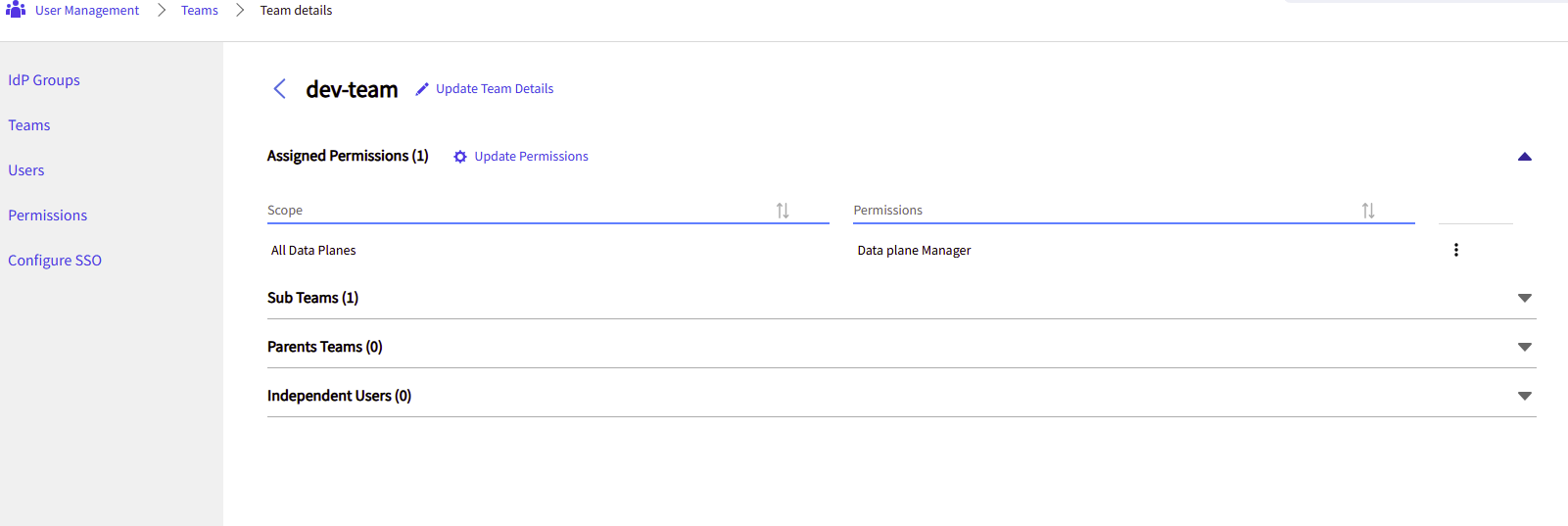
Click on a specific team.
-
You can see detailed information about the selected team.
Deleting a Team and Associated Permissions
To delete a team and its associated permissions:
- Procedure
-
In the TIBCO Control Plane, navigate to User Management > Team.
-
Select a specific team. Click the vertical ellipsis icon next to the team.
-
Click Delete. Deleting a team deletes the user's team association and removes permissions inherited from the team.
Viewing User Permissions Inherited from a Team
To view user permissions inherited from a team:
- Procedure
-
In the TIBCO Control Plane, navigate to User Management > User.
-
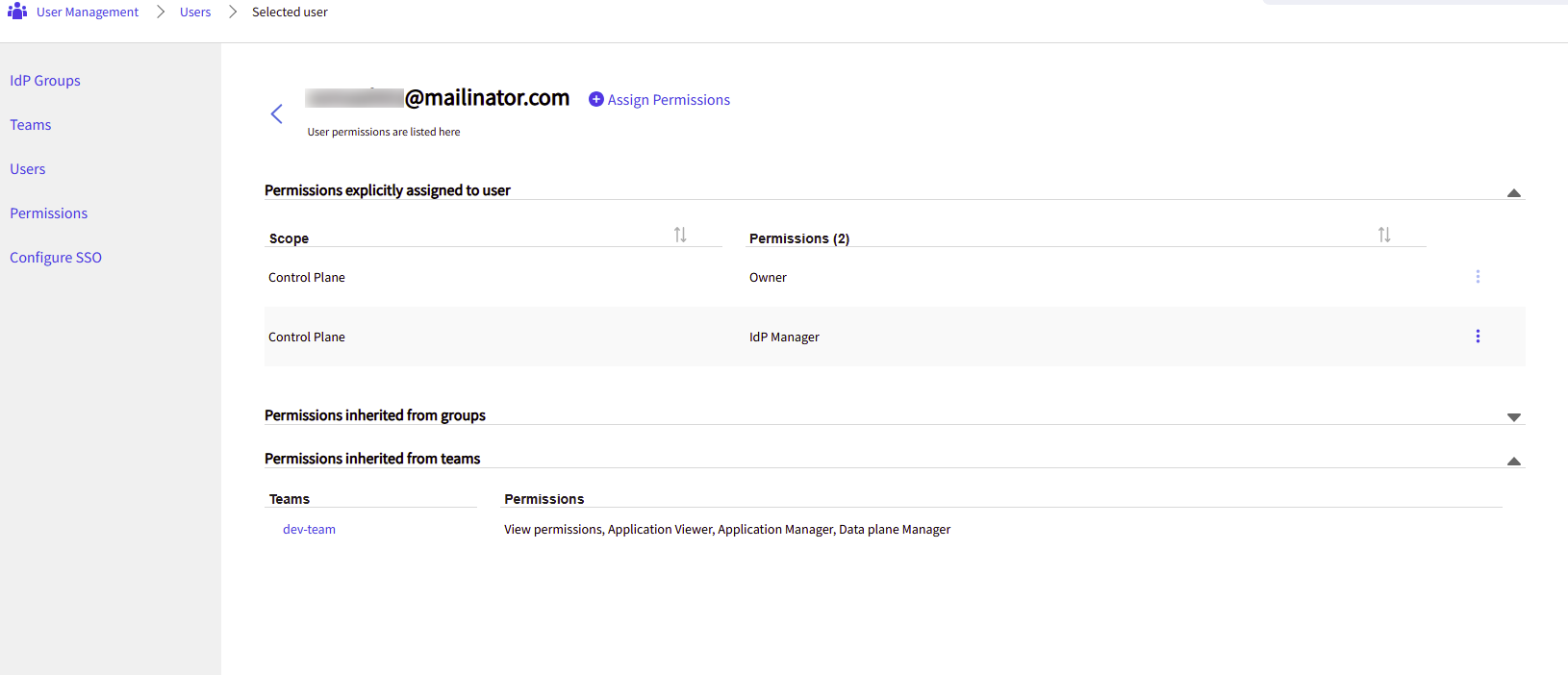
Click on a specific user. Under the Permissions inherited from teams section, you can see the user's permissions inherited from direct or indirect team membership.
Additional Information
-
Membership: Any team can include existing users from the organization.
-
Hierarchical Structure: Teams can be nested. They must not create circular dependencies; a team cannot include another team that ultimately includes the first team.
-
Depth Limit: Team hierarchy is restricted to a maximum of 5 levels (generations).
-
Update Propagation: Changes to team members or permissions may take up to 5 minutes to become effective for users who are currently signed in. Affected users must re-issue any manually-generated access tokens. These tokens will refer to the old permissions assigned at the time the access token(s) were generated.