TIBCO Control Plane MCP Server (Tech Preview)
MCP (Model Context Protocol) is an open-source standard for connecting AI applications to external systems. TIBCO® Control Plane MCP server connects AI applications to TIBCO Control Plane. This gives AI applications the ability to process TIBCO Control Plane, data plane, and capabilities data by using natural language interactions.
It is provided “as is” with no warranties, express or implied;
You are responsible for ensuring that any data processed using TIBCO® Control Plane MCP Server complies with all applicable laws, regulations, and third-party rights;
Cloud Software Group does not monitor or access any data relating to your usage of the TIBCO® Control Plane MCP Server;
Cloud Software Group may not be responsible for any inaccuracies resulting from your usage of TIBCO® Control Plane MCP Server;
Use of this software to analyze content or intellectual property of Cloud Software Group is strictly prohibited;
This disclaimer is also applicable to Observability Model Context Protocol (MCP) Server, TIBCO BusinessWorks™ Model Context Protocol (MCP) Server, and TIBCO Flogo® Model Context Protocol (MCP) Server.
The following MCP servers are available:
Control Plane MCP Servers
-
TIBCO® Control Plane Model Context Protocol (MCP) Server: Access and control your Control Plane related workflows
-
Observability Model Context Protocol (MCP) Server: Access and control your Observability-related workflows
Capability MCP Servers
-
TIBCO BusinessWorks™ Model Context Protocol (MCP) Server: Access and control all your BW5 (Containers) or BW6 (Containers) related workflows.
-
TIBCO Flogo® Model Context Protocol (MCP) Server: Access and control all your TIBCO Flogo related workflows.
How it works
When you deploy the MCP servers, they are hosted at the following URLs respectively:
TIBCO® Control Plane Model Context Protocol (MCP) Server
https://<subscription-host-url>/cp/mcp
Observability Model Context Protocol (MCP) Server
https://<subscription-host-url>/o11y/mcp
TIBCO BusinessWorks™ Model Context Protocol (MCP) Server
https://<subscription-host-url>/bw/mcp
TIBCO Flogo® Model Context Protocol (MCP) Server
https://<subscription-host-url>/flogo/mcp
Example: https://tp-qa.my.platform-qa.dataplanes.pro/cp/mcp
You can configure AI applications (such as VS Code) to communicate with this server. When you provide a relevant prompt, your application calls the TIBCO Control Plane MCP server to perform supported actions.
Deploying an MCP Server for self-hosted TIBCO Control Plane
- Procedure
-
To deploy an MCP Server, set
enabled:truein tibco-cp-basevalues.yamlfile. By default, MCP servers are not deployed.Note: Refer to the values.yaml available in the GitHub Repository for correct structure and indentation to avoid errors.TIBCO® Control Plane Model Context Protocol (MCP) Server:
tp-cp-core:
  web-server:
    cpmcpserver:
      enabled: false
      resources:
        requests:
          cpu: 100m
          memory: 256Mi
        limits:
          cpu: 200m
          memory: 512Mi
Observability Model Context Protocol (MCP) Server:
tp-cp-o11y:
  o11ymcpserver:
    enabled: false
    resources:
      requests:
        cpu: 100m
        memory: 256Mi
      limits:
        cpu: 200m
        memory: 512Mi
TIBCO BusinessWorks™ Model Context Protocol (MCP) Server:
bw-webserver:
  bwmcpserver:
    enabled: false
    resources:
      requests:
        cpu: 100m
        memory: 256Mi
      limits:
        cpu: 200m
        memory: 512Mi
TIBCO Flogo® Model Context Protocol (MCP) Server:
flogo-webserver: mcpserver: enabled: false resources: requests: cpu: 100m memory: 256Mi limits: cpu: 200m memory: 512Mi -
Upgrade the tibco-cp-base chart by using the following command:
helm upgrade --install --wait --timeout=1h -n <control_plane_namespace> tibco-cp-base tibco-platform/tibco-cp-base -f values.yaml --version=<tibco-cp-base chart version>
-
To enable an MCP server, see the following section Enabling an MCP Server.
Enabling an MCP Server
By default MCP servers are not enabled. You can enable an MCP server from the Settings menu in TIBCO Control Plane.
- Procedure
- Sign in to TIBCO Control Plane.
- From the side navigation bar, click Settings.
-
To enable an MCP server, click the checkbox next to an MCP server you want to enable.
Note: You need to regenerate OAuth token when MCP servers are enabled or disabled.
Setting up an MCP Server
Configure your client (example: VS Code) to use TIBCO Control Plane MCP server by using the following steps.
- Procedure
- Enable the MCP server from Settings menu in TIBCO Control Plane.
- Generate an OAuth token from TIBCO Control Plane. For more information, see Generating Access Tokens.
- Configure your client to use an MCP server. You can use any client to connect to TIBCO® Control Plane Model Context Protocol (MCP) Server. Here, the configuration for VS Code is given as an example:
Example: VS Code
Add the following snippet to your project's .vscode/mcp.json configuration file. You can add the snippet of an MCP server you want to use. In the following example, all available MCP servers are added. Replace the OAuth token with the token that you have generated in step 2.
{
    "servers": {
        "ControlPlaneMcp": {
           "url": "https://tp-qa.my.platform-qa.dataplanes.pro/cp/mcp",
           "type": "http",
           "headers":{ "Authorization": "Bearer <Your_OAuth_Token>" }
        },
        "ObservabilityMcp": {
           "url": "https://tp-qa.my.platform-qa.dataplanes.pro/o11y/mcp",
           "type": "http",
           "headers":{ "Authorization": "Bearer <Your_OAuth_Token>" }
        },
        "FlogoCapabilityMcp": {
           "url": "https://tp-qa.my.platform-qa.dataplanes.pro/flogo/mcp",
           "type": "http",
           "headers":{ "Authorization": "Bearer <Your_OAuth_Token>" }
        },
        "BWCapabilityMcp": {
           "url": "https://tp-qa.my.platform-qa.dataplanes.pro/bw/mcp",
           "type": "http",
           "headers":{ "Authorization": "Bearer <Your_OAuth_Token>" }
    }
    },
       "inputs": []
}
For more information, see VS Code documentation.
Example Prompts
After the MCP server is configured, you can use natural language to interact with TIBCO Control Plane, data plane, and capabilities. Here are some example prompts:
Data Plane example prompts
-
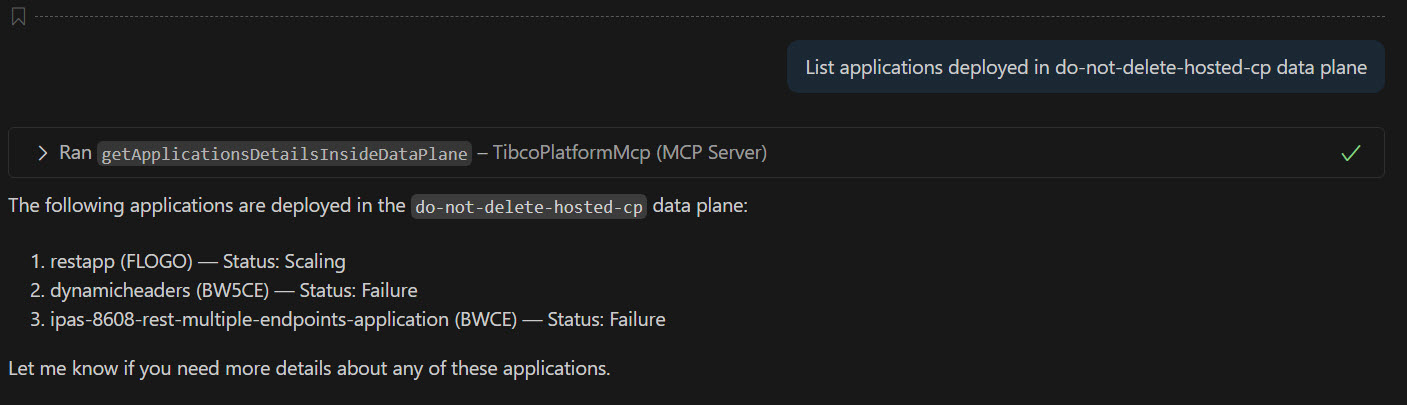
List all applications deployed in data plane <data_plane_name>.
-
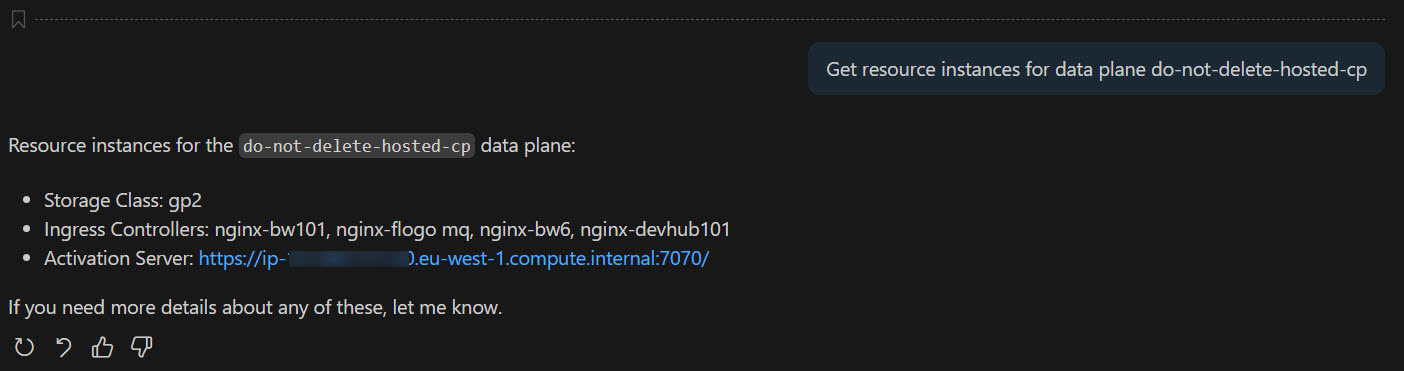
Get all resource instances configured in the data plane <data_plane_name>.
TIBCO BusinessWorks 6 (Containers) example prompts
-
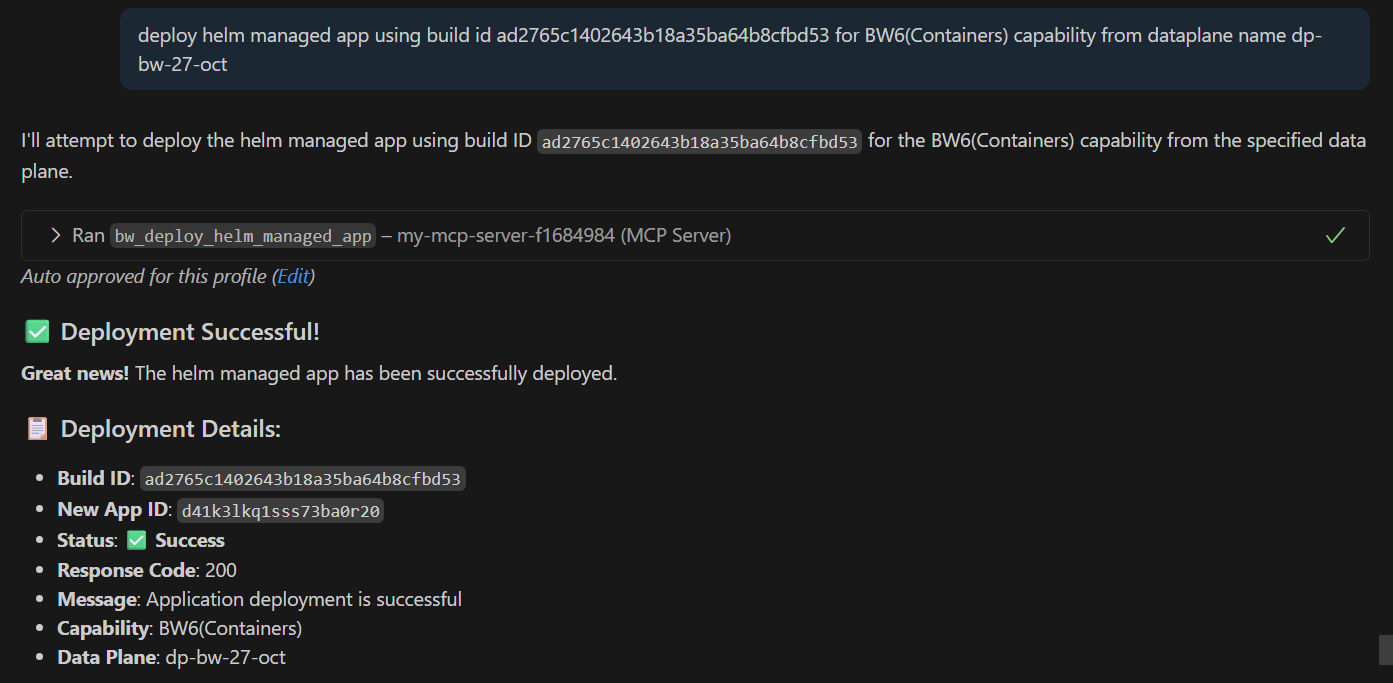
Deploy helm managed BW6CE app build group-alldatatype-application to dataplane
-
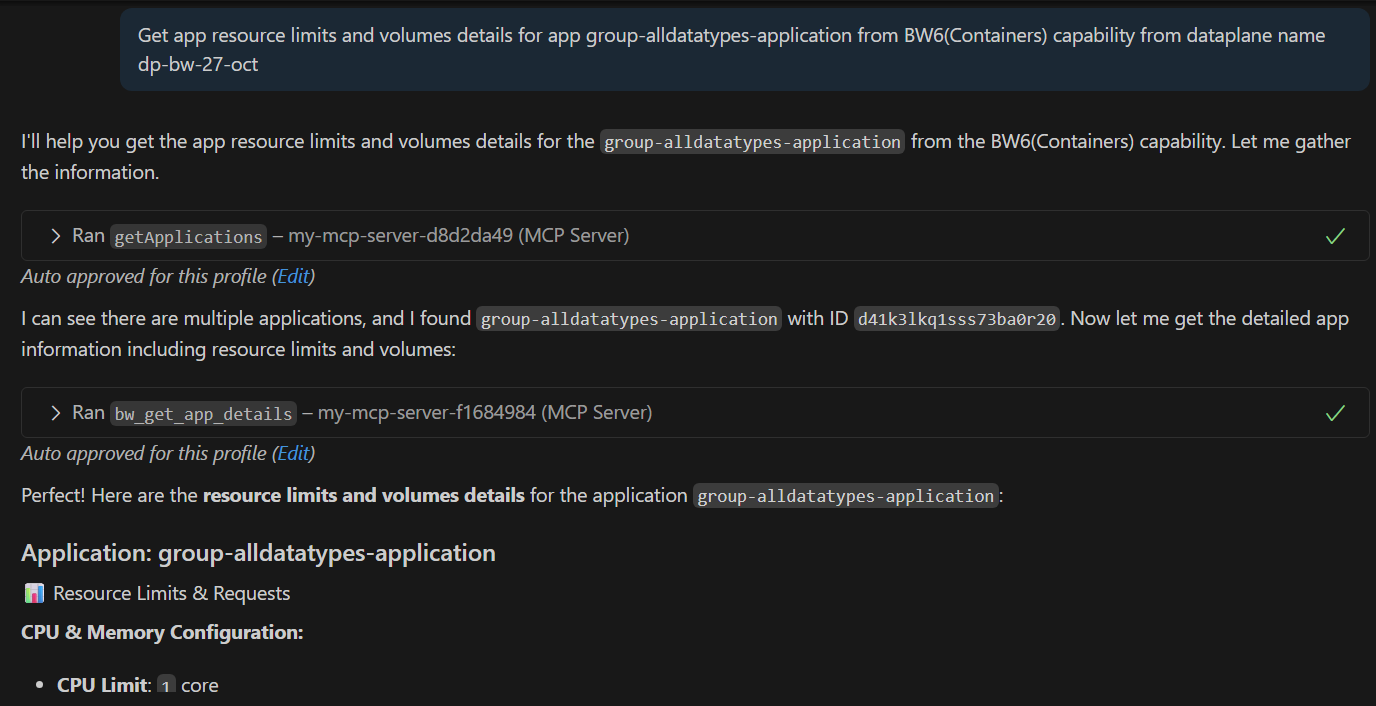
Get app resource limits and volumes details for app group-alldatatypes-application from BW6(Containers) capability from data plane
TIBCO BusinessWorks 5 (Containers) example prompts
-
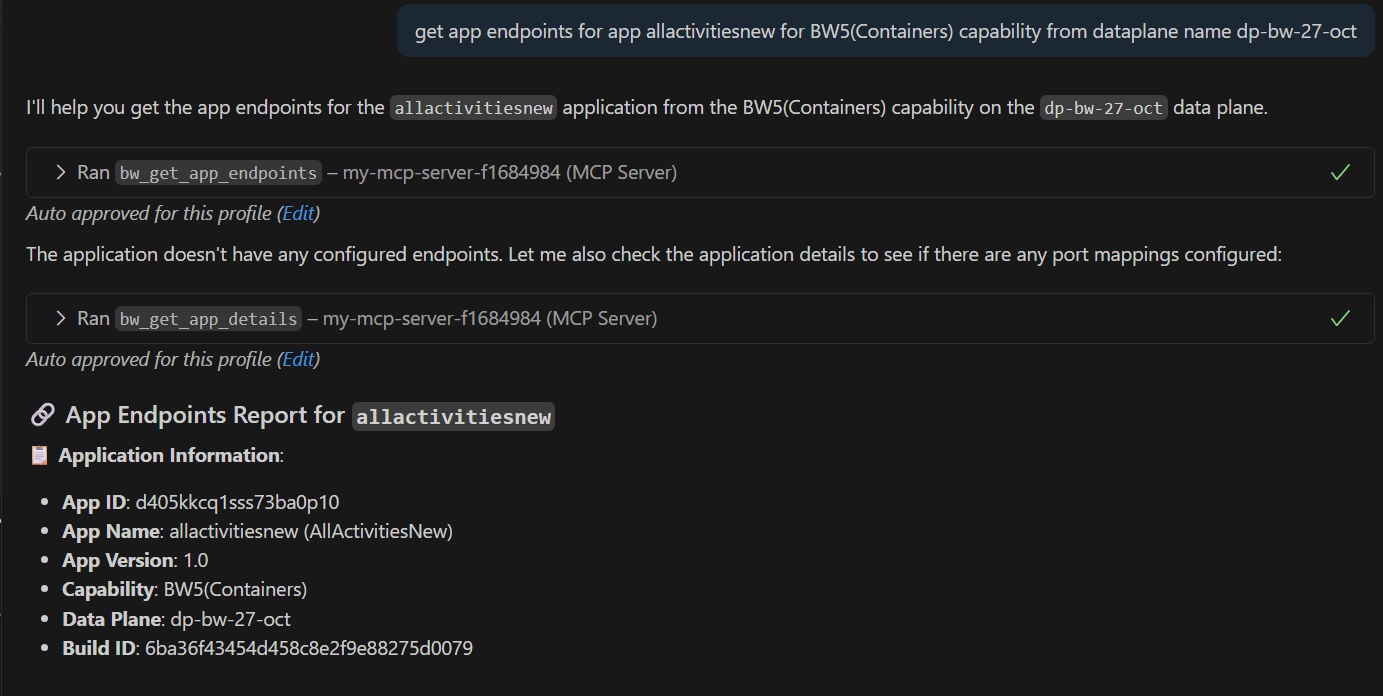
Get app endpoints for app allactivitiesnew for BW5(Containers) capability from dataplane
TIBCO Flogo example prompts
-
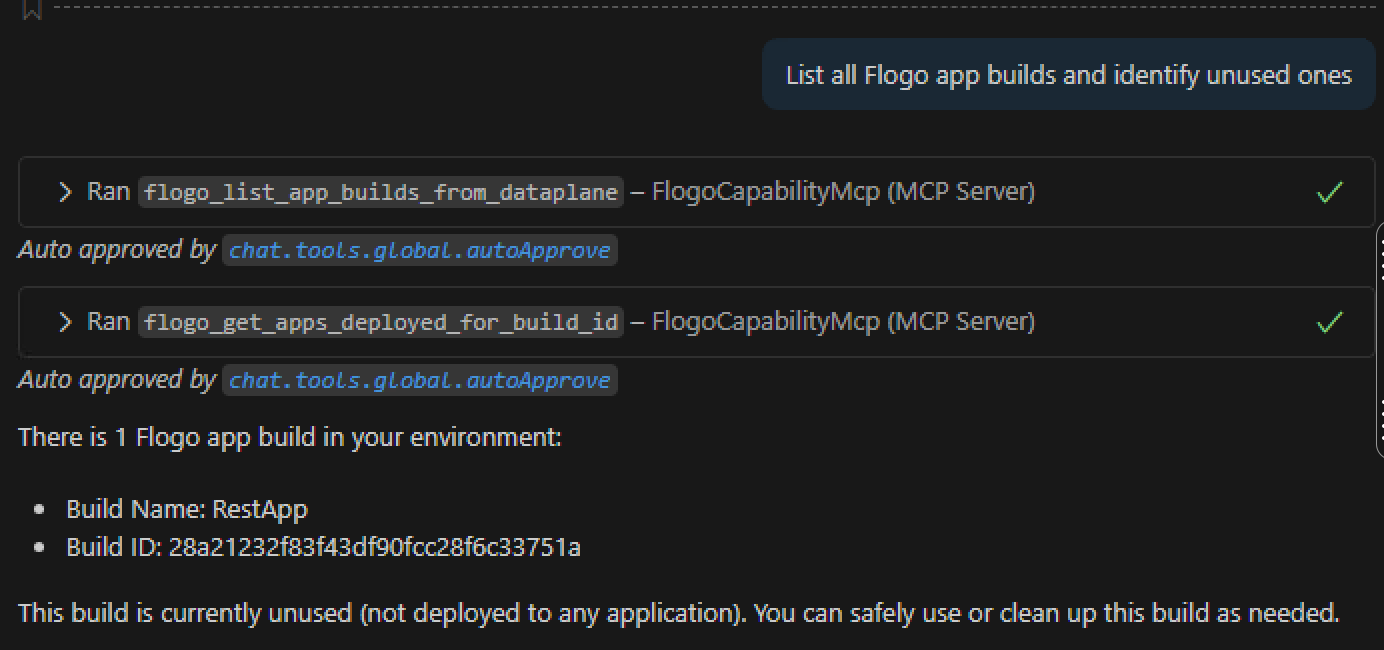
List all Flogo app builds and identify unused ones
-
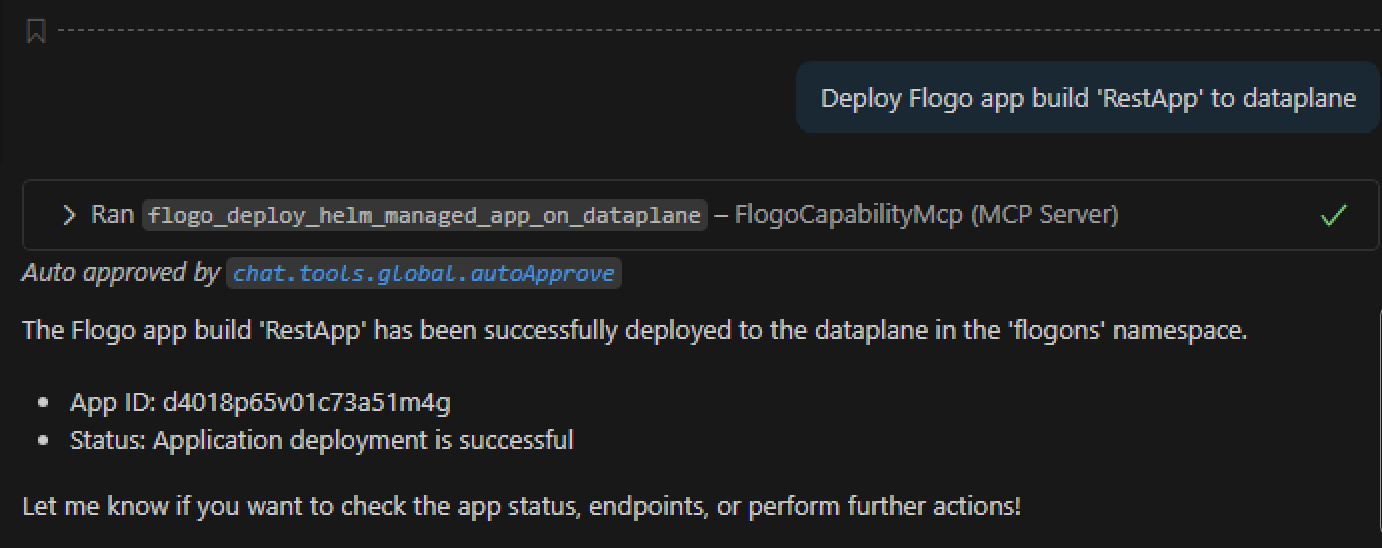
Deploy Flogo app build RestApp to dataplane
-
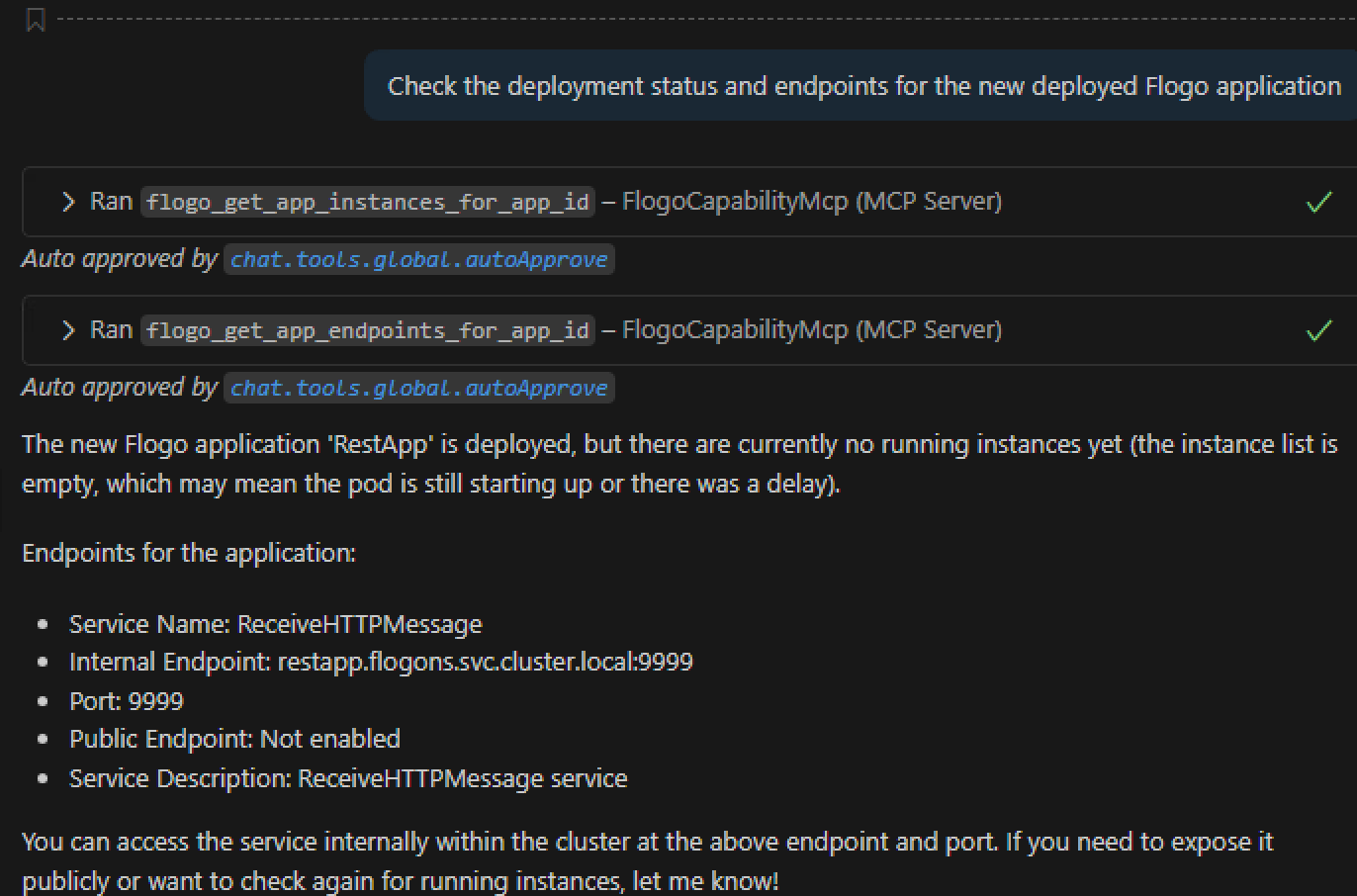
Check the deployment status and endpoints for the new deployed Flogo application