
List View Interactions
The list view gives access to flat lists and tree lists. You interact with the two list types in different ways.
Flat Lists
The following figure displays a typical flat list which is displayed as a table.
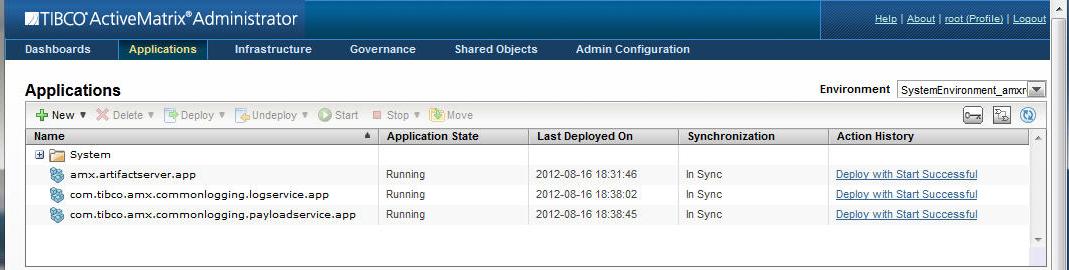
If there are no objects, the list is empty. If there are objects, an item is not selected when the page is opened: You must select an item in the list to display the details of the object. If an item is selected in a table, the details for that item are displayed in the Details area.
A flat list has the following interactions:
- Click on a row to select it.
- Click the refresh icon to refresh the list. You may have to manually refresh the list periodically, especially when invoking an action and are waiting to see the results of your action on the items in the list.
- You can click column headings to sort by that column. Each click toggles between ascending and descending sort.
- Some columns appear as hyperlinks. Click the hyperlinks to view additional information.
- Some a flat lists provide a filter. Select a value from the drop-down list to view items that match the chosen type.
Copyright © TIBCO Software Inc. All Rights Reserved.