|
| Copyright © TIBCO Software Inc. All Rights Reserved |

Table 21 Schema Component
2.
a. Figure 35 Define Root Element
b. Tab across to the Attributes column and type in name. Here you can define attributes for an element. When entering multiple attributes, commas should separate them.
6.
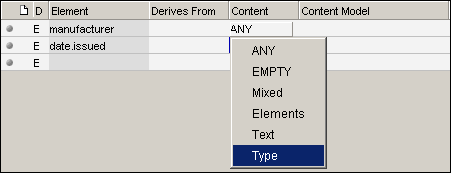
7. Figure 36 Define Content Type
c. Tab to the next field. (Notice that the column heading changes from “Content Model” to “Data Type”.) To provide the date.issued element with an appropriate data type, select date from the menu that appears upon clicking Insert.
8.
a. Move to the Content column on the manufacturer row
b. Select “Elements” from the Content Type menu. This restricts the content model for manufacturer to elements only.
d. Select date.issued to restrict the contents of manufacturer to one and only one date.issued element.
1. Move to the empty line below date.issued and type product. Press tab. Select “Elements” from the Content Type menu and press tab.
2. Move to the Content Model column for product, position your cursor inside the “()” and type sku, product.name, price, description, promotion.
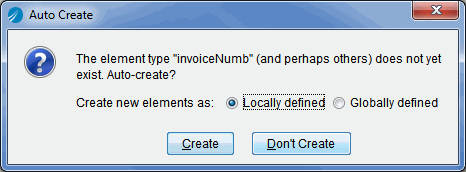
3. Tab from this field. The Auto Create dialog box appears. Click the Globally defined button, then click Create. (For the purposes of this exercise, all declarations will be global.)Figure 37 Auto Create Dialog Box
4.
a. Go back to the product content model and highlight description.Figure 38 Adding Optional Element
5. Make price a decimal data type by clicking on price where it appears in the Element column. Tab over to the Content column and select “Type” from Content Type drop down menu. Tab over to the Data Type column and choose decimal from the Insert menu.
6. A promotion is a discounted price over some period of time. This will be represented using a combination of elements and attributes. Make a content model for promotion by specifying “Elements” in the Content column and then entering price into the Content Model column.
7. Tab to the Attributes column for promotion and enter start.date, end.date. Press Tab.To further refine the definitions of these attributes, you can right-click on each of their names and choose “Go to <name>“or click Attributes on the toolbar. The attributes panel will appear with options for data typing the attribute and for indicating its usage (optional, required, default, fixed, or prohibited).
8. Within the attributes panel, indicate that the values of the start.date and end.date attributes should be of type date.
1. Return to the elements/types panel and add an element named price.list. Press tab and specify “Elements” content.
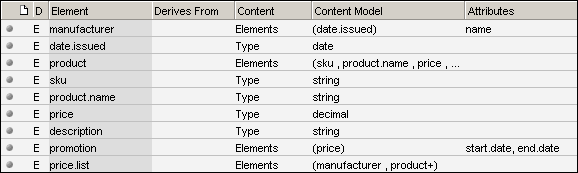
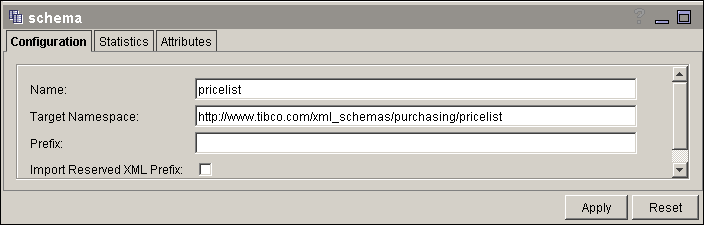
2. Enter manufacturer, product+ as the content model. (The plus sign designates the productelement as required and repeatable.) Tab out of the field to update the schema.Figure 39 Schema with Complete List of ElementsFigure 40 Name the File in Configuration Panel
By defining content models, a structure for the document is established. This structure can be thought of as a tree where the “root” is the encompassing element and its branches are the elements and attributes that may be contained within it (as defined by the content model). In turn each branch may have branches defined by their content model. The diagram at the top of the elements/ types panel provides a graphical view of these relationships. Explore the content model by clicking on the elements to expand and collapse their content. (Specifically click on the Element Content Indicator icon, labeled in Figure 41.) Only elements that define a content model can be expanded. Within the diagram, double clicking on the root element, in this case price.list, will produce a graphical view of the entire schema.Figure 41 Graphical View of the SchemaYou have completed the exercise. This tutorial introduced the basic steps required to create an XML Schema. Exercise 2: Defining and Deriving Complex and Simple Types will teach you how to create and use your own complex and simple types.To learn how to build a sample XML document based on the schema you have just built, see XML Instance Exercise.
Table 22 Schema Component for an Address Figure 42 Create a New Complex Type
5. Tab to the adjacent empty field in the second column, and type in Address as the name of the complex type. Tab to the “Derives From” column. Notice that the second column's heading has changed from “Element” to “Complex Type”.
6. Later in this exercise you'll use the “Derives From” column to extend the Address complex type. For now, however, we can bypass this field, and tab to the Content field. The content will default to “Elements”, which is the desired content. (Other content types could be selected by way of the menu presented by clicking the Content Type button.)
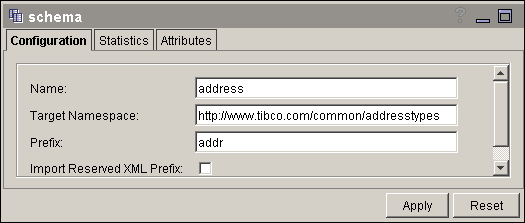
7. Figure 43 Enter Content Model ElementsFigure 44 Name Your Schema
2. In the first field in the Name column, type USState. Tab to the Base Type column. Click Type and choose string from the drop-down menu.
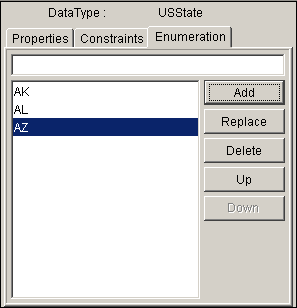
3. Tab to the Options column. To define a list of possible values for USState, click the Edit Enums button. The properties panel appears in the lower left of the application window with the Enumeration tab active. In the text box at the top of this tab, enter the value 'AK' (without quotes) and then click Add. Follow the same procedure for the values 'AL' and 'AR'. (Of course, there are more postal abbreviations, but let’s stop here.)Figure 45 Enumeration Tab
1. On the toolbar, click Elements/Types to return to the elements/types panel (you may also need to choose Schema > View > Properties to clear properties.)
3. In the adjacent empty field, type USAddress.
4. Tab to the Derives From column and click Extends. Next, click Select and select Address. Notice that the column heading changes to “Extends”.Notice also that your selection is inserted in the column with the prefix “e_”. This indicates that the type USAddress is being derived from the base type Address by extension. If you derive from a base type by restriction, you'll see the prefix “r_”.
6. Tab to the Content Model column. Inside the parentheses, type state, zip. Tab out of the Content Model column.
7. In the Auto-Create dialog box that appears, click the Globally defined radio button and then click Create.
8. In the row for the element state, navigate to the Data Type column. Click Insert user-defined type and select USState from the menu of optionsFigure 46 Insert User-defined Data Type.
9. In the row for the element zip, click in the Data Type column. Click Insert to display a menu of XML Schema data types. Choose “More” on this menu to display a submenu. Choose positiveInteger as the data type for zip.
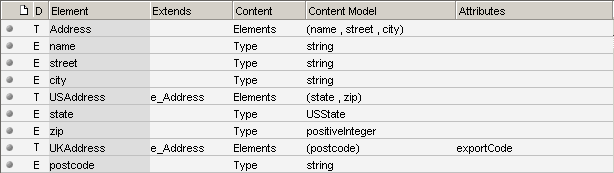
1. Define a complex type named UKAddress as an extension of Address. Add the element postcode to the content model and create postcode as a global declaration. Also give UKAddress and attribute called exportCode.Figure 47 Define Complex Type
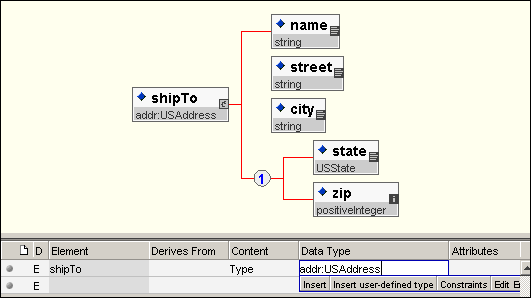
2. For further practice, define a simple type (data type) called UKPostcode and assign it to the postcode element. The new simple type can be an extension or restriction of an existing simple type. For example, to be very precise, you could restrict a string by specifying a regular expression (pattern) that the type must match.The address types created in this schema could later be applied to elements. For example, shipTo and billTo elements could be added to this schema and be declared as having the type USAddress. These type definitions could also be used in other schemas. As a final exercise, create a new schema resource and import the address schema namespace you created in this tutorial. The easiest way to import a namespace is to use the Add Namespace option of the overview panel, which enables you to browse and select another schema from your project. Once the address schema created in this exercise has been imported, create a shipTo of type USAddress. To references an element, attribute or type existing in another namespace, use the prefix for the external namespace followed by a colon and the component name. Figure 48 shows a new schema referencing the USAddress type created in this schema.
|
| Copyright © TIBCO Software Inc. All Rights Reserved |