Copyright © TIBCO Software Inc. All Rights Reserved

Chapter 3 Working with a Revision Control System : CVS

CVS
CVS is a version control system that records the history of source files used to build a software product. CVS also allows engineers to work in their own directory, and merges each engineer’s work into a source tree.
The following limitations apply when using CVS as an RCS system for TIBCO Designer 5.x:
cvs -r checkout -P myproject
This enables RCS to use watches and enables the RCS adapter to limit editing of resources to a single user.
CVS does not handle binary files correctly unless it has been correctly configured. Before placing a resource under CVS control, verify that the resource's data is not in binary format. If it is, configure CVS to handle the appropriate resource vfile extension as binary. If you do not do this, corrupted data will result.
The CVS RCS adapter has only been tested in server mode using the CVSNT available from http://www.cvsnt.com/cvspro/. Other servers may work, but have not been tested.
The CVS RCS adapter has only been tested with local, pserver and sspi protocols. Other protocols should work, but have not been tested.
CVS requires that files be deleted from the file system and committed before they can be scheduled for deletion. Therefore TIBCO Designer forgets about the resource, and cannot restore it for you on a revert operation. To restore a deleted file, use your CVS tools as directed by your CVS documentation.
Working with CVS
The following steps assume you are working on a UNIX platform. If you are working on Windows platforms, the steps are the same, but the examples apply only to UNIX.
Installing CVS on UNIX
1.
Download the installer from http://www.cvsnt.com/cvspro/?lang=EN&complete=1.
2.
Set PATH to execute CVS commands on your shell. For example, assuming CVS is installed under /usr/local/bin:
   setenv PATH /usr/local/bin:$PATH
3.
Set CVSROOT:
   setenv CVSROOT /home/corp/<user>/rcs/cvs
4.
   cvs init
Importing a Project Into a CVS Repository
1.
2.
Save the project. For example: /home/corp/<user>/cvstest01
3.
4.
   cd /home/corp/<user>/cvstest01
5.
   cvs import -m "comment" <project name> vendor release
   cvs import -m "cvstest for designer" cvstest01 vendor release
6.
7.
   cd /home/corp/<user>/cvs_local
   cvs -r checkout -P <project name>
   cvs -r checkout -P cvstest01
8.
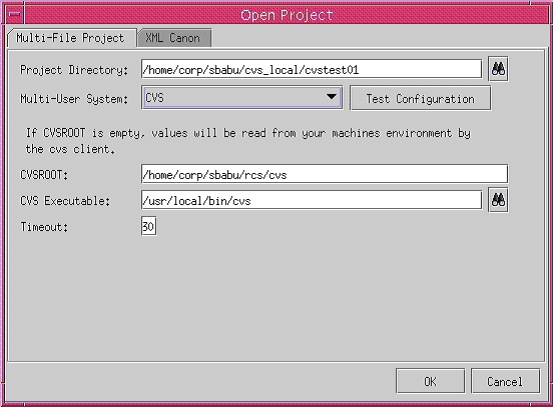
Figure 26 Open Project Dialog Box

Copyright © TIBCO Software Inc. All Rights Reserved