|
| Copyright © TIBCO Software Inc. All Rights Reserved |
The Generic Adapter Configuration resource and the associated Adapter Resources palette are used when developing an adapter using the TIBCO Adapter SDK API. The adapter is configured using the Generic Adapter Configuration resource and the configuration is saved to a project repository, which is used by the code you have written.Schema used by an adapter are defined separately from the Generic Adapter Configuration. However, resources in the Generic Adapter Configuration point to adapter schema resources. For example, when you define a service such as a publication service, you need to define the schema that describes the data that will be published. When you save the project, both the adapter configuration and the corresponding schema are saved.For information on configuring adapter schemas, see Chapter 4, Adapter Schema Palette. You can access this guide via Help > Help For > Adapter Schemas.
1. Open TIBCO Designer. In the startup window, choose New empty project or open the project to which you wish to add your adapter.
2. Save the project. See TIBCO Designer User’s Guide, available via Help > Designer Help for information on saving projects.
4. From the palette panel, drag a Generic Adapter Configuration into the design panel.
5.
• If the adapter doesn’t use custom roles, use the Logging tab to specify logging information.
• If the adapter uses custom roles, click the Use Advanced Logging check box, and use the Log Sinks folder later to define your sinks. See Custom Log Sink Reference.Adapter services are an abstraction useful for configuration of already existing adapters and they are therefore used in the Generic Adapter Configuration. Adapter services do not map directly to any objects used by a TIBCO Adapter SDK program. Instead, an adapter service is an aggregate of an endpoint and the corresponding session and points to the schema used by the endpoint.
1. In the project tree, select the adapter, then open the Adapter Services folder.
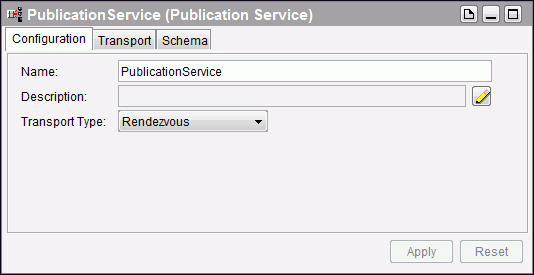
2. In the palette panel, select one of the services, for example, a Publication Service, and drag it into the design panel.Figure 103 Configuration Tab
To use Enterprise Message Service as the transport, delete all extra copies of the open SSL libraries (libeay32.dll and ssleay32.dll) from the TIBCO_HOME\adapter\sdk\5.8\bin folder to start the adapter project from TIBCO Designer.
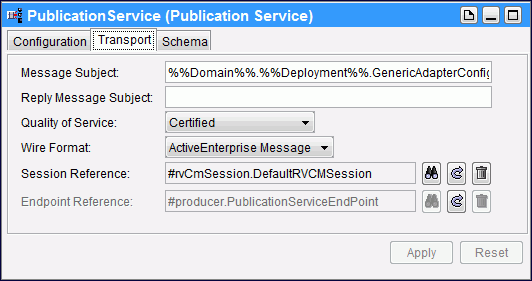
4. To provide some additional information about the transport, click the Transport tab. What is displayed depends on the transport type you selected for the service. The screen shot below shows the options available for the default transport, a TIBCO Rendezvous Certified transport. See Services Reference for detailed information on the individual services and different Transport tab content.Figure 104 Transport Tab
5. If the schema that determines the data used by the service has already been defined, click the Schema tab, then click the browse icon (binoculars) and select the schema resource in the dialog that appears.
You must be sure to assign the appropriate schema to the service. The default, any, is only there as a placeholder.
6. Click Apply.TIBCO Designer creates the service instance. If you need to perform additional customizations, you can open the Advanced folder and do it there. See Advanced Adapter Configuration.
•
• If you wish to add custom log sinks, click Use Advanced Logging in the Logging tab for the adapter, then add individual sinks as needed. See Custom Log Sink Reference.
•
• If your adapter takes an extraordinary amount of time to load, you may specify a loadURL in the Metadata URL folder. See Metadata URLs Folder. In that case, you also need to specify the URL for the location of schema, so the adapter can load them as needed at runtime. You do that from the Adapter’s Startup tab.
1.
2. Select the Log Sinks folder.
3.
a. Select the Log Sinks folder in the project tree.
c.
a. Select the Log Sinks folder in the project tree.
c. From the pop-up, choose Hawk.
2. Choose Resources > Edit Extended Properties.
2. The following example shows the elements and attributes required for a custom Hawk Microagent. See the sdk/pubsub example for the actual XML:In many fields in the configuration panel, global variables surrounded by %% are used. In most cases, you can change these global variables using the Global Variables tab in the project panel. See TIBCO Designer User’s Guide for information.Do not set values for the %%InstanceId%% and %%AppName%% global variables. The variables are set at runtime by run-time adapters.
The programming for the Message Filter is performed with the Adapter SDK and discussed in the Adapter SDK Programmer’s Guide. This resource only allows you to hook in the resource.The application to which the adapter connects understands XML natively. The adapter code retrieves messages and makes use of the MData::toXML() methods. The corresponding XSD is available in-memory and on disk if you have exported it. To achieve local transformations to a “canonical format”, XSLT is the logical choice. These transformations can be applied to all outbound endpoints. Inbound transformations most likely don’t make sense.The low-level callout behavior is made available by an MTransformationPlugin class that is part of the API (both C++ and Java). See the reference documentation for TIBCO Adapter SDK for additional information.
1. With the top level project selected, drag a Message Filter resource into the design panel. Name it appropriately for clarity.
2. Specify the name of the implementing class in the Implementation field.
a. In the toolbar, click the Add Attribute icon.Figure 105 Add Attribute Icon
4. Click Apply.
1.
2. Click the Browse button next to the Message Filter field and select the Message Filter you defined earlier.The transformation plugins are applied only to services with subscriber, publisher, client, and server endpoints.You can use the transformation plugin to stop the message flow. You can either throw an exception or return FALSE to stop message flow.
A programming example is included in the TIBCO Adapter SDK Programmer’s Guide.
Table 41 Testing TIBCO Adapters Click Browse to supply the directory. The tester creates the necessary run-time and support files required by the adapter in this directory. All files created by the Adapter Tester are temporary and will be deleted when you exit TIBCO Designer.
Table 42 Testing Custom Adapters Working directory from which to execute the adapter. Click Browse to select the directory. See Setup for Testing TIBCO Adapters for more information. Name of the executable for the adapter. Click Browse to select the executable. See Setup for Testing TIBCO Adapters for more information. Arguments passed to the adapter executable. The last argument should be '--propFile', the TRA template file containing information necessary for startup of the adapter will be the last argument provided to the operating systems shell. If your GAC or custom adapters cannot be successfully run by providing the above values, you can check the Custom Shell Command check box.See the TIBCO Adapter SDK Programmer’s Guide more information on the available arguments and options for custom adapters.
1. Choose Tools> Show Adapter Tester
2. Select the adapter instance to test and provide the appropriate information in the Run Settings tab. See Setup for Testing TIBCO Adapters and Setup for Testing Custom Adapters for information.
3. Click Start.When the adapter is started, a green dot highlights the running adapter. The display changes to the Console tab. You can now observe the adapter as it executes. The Start button becomes a Stop button.
4. Click Stop when you wish to stop adapter.The button changes its name to Start and the green dot disappears.
|
| Copyright © TIBCO Software Inc. All Rights Reserved |