Copyright © 1999-2023. Cloud Software Group, Inc. All Rights Reserved.

Chapter 3 Working with a Revision Control System : XML Canon

XML Canon
XML Canon/Developer (XCD) is a comprehensive development platform that allows organizations to store their XML assets (e.g. XML schemas, DTDs, adjuncts, instance documents, and stylesheets) in a central repository that facilitates adaptability, collaboration, and management.
XML Canon uses permissions to control access to the stored files. XML Canon also provides version control, protecting the development process from duplicate or conflicting efforts.
Features
The following features, accessible via XML Canon's web interface, are provided for the XML-based files in your project, such as your XML Schemas, WSDL files and process definitions.
For more information on XML Canon, see the XML Canon Developer documentation available as online help with the product and also via the TIBCO documentation library. The remainder of this section describes the process for specifying XML Canon as the repository for a project, the typical steps for interacting with XML Canon, and some tips and tricks that will facilitate the effective use of XML Canon.
Prerequisites
To use XML Canon as the version control system for TIBCO Designer, you must have:
Checking In and Acquiring Resources
This section provides the typical steps involved in interacting with the XML Canon repository, beginning with the initial association of the TIBCO Designer project with an XML Canon category.
Step 1: Specifying XML Canon as the version control system for a given project
To specify XML Canon as the version control system for a given project, select Project > Save As to display the Save Project window.When you open a new empty project, the Save Project dialog appears automatically by default.
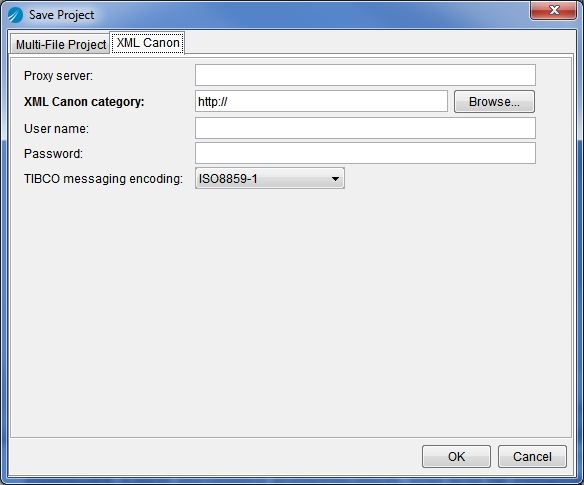
Select the XML Canon tab, which requires you to specify these fields:
Proxy server—You may access XML Canon via a proxy server that does not require authentication. Not all proxy servers support the WebDAV extensions to HTTP that XML Canon uses. Make sure the proxy server supports required additional functionality.
If you click the Browse button for the XML Canon category field, the proxy server you specified is taken into account. As a result, it is essential that you specify the proxy server before you click Browse.
XML Canon category—the URL (http://hostName:portNumber/categoryName) of an empty XML Canon category, which will serve as your top-level project folder.
Figure 21 depicts the XML Canon tab filled in with the required information.
Figure 21 XML Canon Tab
 
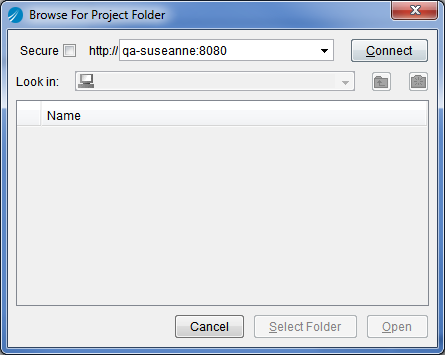
If you do not know the location of an empty category, click Browse. The Browse for Project Folder will appear. Enter the URL for the XML Canon server and click Connect. You will be prompted to enter your XML Canon user name and password. Upon successful authentication, you will be presented with all of the top-level categories, as depicted in Figure 22.
Figure 22 Browse for an XML Canon Category
Double-click a category (or use the Open button) to view its child categories. New categories can be created using the new folder icon. When you have selected the category in which to store the project, click Select Folder.
When a URL, user name, and password have been specified on the XML Canon tab, click OK. The specified XML Canon category will now be used to store the project. See Step 2: Check in the project to learn how to make the existing resources in the project accessible to all XML Canon users with the permissions to work within the category.
Step 2: Check in the project
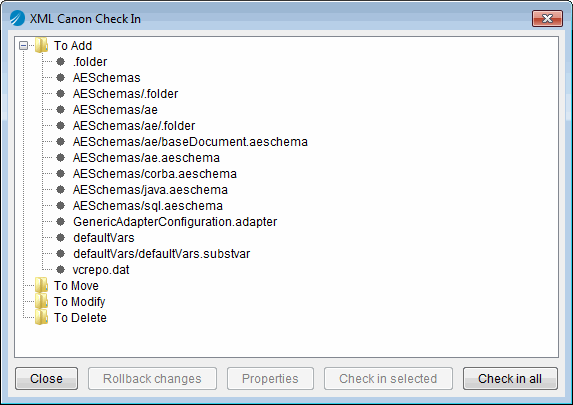
The folders and resources existing within the project prior to Step 1 can be checked into XML Canon by way of the Check In Changes option of the Multi-User menu. The XML Canon Check In dialog appears, listing the folders and files that have been added, moved, modified, or deleted since the project was last checked-in. The XML Canon Check In dialog is shown in
Figure 23 XML Canon Check In Dialog
Check-in options are controlled with the following buttons
A lock icon in the project panel, indicating that the files are not acquired and cannot be edited, marks checked-in items. Figure 24 depicts a project checked into XML Canon.
Figure 24 A Project Checked into XML Canon.
Step 3: Acquiring folders or resources and making changes
Once a project has been associated with XML Canon (see Step 1) and checked-in for the first time (see Step 2), its resources can be acquired (checked out) by other users with access to the XML Canon server and with permission to work within the category associated with the project.
To open a project stored on XML Canon
1.
2.
3.
Upon successful authentication, the project will be opened.
Folders and resources marked by a lock icon are read-only until acquired.
To acquire a resource
1.
2.
Select Acquire - Check out Resource from the right button menu or the Multi-User menu.
When a resource is acquired, its lock icon will disappear, indicating that you may edit the file.
 
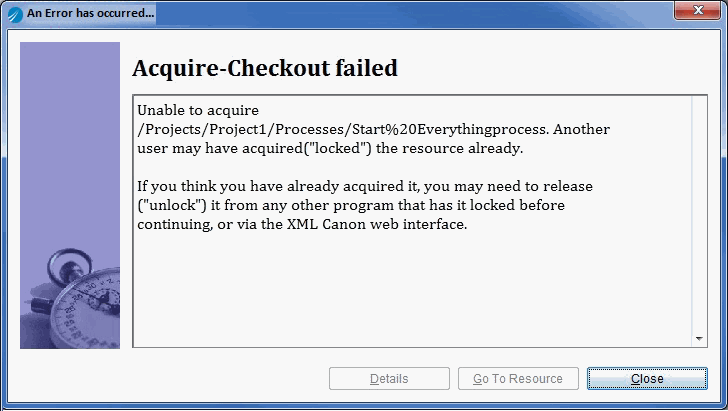
Once a user acquires a resource, other users cannot modify it. (Other users can view the resource, but cannot make changes to it.) If you attempt to acquire a resource that is under the control of another user, the message shown in Figure 25 will appear.
Figure 25 Acquire-Checkout Failed
Step 4: Checking in (or reverting) the changes made to an acquired resource
Changes made to acquired resources can be checked into XML Canon, following the same procedure outlined in Step 2.
Reverting Changes
There are two options for returning a folder or resource to its status prior to your acquisition:
Viewing Revision Control Information
The revision control system (RCS) information for a particular resource can be viewed by selecting the View RCS Info for Resource option from the right-button menu or the Multi-User menu. The information available is described in Table 4.
Deleting XML Canon Projects
XML Canon-based projects cannot be deleted in TIBCO Designer. To delete a project, use a WebDAV client.
Tips and Tricks
The following tips will help you use XML Canon effectively as a version control system.
Synchronize (Multi-User > Synchronize Project) often to ensure your project reflects the changes made by other users.
a.
b.
c.
d.

Copyright © 1999-2023. Cloud Software Group, Inc. All Rights Reserved.