Controlling Data Source Permissions
Besides changing data source visibility, you can also change the level of permissions on the data source.
A user might be able to see a data source in the
Data Sources section in their workspace, but they will not be able to access it unless they have permission.
Perform this task from the main Data Sources section of the application, accessible from the Data sidebar menu. You cannot edit data sources from a workspace.
Before you begin The permission options range from shared by everyone to workspace-specific credentials to individual credentials for each user. Depending on your use case, you can change this permission scheme at any time.
- Procedure
- Select the source from the data primary navigation.
- Click
Edit.
In the following example, the data source has Individual credentials and only one user account has access.
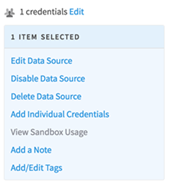
- In the
Data Source Permissions dialog, perform one of the following tasks.
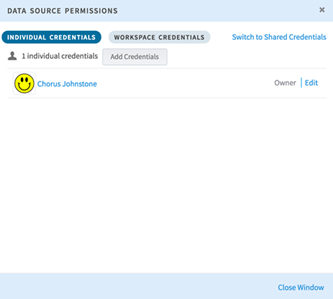
- View the individual credentials, as well as credentials granted to any workspaces.
- Click
Add Credentials to add new user accounts for individual credentials.
Note: These credentials must also be present on the data source in order to validate properly.
- Switch to shared credentials (which means that one set of credentials will be used by everyone), by clicking Switch to Shared Credentials.