Import Excel (HD)
Imports an Excel workbook sheet (or a portion of the sheet) as an HDFS input.

Information at a Glance
|
Parameter |
Description |
|---|---|
| Category | Load Data |
| Data source type | HD |
| Send output to other operators | Yes1 |
| Data processing tool |
The Excel workbook can be stored in HDFS or in the current workspace.
Formula cells, styles, dates, currencies, percentages, and so on are supported, and are parsed as numeric values. Non-tabular data such as images and pivot tables are skipped. Hidden columns and protected sheets are parsed as normal.
Input
Import Excel (HD) is a source operator. No inputs are required.If a
datetime type is specified in the
Column Metadata File parameter but the Excel sheet contains values that cannot be parsed with this format, null values are used.
Restrictions
Excel files are read on the TIBCO Data Science – Team Studio server. Depending on the memory available on your instance, loading very large Excel files on this server might require a large amount of memory and cause out-of-memory issues. For more information, see Apache POI limitations at https://poi.apache.org/spreadsheet/limitations.html.
TIBCO Data Science – Team Studio uses the configuration parameter custom_operators, set in the alpine.conf file, to avoid loading files that are too large. If the Excel file is bigger than this limit, it does not load and an error message is displayed. The default value is 30.0 (MB). The administrator of your TIBCO Data Science – Team Studio instance can modify the default value.
Configuration
| Parameter | Description |
|---|---|
| Notes | Notes or helpful information about this operator's parameter settings. When you enter content in the Notes field, a yellow asterisk appears on the operator. |
| Data Source (Hadoop) | The data source where the output should be stored (and where the Column Metadata Table is stored). |
| Hadoop File | The Excel workbook if stored in HDFS.
Note: Supported formats are .xls, .xslx and .xlsm.
If this field is left blank, a work file must be identified (in the Work File parameter below). |
| Chorus Workfile | The Excel workbook if stored in the current workspace. Only workbooks with the following extensions are displayed: .xls, .xlsx, and .xlsm.
If this field is left blank, a Hadoop file must be identified (in the Data Source (Hadoop) parameter above). |
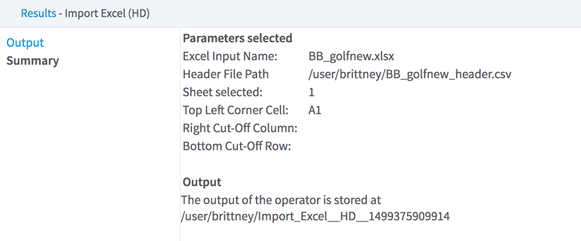
| Sheet Number | The number of the sheet to extract (the first sheet is 1). |
| Top Left Corner Cell | The cell address that defines the top-left cell of the data portion to extract in the selected sheet (for example, B10).
Note: If your workbook sheet contains a header, skip it and select a cell on the following row. This is necessary because the header is read separately in the
Column Metadata File (CSV) parameter, from a CSV file that includes both names and column types.
|
| Right Cut-Off Column Letter | An optional column letter that defines where the portion of data to extract should be cut at the right. If not specified, the data extraction is cut at the last defined cell of the first row selected (row number in
Top Left Corner Cell).
Note: If this parameter is not specified and the first row selected is empty or not defined, an error is displayed.
|
| Bottom Cut-Off Row Number | An optional row number that defines where the portion of data to extract should be cut at the bottom. If not specified, the data extraction is cut at the last defined row in the sheet. |
| Column Metadata File (CSV) | The HDFS file (the CSV file) that defines the header and column types for the output. The file should contain the following two rows of the same length.
This file is read at runtime and the output schema is available to the subsequent operator only after the operator is run. |
| Output Directory | The location to store the output files. |
| Output Name | The name to contain the results. |
| Overwrite Output | Specifies whether to delete existing data at that path.
|
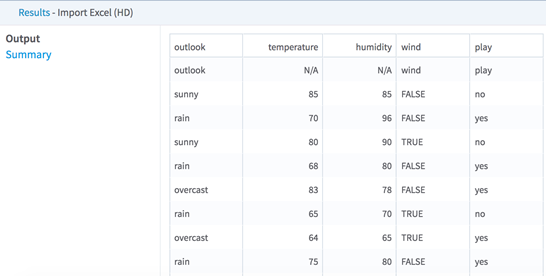
Output