Defining New Workflow Variables
In addition to the default variables that every workflow contains, you can also create new workflow variables.
- Procedure
-
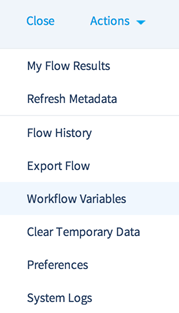
To define a workflow's variables, on the Actions drop-down list box, click Workflow Variables.
- The user can only change the value of sub-flow variables.
- If a variable in the sub-flow has the same name as a variable in the parent flow, the user is warned that the value would be overridden.
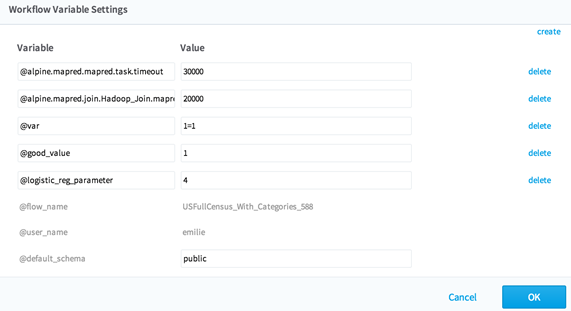
- To create a new workflow variables, click create.
- In the Variable field, enter the variable name.
- In the Value field, enter the value of the variable.Note: When defining a workflow variable for a table that contains period/dot ( . ) in its name, then the variable should be wrapped in " ". For example, "demographics.parquet".
- Click OK to save the workflow variables, or click Cancel to discard changes.
For flows that contain a sub-flow, the variables of the sub-flow are also displayed in the dialog shown below.
Removing Variables
- Procedure
- To remove a variable, select it and click Delete.