Dynamic Column Filter
This operator selects a subset of the columns from the data source. Only the selected columns remain in the output data set.

Information at a Glance
|
Parameter |
Description |
|---|---|
| Category | Transform |
| Data source type | TIBCO® Data Virtualization |
| Send output to other operators | Yes |
| Data processing tool | TIBCO® DV, Apache Spark 3.2 or later |
Algorithm
This operator is particularly helpful when there are many columns in a data source that are not needed for the data analysis workflow or in case, you need to select columns dynamically. You can also specify a regular expression for selecting a subset of columns by column names.
The Dynamic Column Filter operator is designed to be used in conjunction with Modeling operators. When the Use all available columns as Predictors parameter is set to Yes in these operators, the Dynamic Column Filter operator that is placed before the Modeling operators decides which columns are used as predictors dynamically.
The parameters Columns to Include, Data Types to Include, and Column Names to Include (regex) work as a union for adding a column to the operator.
Input
An input is a single tabular data set.
Configuration
The following table provides the configuration details for the Dynamic Column Filter operator.
At least one of the parameters must be used from Columns to Include, Data Types to Include, and Column Names to Include (regex). The output is the columns satisfying at least one of the conditions specified by these inclusion parameters.
| Parameter | Description |
|---|---|
| Notes | Notes or helpful information about this operator's parameter settings. When you enter content in the Notes field, a yellow asterisk appears on the operator. |
| Columns to Include |
The columns to be made available for analysis. Only static columns can be selected. Click Select Columns to select the columns. It is an optional parameter. |
| Data Types to Include |
Specify the data type that you want to include. Click Select to select the data type. It is an optional parameter. The following values are available:
By default, all data types are selected. Note:
You can also select more than one data type or none. By default all data types are selected, so without changing this default choice, you get the whole table as output. |
| Column Names to Include (regex) |
Specify the regular expression or wildcards for selecting a subset of columns by name. It is an optional parameter. Note:
For the regular expression, the dollar ( |
| Output Schema | Specify the schema for the output table or view. |
| Output Table | Specify the table path and name where the output of the results is generated. By default, this is a unique table name based on your user ID, workflow ID, and operator. |
| Store Results | When set to Yes, it enables the operator to save the results. When set to No, it disables the operator to save the results. |
Output
The data rows of the output table or view are displayed (a limited number of rows of the data).
A tabular data set with columns that satisfy one of the conditions defined by the parameters for the rule of inclusion. This data with only required columns can be used with subsequent operators.
Example
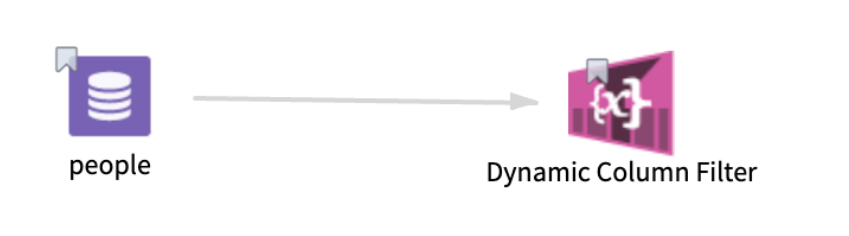
The following example demonstrates the workflow of a Dynamic Column Filter operator.
Data
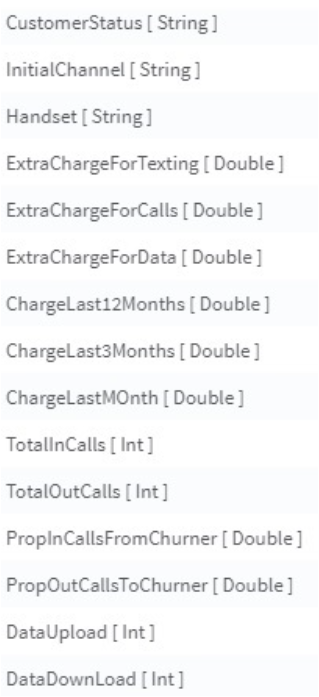
Input data set has multiple rows and the following columns:
Parameter Setting
The parameter settings for the Dynamic Column Filter operator are as follows:
-
Columns to Include: CustomerStatus
-
Data Types to Include: String
-
Column Names to Include (regex): ^Data
Results
The following figure displays the results from the Dynamic Column Filter operator.
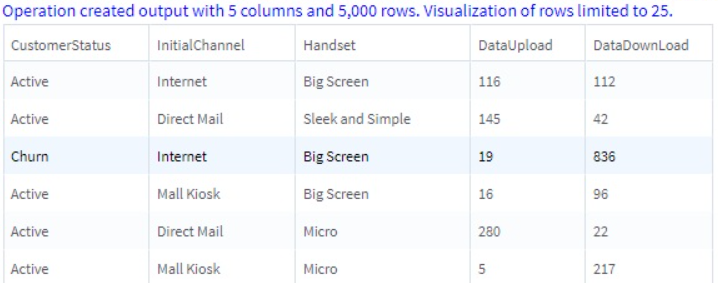
In the above table, the column CustomerStatus is included based on Columns to Include parameter. The columns InitialChannel and Handset are included based on the Data Types to Include parameter. Finally, the columns DataUpload and DataDownLoad are in the results because they satisfy the regular expression asking for all variables starting with Data.
Additional regular expression examples
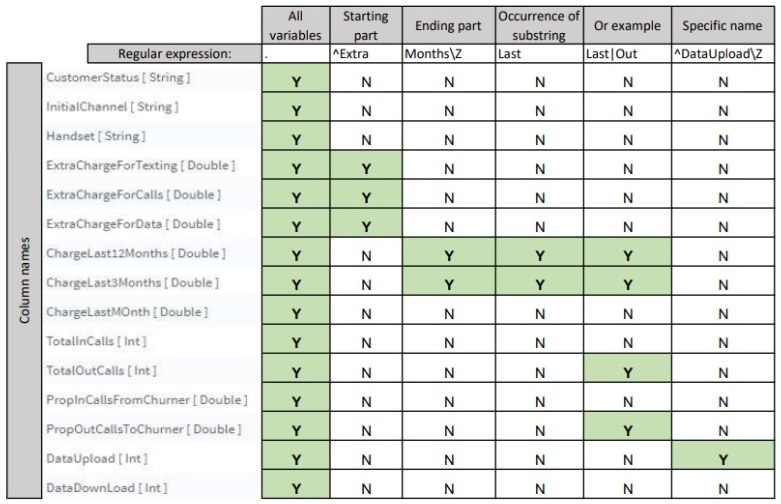
The following table provides an example of regular expressions. The green color is highlighting the columns that are included based on the specified regular expressions.