Using the Start and Stop Menu Options
For Windows:
The iWay TPM installation adds a Trading Partner Manager entry to the Windows Start menu, as shown in the following image.
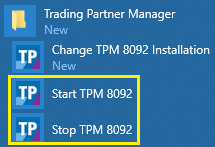
You can start or stop iWay TPM by clicking one of the corresponding menu options.
Clicking Start TPM opens a Windows command prompt that automatically runs the startup script (tpmstart.bat), as shown in the following image.
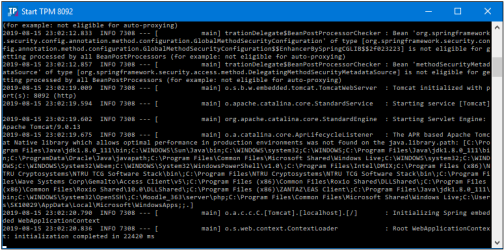
Do not close the command prompt window while iWay TPM is running. However, you can minimize the command prompt window, as needed.
Clicking Stop TPM runs the shutdown script, which stops iWay TPM.
For Linux:
tpm-<port>.service and tpm-service.sh illustrate one way to run TPM as a service under Linux, using systemd and curl.
tpm-<port>.service is a minimal systemd unit file. To use:
- Procedure
-
Fill in the user in 'User=<user>'.
-
If the tpm-service-<port>.sh file is moved from the samples/linux directory, modify the file paths accordingly.
-
Copy the file to /etc/systemd/system.
-
sudo systemctl daemon-reload.
Use the following commands to start or stop the service.
To start the service:
sudo systemctl start tpm-<port>
To stop the service:
sudo systemctl stop tpm-<port>
To enable the service (to start automatically on boot):
sudo systemctl enable tpm-<port>
example -
sudo systemctl enable tpm-8092