Workbook Drag-and-Drop Features
The Statistica Workbook supports an entire range of drag-and-drop features within the workbook tree. By right-clicking on an item in the workbook tree, you can drag that item to a new location within the tree. In fact, since the drag-and-drop features support parent/child relationships, you can use these features to rearrange large portions of the workbook tree.
To select a single item, click on the item with either the left or right mouse button, depending on the type of drag-and-drop operation you want to perform. To select a parent node and all of its children, simply click on the parent node (or press SHIFT while clicking on the parent node and each of its children). To make discontinuous selections (i.e., select some of the children, but not all of them), hold down the CTRL key while clicking on each item you want to select. You can also make discontinuous selections across nodes using the CTRL key. See also, Can I select discontinuous items in the workbook tree?.
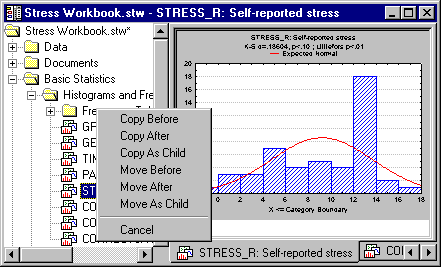
You can place the item before, after, or as a child to the newly selected item in the tree. Note that when you select more than one item, the original file structure of the dragged items will remain the same. For example, if you drag a node and all of its children and select Copy As Child, the original selection will be copied (not moved) to the new location with the node being placed as a child to the new selection. The children of the original node will not be placed as siblings to the original node; they will maintain their status as children. These features make it possible to customize the workbook tree to meet even the most complex of organizational structures.
Following is a chart of keyboard controls for use in a workbook.
| Action | Key Press | Cursor | Effect |
| Move Child | (none) |
| Move the first selected item one level below the second selected item |
| Move Sibling | SHIFT |
| Move the first selected item directly below and on the same level as the second selected item. |
| Copy Child | CTRL |
| Copy the first selected item one level below the second selected item. |
| Copy Sibling | SHIFT+CTRL |
| Copy the first selected item directly below and on the same level as the second selected item. |


For a brief example on using drag-and-drop features, see Rearranging the Workbook Tree with Drag-and-Drop.