Graphics Styles - Managing and Editing Graphics Styles
Look back at the Graphics Styles dialog displayed in Contents of Graphics Styles, which lists all graphics styles. You can see how the various aspects of the graph are hierarchically organized into a tree structure. For example, the Titles collection contains various collections of other attributes and properties, etc. To reiterate, practically every aspect of the graph can be customized, and the customization saved as a style that can be reused in subsequent graphs. Note that you can edit some specific elements of the style by clicking the Edit button on the Graphics Styles dialog; the Edit button, however, will only be available (not dimmed) if the respective style property or attribute is applicable and available in the current graph.

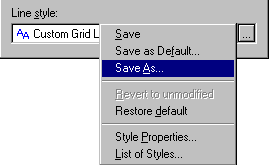
If you click the
button to the right of the Line styles box, or right-click on the box, a menu is displayed containing the commands to Save, Save As Default, Save As, etc. Using these commands, you can make the respective customization (e.g., line pattern) the default for future graphs (select Save as Default), save it in the current style, or use Save As to create a new style that you can later apply to your new graphs.
See also, Applying a Graphics Style.