A Simple dialog in Statistica Visual Basic
This example illustrates how to create a simple dialog and "service" the user choices in this dialog. Start by creating a new macro:
Ribbon bar. Select the File tab, and in the left pane, click New; in the Create New Document dialog, select the Macro tab.
Classic menus. From the File menu, select New; in the Create New Document dialog, select the Macro tab.
Create a new macro called SimpleDialog. Then, in the SVB program editor, place the cursor (i.e., click in the location) between the two statements Sub Main and End Sub; that is where the program code for the dialog will be inserted.
Creating the dialog.

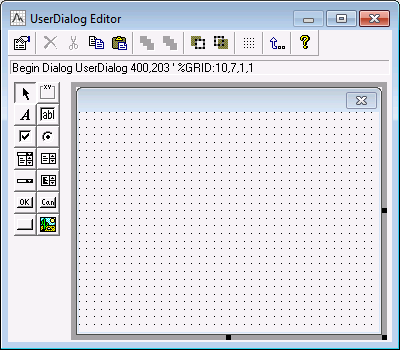
Click the OK button on the left side of this dialog, and then move the mouse pointer to the upper-right corner of the window, and click the mouse button; an OK button will be inserted in that location.
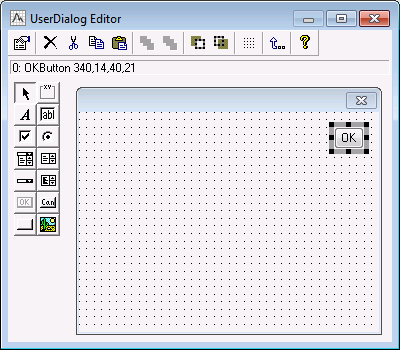
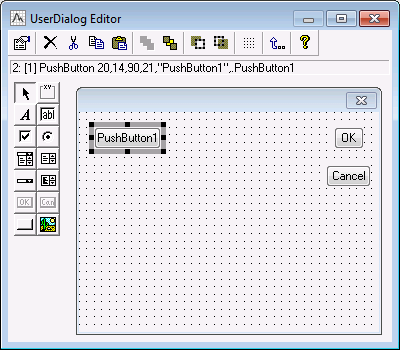
By default, the new button will be labeled Pushbutton1; to change that, double-click on the button to display the Edit PushButton Properties dialog. Then edit the text boxes as follows:
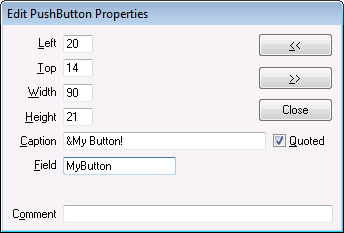
Now close the Edit PushButton Properties dialog, and close the
UserDialog Editor dialog by clicking the
 toolbar button. The SVB program will now contain the following code:
Sub Main
Begin Dialog UserDialog 400,203 ' %GRID:10,7,1,1
OKButton 330,14,50,21 CancelButton 330,49,60,21 PushButton 20,14,90,21,"&My Button!",.MyButton
End Dialog Dim dlg As UserDialog Dialog dlg
End Sub
Remember that, to learn more about the different keywords and statements used in this program, you can always highlight the respective text, and then press F1 to display the general SVB help text explaining the syntax for the respective keyword or statement and provide simple examples on how to use them.
The simplest way to do this is to use the codes returned by the Dialog method; this method will return a 0 when Cancel is clicked, -1 for OK, and different integers greater than 0 to enumerate the other controls in the dialog. So in this example, clicking the My Button button would return a 1. Here is the program that would service all buttons.
Sub Main
Begin Dialog UserDialog 400,203 ' %GRID:10,7,1,1
OKButton 300,14,70,21
CancelButton 300,42,70,21
PushButton 30,14,90,21,"&My Button!",.MyButton
End Dialog
Dim dlg As UserDialog
Dim ReturnId As Integer
' NOTE: here we added parenthesis around the argument
' (dlg) for the Dialog method; this allows us to
' retrieve the return code from that method.
ReturnId = Dialog (dlg)
Select Case ReturnId
Case -1
MsgBox "The OK button was pressed"
Case 0 ' Cancel Button
MsgBox "The CANCEL button was pressed"
Case 1 ' The 'first' button on the Dialog,
MsgBox "The MY BUTTON was pressed"
End Select
End Sub
This program uses the standard Visual Basic Select Case statement to execute the code for the desired message box, based on the ID number returned by the Dialog method; you could of course also accomplish the same effect by using If ... Then ... Else statements. (All general Visual Basic statements are documented in the general SVB syntax help).