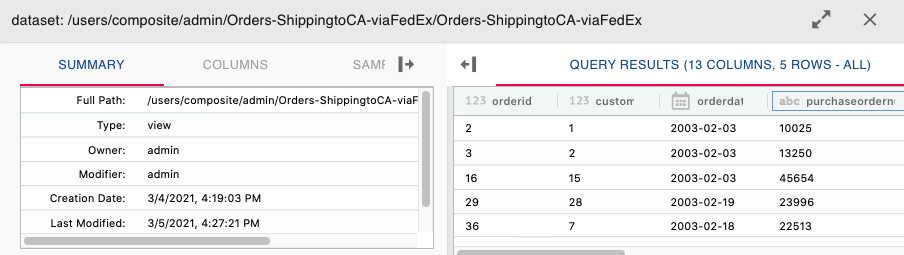
Resource Details
The details and data (in case of a table, view or flow) of each resource selected in the resource tree is displayed in a pane below the resource tree.
The preview window or the resource details window displays the details of the resource on the left and a data preview (where applicable) on the right.
Resource Details
Following are the details displayed in the Resource Details pane:
• Summary Tab - The full path of the resource, the resource type, owner, description and the created/modified dates.
• Columns - List of all the columns, the data type of each column and a description. This tab is only visible for certain resources such as tables, views and flows. Using the search utility, you can search for a specific column.
• Sample - The sample tab gives the ability of filtering the data preview by providing a where clause that will be applied to the data displayed. You can also limit the row count of the data displayed. Adjusting the sample data size can improve performance.
Data Preview
The Data Preview pane displays a sample/full dataset of the selected resource. Following are some of the user-friendly features of the Data Preview pane:
• The Data Preview pane gives a preview of the dataset up to 10000 rows.
• The data displayed can also be filtered using a where clause in the sample tab of the Resource Details pane.
Note: You may need to wrap column names in double-quotes if it contains certain special characters.
• The Data Preview Pane also gives the ability to sort on a column, pin a column, search for a specific column, and auto size the column width.
• To view a larger dataset, you can expand the view to a full screen.