The sensitive tag is now Testpassword, and the sensitive keyword is the real password (xxxxxx). 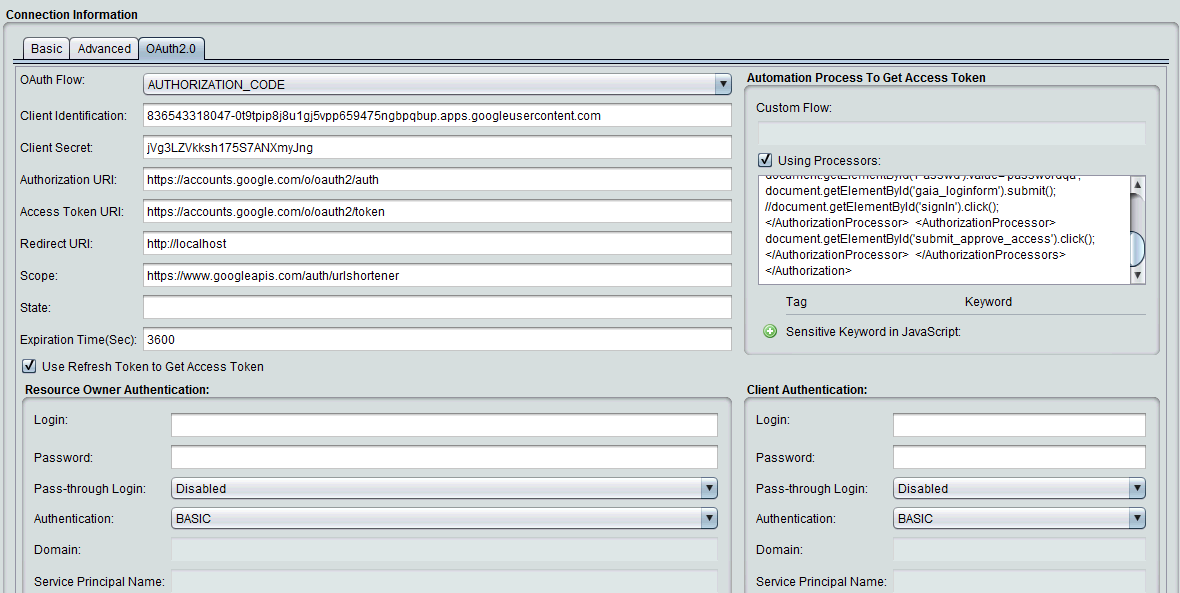
OAUTH Tab Field | Example Value |
OAuth Flow | AUTHORIZATION_CODE |
Authorization URI | https://accounts.google.com/o/oauth2/auth |
AccessToken URI | https://accounts.google.com/o/oauth2/token |
Text field below the Using Processors check box | <Authorization> <AuthorizationProcessors> <AuthorizationProcessor> <![CDATA[ document.getElementById('Email').value='test@gmail.com'; document.getElementById('gaia_loginform').submit(); //document.getElementById('next').click(); ]]> </AuthorizationProcessor> <AuthorizationProcessor> <![CDATA[ document.getElementById('Passwd').value='xxxxx'; document.getElementById('gaia_loginform').submit(); //document.getElementById('signIn').click(); ]]> </AuthorizationProcessor> <AuthorizationProcessor> <![CDATA[ document.getElementById('submit_approve_access').click(); ]]> </AuthorizationProcessor> </AuthorizationProcessors> </Authorization> |