The Login Screen
The following Login screen is displayed when:
| 1. | You access the url for TDV Web UI (http://<hostname>:9400/webui). |
| 2. | You are in a different screen within the TDV Web UI and you have been logged out due to inactivity. |
| 3. | You choose to sign out of TDV Web UI. |
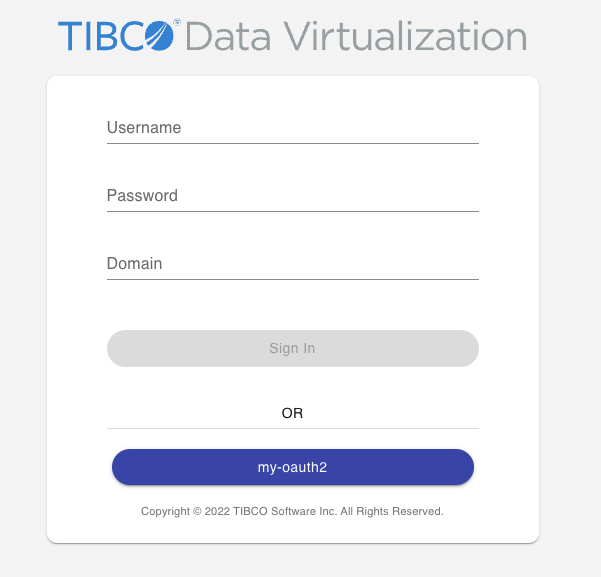
Follow these instructions to login to TDV Web UI:
1. Provide the valid credentials for all the fields in the Login screen. The table below describes the various fields in the Login screen.
Note: TDV Web UI does not support Kerberos authentication.
If an OAuth 2.0 domain has been set up and access tools privileges given to the user, then you can login to TDV Web UI by giving the OAuth 2.0 domain name (that has been setup in Web Manager) in the Domain field. Click on the domain name button that is displayed in the login screen. You will not need to provide username and password while using the OAuth 2.0 domain. The option to login to the OAuth2 domain will be available only if the domain is defined in the Web Manager.
You need to be actively logged into your IDP account, before attempting to login to any of the TDV client tools using the OAuth2 domain. If not, you will be redirected to your IDP login page. Once logged in, click on the Oauth2 domain in TDV Studio, Web Manager or Web UI to successfully login to the TDV client.
In order to allow access to Web UI, the TDV Web UI url must be added to the Redirect URIs list in your Identity Provider. Using the following hostname based url is the preferred method:
http://xyz.com/webui
https://xyz.com/webui
You may also add an IP based or localhost based url in the Redirect URI list as given below:
http://1.1.1.1:9400/webui
https://1.1.1.1:9402/webui
http://localhost:9400/webui
https://localhost:9402/webui
However, it is important to note that this is not a preferred approach as:
– localhost references are not host specific.
– IP addresses will not work in deployment environments where server IP addresses are not statically assigned (For example, in the cloud deployments).
|
Field |
Description |
|
Username |
The username required to login to TDV Web UI. Obtain a valid username from your TDV administrator. Note: Username that contains '?' and '&' is not supported. If using an OAuth 2 domain, this field can be left blank. |
|
Password |
The password required to login to TDV Web UI. Obtain a valid password from your TDV administrator. If using an OAuth 2 domain, this field can be left blank. |
|
Domain |
The domain to which the user belongs. |
2. Click on Sign in to Login to TDV Web UI.
3. The following Data Catalog Search page is displayed.
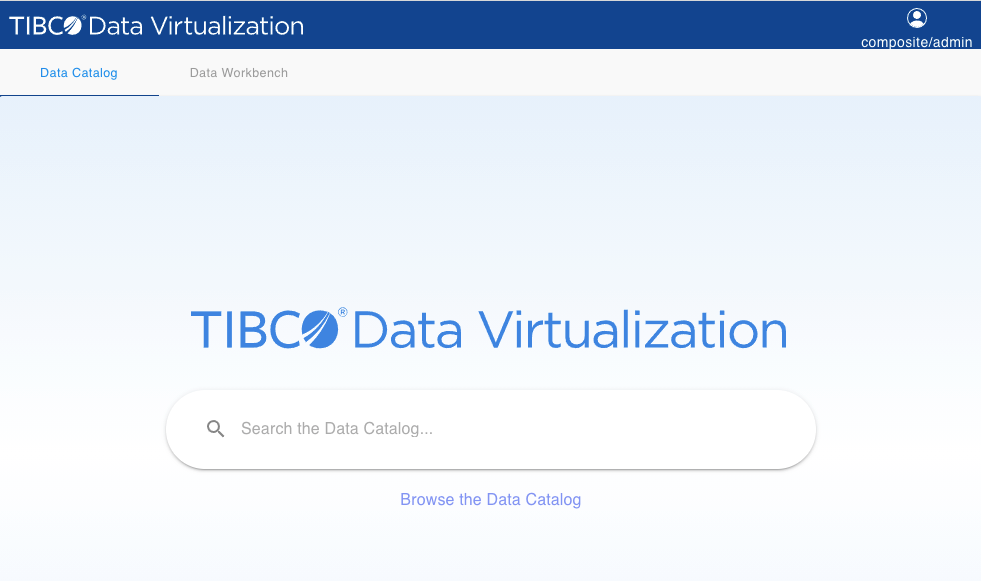
The Search tool in the Data Catalog tab on the landing page allows you to perform a simple keyword search for any resource that you have access to view within the TDV system. Refer to the section Searching the Data Catalog for more details about the Search tool,
Click on the Browse the Data Catalog link to open the Data Catalog screen. Refer to the section Data Catalog Navigation for details about the different categories in the Data Catalog Screen.
The Data Workbench tab on the landing page lists all the recently used flows as well as a link to Creating a New Flow.