Launching the HTML/Document Wizard
The HTML/Document Wizard allows you to create a new HTML Page, Guided Report Page, or Document, andor open a recent procedure.
To open the HTML/Document Wizard:
- On the Home tab, in the Content group, click HTML/Document.
- In the Environments Tree panel, right-click an application folder,
point to New, and click HTML/DocumentHTML File.
Note: If you choose to create a new HTML page using the shortcut menu in the Environments Tree panel, your screen will not include a Navigator panel since the location for your HTML page is already selected.
The HTML/Document Wizard opens, as shown in the following image.
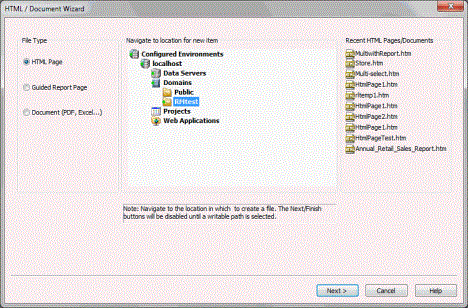
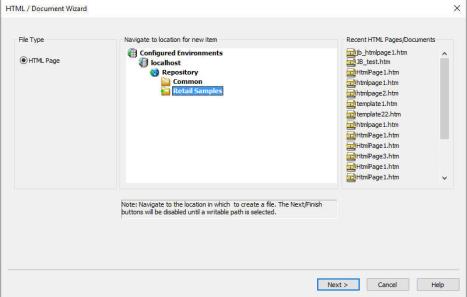
From the HTML/Document Wizard, you can open a recent HTML Page/Document or create a new one.
Create an HTML Page Using the HTML/Document Wizard
- Procedure
- In the File Type area, select HTML Page.
- Navigate to where you want to create the new procedure
or select a recent procedure and click Next.
Note:
- The Next button is available after you select a valid path.
- If you used the shortcut menu in the Environments Tree panel to create your HTML page, a location is already selected.
- Optionally, you can add themes and settings to your HTML page.
- Click Finish.
The HTML canvas, File/Folder Properties panel, Properties panel, Settings panel, Requests & Data sources panel, and Tasks & Animations panel open. You can now add data to your HTML page and format the data using the tabs in the ribbon.
- To save your HTML page, click the Save button on the Quick Access Toolbar or select Save from the Hamburger menu.
- To run your HTML page, click Run on the Quick Access Toolbar or click Run from the Hamburger menu.
Create a Guided Report Page Using the HTML/Document Wizard
After you have launched the HTML/Document Wizard, you can begin to create your own Guided Report page.
- Procedure
- In the File Type area, select Guided Report Page.
- Navigate to where you want to create the new procedure
or select a recent procedure.
Note: If you used the shortcut menu in the Environments Tree panel to create your Guided Report page, a location is already selected.
- Optionally, click Next if you want to add themes and settings to your Guided Report page.
- Click Finish.
Note: The Finish button is unavailable until you select a valid path.
The HTML canvas, File/Folder Properties panel, Properties panel, Settings panel, Requests & Data sources panel, and Tasks & Animations panel open. You can now add data to your HTML page and format the data using the tabs in the ribbon.
- To save your Guided Report page, click the Save button on the Quick Access Toolbar or select Save from the Hamburger menu.
- To run your Guided Report page, click Run on the Quick Access Toolbar or click Run from the Hamburger menu.