Configuring Data Adapters
Data adapters must be configured to allow the server to access data on different types of databases. Once a data adapter is configured, create metadata for the tables or views in the form of synonyms. Synonyms are used to both access the data as sources, and to write the data to targets.
To access data in the ibi Data Migrator process, the data adapters you need must be defined to the server. You need to add and configure a data adapter for every database type you want to access.
You can also configure and test data adapters from the Configuring Data Adapters page of the WebFOCUS Reporting Server browser interface. For more information, see the ibi™ WebFOCUS® Reporting Server Administration manual or the WebFOCUS Reporting Server browser interface online help.
For complete documentation on configuring data adapters and for a detailed explanation of the associated connection parameters, see the ibi™ WebFOCUS® Reporting Server Administration manual.
Add and Configure a Data Adapter
- Procedure
- Right-click the Adapters folder and click New Data Source.
You can also expand the Adapters folder, right-click Server Data Sources, and click New Datasource.
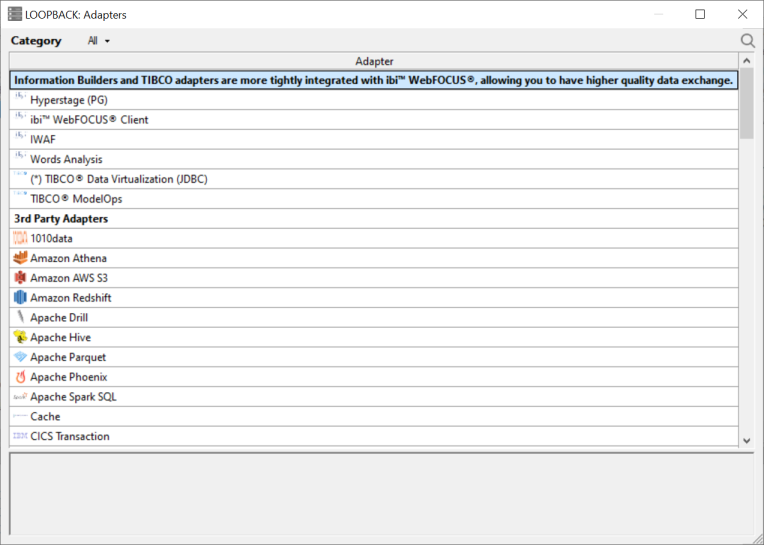
A dialog opens listing all of the available adapters, as shown in the following image.
- Right-click
the adapter and click Configureor double-click the adapter that you want to configure, for example MS SQL Server® ODBC/Azure DB.
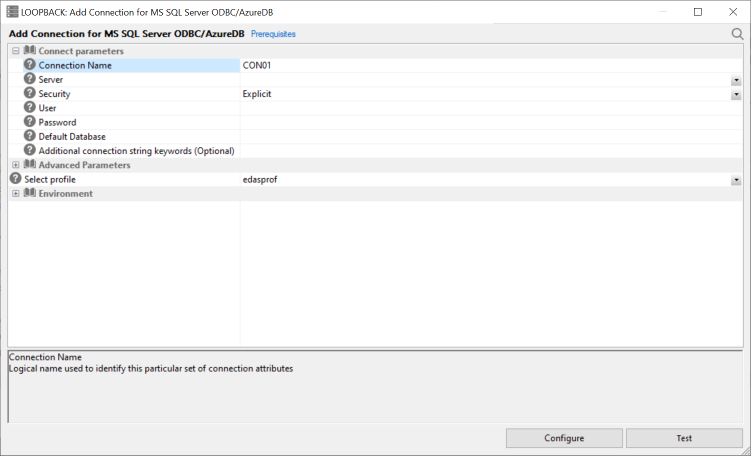
The Add to Configuration dialog opens, as shown in the following image.
- Configuring
the adapter consists of specifying connection and authentication
information for each of the connections that you want to establish. Enter
the appropriate information and click Configure.
A confirmation message appears.
- Click Close.
For complete documentation on configuring data adapters and for a detailed explanation of the associated connection parameters, refer to the ibi™ WebFOCUS® Reporting Server Administration manual.
Test a Data Adapter
- Procedure
- Expand the Adapters folder in the navigation pane if it is not already expanded.
- Expand the folder for the data adapter and right-click the configured adapter connection.
- Click Test Connection,
as shown in the following image.
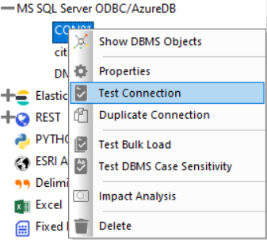
The Test Results open.
Navigation Pane: Adapters Folder
The Adapters folder shown in the following image allows you to add and configure adapters from the ibi Data Migrator desktop interface.
The Adapters folder has the following subfolders:
Contains all the available adapters that can be configured for this server.
If you right-click the Adapters folder, the following options are available:
Shows a list of data adapters that are available on all platforms.
Displays a report of SQL functions and keywords that show how they are handled for each supported database. The keywords are:
- pass. Passes the function to the database as is, without doing a conversion.
- convert. Converts the function into a database-specific implementation and passes it to the database.
- focus. Forces SQL to be processed by ibi™ FOCUS®.
Opens the SQL Optimization Report dialog, which allows you to specify settings for, and run, the report. The SQL Optimization report shows which functions are optimized to their SQL counterparts by adapter.
Opens the Filter Data Types Report dialog, which allows you to specify settings for, and run, the report. The Data Type report contains mapping options for different data types.
Opens the Change Settings for Common Adapter dialog, which allows you to change the default adapter settings.
Opens a submenu with the choices of Alphabetically and In Profile Order.
For any adapters for which there are multiple connections configured, this controls the order in which they are displayed.
If you right-click an adapter folder, the following options are available:
Allows you to configure another connection for that adapter.
Allows you to change optimization settings, controlling session parameters, and miscellaneous settings, depending on the adapter.
Removes the configured adapter from the server.
If you right-click a connection, the options shown in the following image are available:
Allows you to view and change the connection properties.
Allows you to create or update a synonym for that connection.
Allows you to test the connection.
Shows synonyms and flows that use the selected connection.
Allows you to delete the connection.
Navigation Pane: Adapters Folder
The Adapters folder shown in the following image allows you to add and configure adapters from the ibi Data Migrator desktop interface.
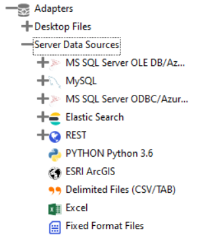
The Adapters folder has the following subfolders:
Contains a list of file types that can be uploaded to the ibi Data Migrator desktop interface.
Contains the adapters that have been configured for this server, as well as the Remote Servers folder.
If you right-click the Adapters folder, the following options are available:
Opens a list of adapters that are available to be configured.
Has the following additional options:
Opens the Change Settings for Common Adapter dialog, which allows you to change the default adapter settings.
Allows you to edit the edasprof or user profile.
Shows a list of data adapters that are available on all platforms.
Displays a report of SQL functions and keywords that show how they are handled for each supported database. The keywords are:
- pass. Passes the function to the database as is, without doing a conversion.
- convert. Converts the function into a database-specific implementation and passes it to the database.
- focus. Forces SQL to be processed by FOCUS®.
Opens the SQL Optimization Report dialog, which allows you to specify settings for, and run, the report. The SQL Optimization report shows which functions are optimized to their SQL counterparts by adapter.
Opens the Filter Data Types Report dialog, which allows you to specify settings for, and run, the report. The Data Type report contains mapping options for different data types.
Lists the number of allowed and configured adapters.
Allows you to enable or disable traces, turn on the session log to show the commands that are sent from the ibi Data Migrator desktop interface to the server, clear the session log, or display login information.
If you right-click an individual adapter folder, the following options are available:
Allows you to configure another connection for that adapter.
Allows you to change optimization settings, controlling session parameters, and miscellaneous settings, depending on the adapter.
Removes the configured adapter from the server.
Launches the WebFOCUS Reporting Server browser interface Help for the selected adapter.
Opens a separate page in a browser that lists the prerequisites for the selected adapter.
If you right-click an adapter connection, the options shown in the following image are available:
Allows you to create or update a synonym for that connection.
Allows you to view and change the connection properties.
Allows you to test the connection.
Allows you to quickly create another connection, using the parameters for the selected connection.
Performs a bulk load test on the selected connection.
Allows you to test the case sensitivity of the DBMS.
Shows synonyms and flows that use the selected connection.
Allows you to delete the connection.