Performing ibi WebFOCUS Reporting Server Administration Tasks
You can control many key aspects of Server operations directly from the ibi Data Migrator desktop interface.
The desktop interface allows you to:
- Configure the application path.
- View and run flows by expanding the approot folder and its application directories.
- Create sample procedures and data.
- Set up log and statistics options.
- Run reports.
- View run-time information.
- Schedule flows.
- Set scheduler settings.
- Set an email notification.
Configuring ibi WebFOCUS Reporting Server Operations
You can set up your Server to send an email message that notifies recipients of the successful completion or failure of every flow execution.
In addition, from the ibi Data Migrator desktop interface, you can enable the distribution of email messages at any point in a process flow.
However, to enable either variation on the email notifications process, you must first configure an SMTP service. (You need to set up your server for email before it works anywhere in the flow.)
Edit the Scheduler Configuration
- Procedure
- In the ibi Data Migrator desktop interface, expand the Workspace folder, followed by the Special Services and Listeners folder.
- Right-click SCHEDULER
and click Properties.
The Scheduler Configuration dialog opens.
- Make your changes, and click Save and Restart Scheduler. For more information on the available options, see Scheduler Configuration dialog.
Scheduler Configuration dialog
The ibi Data Migrator Scheduler runs as a task under the Server. The Scheduler must be running to submit flows and stored procedures and to run scheduled data flows and flows that run in parallel groups in a process flow. The following image shows the Scheduler Configuration dialog.
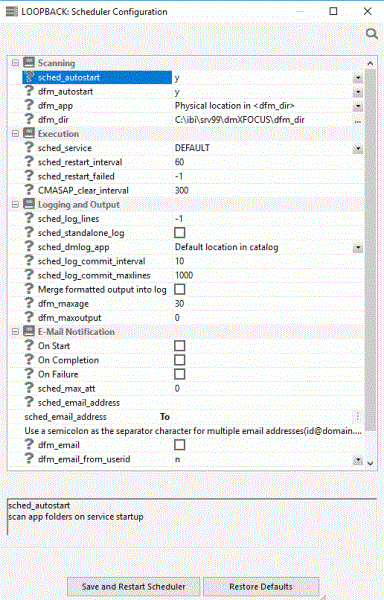
The Scheduler Configuration dialog contains the following fields/options:
Specifies whether the Scheduler should check for flows automatically. The options are:
Automatically starts the Scheduler when the server starts. This is the default value.
Does not start the Scheduler when the server starts.
If this option is enabled, the DFM listener starts with the server.
Specifies the application name of the location of deferred requests and reports.
Specifies the physical location of the deferred requests and reports, if the dfm_app value is not set.
This is the agent service that the ibi Data Migrator Scheduler will use when running ibi Data Migrator flows. If this is not set, the DEFAULT service is used.
Specifies the time interval in seconds between restart attempts for all restartable flows. The default value is 60.
Specifies the number of times that failed agents will be restarted. If the value is 0, they will not be restarted. If it is -1, they are restarted indefinitely. The default value is -1.
Specifies how often CMASAP agents are removed from the agents list, in seconds. When set to -1, this is never. The default value is 300.
Limits the maximum number of messages for any one Message Code for each request that the ibi Data Migrator Scheduler writes to the log. When this maximum number of messages is reached, logging for this specific Message Code is suppressed. Exceeding this limit for one request does not affect the logging activities of other requests. When this keyword is set to -1, the number of messages is unlimited. A value of 0 disables logging completely.
The default value is set to -1.
Select this option to have a separate log file for every job.
The name of the application in which the individual log and statistics files are located. This option is only applicable if you select sched_standalone_log.
Specifies the maximum time interval in seconds that can elapse before log data is committed to the ibi Data Migrator log. The default value is 10.
Specifies the maximum number of log lines to collect before committing them to the ibi Data Migrator log. The default value is 1000.
Select this option to set the output from a report to go to the log. Only text output is displayed to a maximum width of 80 characters.
Specifies the maximum number of days that deferred reports are kept. The default value is 30.
Specifies the maximum size of a deferred report.
Sends an email when the Scheduler starts.
Sends an email when the schedule completes.
Sends an email if the schedule fails.
Specifies the email attachment size limit, in kilobytes (KB).
Allows you to enter an email address, user ID, or procedure name.
If this option is enabled, the schedule specified for server-wide email will be followed.
If this option is enabled, the email address associated with the user ID will be retrieved from the security provider.
Start or Stop the Scheduler
- Procedure
- From the ibi Data Migrator desktop interface, connect to the server with an administrator user ID.
- Expand the Workspacefolder, and then expand the Special Services and Listeners folder.
- Right-click SCHEDULER.
If the Scheduler is running, select Stop.
If the Scheduler is not running, select Start.
Update Passwords
APPLICATION-level administrators can change their configured passwords from the ibi Data Migrator desktop interface.
- Procedure
- In the
ibi Data Migrator desktop interface, right-click the server name, point to My Console,
and then click Change Password.
The User Information dialog opens.
- Enter your current operating system password in the Current Password field.
- Enter the password in the New Password and Confirm Password fields.
- Select the Update operating system password or Update password in admin.cfg, server will be restarted checkbox.
- Click Update.
Configure the ibi WebFOCUS Reporting Server for Email Notification
To enable email notifications, you must first configure an SMTP service. (You need to set up your server for email before it will work anywhere in the flow.)
- Procedure
- In the
ibi Data Migrator desktop interface, right-click the Workspace folder, point to Settings, select Workspace SET, and then
select SMTP Server Settings.
The E-Mail SMTP Server dialog opens, as shown in the following image.
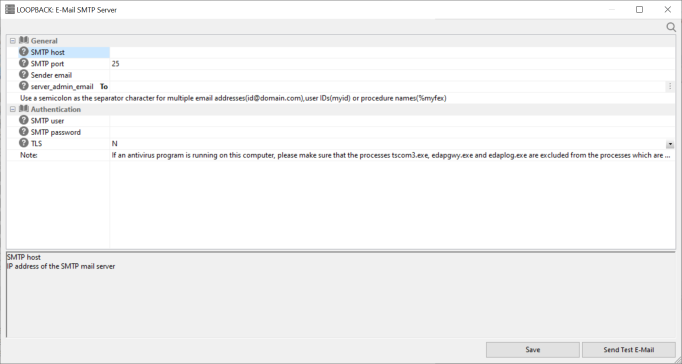 Note: If an antivirus program is running on this computer, make sure that the tscom3.exe, edapgwy.exe, and edaplog.exe processes are excluded.
 - Enter
the following information:
- SMTP_host. Defines the IPv4 address of the SMTP email server. The address can be in standard dot notation (for example, smtpmail.yourcompany.com).
- SMTP_port. Specifies that the mail server is bound to the TCP port that is shown.
- Sender_email. Defines the email address of the sender, which appears in the 'From' field in emails (for example, yourname@yourcompany.com).
- server_admin_email. Defines the email address of the recipient (for example, yourname@yourcompany.com).
- SMTP_user. The user ID to the SMTP server. This value is optional.
- SMTP_password. The password to the SMTP server. This value is optional.
- TLS. Specifies if the TLS protocol is used. The default value is N.
- Click Save.
- After
configuring SMTP services, go to the WebFOCUS Reporting Server browser interface Scheduler Configuration
page and select a sched_email option:
off
Never sends email.
completionSends email when a flow finishes.
failureSends email when a flow fails.
Note: This setting applies to every flow.
Edit the ibi WebFOCUS Reporting Server Configuration
- Procedure
- In the
ibi Data Migrator desktop interface, right-click
the Workspace folder, point to Settings, select Workspace SET, and then select Miscellaneous
Settings.
The Miscellaneous Settings dialog opens, as shown in the following image.
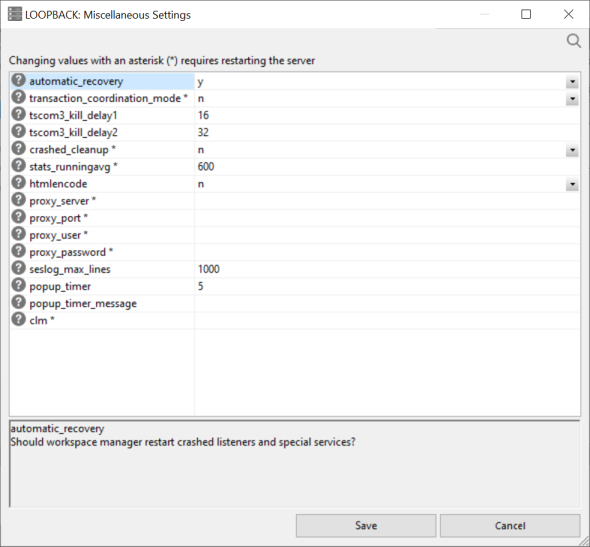
The following Miscellaneous Settings are saved in the edaserv.cfg file:
automatic_recoveryDetermines whether the server will automatically recover crashed listeners and/or special services. The default value is y.
transaction_coordination_modeSelecting y, activates the Transaction Coordinator. A Two-Phase Commit will be used when XA-Compliant databases participate in a transaction. The default value is n.
tscom3_kill_delay1Defines the time (in seconds) allowed for an agent to stop before a soft kill is sent. The default value is 16.
tscom3_kill_delay2Defines the time (in seconds) allowed for a soft kill to work before a hard kill is sent. The default value is 32.
crashed_cleanupBy default, crashed agents are kept in the agents table for diagnostics purposes, and are only removed when they are explicitly killed. When this is set to y, crashed agents are automatically removed from the agents list when the Workspace Manager detects a crash. The default value is n.
crashed_max_dumpIf crashed_cleanup is set to y, this determines the number of memory dump files retained for later diagnosis.
stats_runningavgDefines the time window in seconds for the calculation of running response time averages. The default value is 600.
htmlencodeSpecifies whether to encode HTML tags in data as plain text in order to prevent attacks by inserting executable code into data. Valid values are y and n. The default value is n.
proxy_serverDefines a proxy server, which acts as an intermediary on requests for resources from other servers.
proxy_portDefines the port number of the proxy server.
proxy_userDefines a user ID for the proxy server.
proxy_passwordDefines a password for the user ID connecting to the proxy server.
outbound_ssl_certificate_fileRequired for SSL when using self-signed certificates on i5 systems.
outbound_ssl_certificate_passphraseRequired for SSL when using self-signed certificates on i5 systems.
outbound_ssl_certificate_labelRequired for SSL when using self-signed certificates on i5 systems.
outbound_ssl_certificate_keyfileRequired for SSL when using self-signed certificates on i5 systems.
outbound_ssl_auth_serverRequired for SSL when using self-signed certificates on i5 systems.
seslog_max_linesDefines the upper limit for the number of rows in a session log. When the limit is exceeded, only the latest records will be kept in the session log and the number of records will equal the limit. The default value is 1000.
popup_timerDefines the time in seconds to wait before the popup timer appears. The default value is 5.
popup_timer_messageMessage to display in the popup timer.
clmHost and port of the CLM, for example, http://myhost:8399.
- Make your changes, and click Save.
For details on the server configuration, see the ibi™ WebFOCUS® Reporting Server Administration manual.
Set a Value for Global Variables
- Procedure
- In the
ibi Data Migrator desktop interface, right-click
the Workspace folder, point to Settings, then FOCUS Sets and Info, and then click Core Engine
Global Variables.
The Core Engine Global Variables dialog opens.
- Click Add New.
- From the Command dropdown menu, select DEFAULT or SET.
- In the Name box, enter the name for the global variable. Do not use ampersands (&).
- In the Expression box, enter the value of the variable, enclosed in single quotation marks (' ') for character values.
- Click Save.
- Click Cancel.
Create a Backup of Server Configuration Files
- Procedure
- In the ibi Data Migrator desktop interface, expand the server and then expand the Workspace folder.
- Right-click the Configurations folder and click New Backup.
- Click OK to confirm the backup.
Restore ibi WebFOCUS Reporting Server Configuration Files
- Procedure
- In the ibi Data Migrator desktop interface, expand the server and then expand the Workspace folder.
- Right-click
the Configurations folder and click Manage
Backups.
The Configuration Files Backup dialog opens.
- Right-click the file you want to restore, or expand it and right-click on a specific file. Click Restore.
Update Application Settings
Application settings control some aspects of use of application directories. You must be a server administrator to change any of these settings, and they require a restart of the server to take effect.
When you connect to the server, a temporary directory called foccache is added as the first directory in the search path. When you want to be able to reuse data within the same session, you can store the data in the form of a HOLD, SAVE, or SAVEB file in the foccache directory. As long as the session remains active, the files stored in the foccache directory can be referenced in requests. Foccache is also used to store some system created temporary files.
To change server application settings:
- Procedure
- From the ibi Data Migrator desktop interface, log on with a server administrator user ID.
- Right-click
the Workspace folder, point to Settings, select Workspace SET, and
then select Application Settings.
The Application Settings dialog opens.
The following options are available:
foccache_dirDefines the location of the foccache directory. The default location is edatemp/foccache/....
foccache_maxageDefines the maximum number of minutes that a foccache directory will last. When the maximum foccache retention time is reached, the foccache directory is removed by the server and can no longer be referenced. The default value is 180.
foccache_maxsizeMaximum size of the foccache directory.
nested_appEnables or disables nested applications, or the number of levels of subfolders. Select y or n, or select a number. When set to y, the default value, nested applications are enabled. To disable, set to n.
upload_allowedLists the file extensions that are allowed for upload files.
upload_maxsizeMaximum allowed size for uploaded files, in kilobytes (KB).
A home application directory provides each user with a private application directory with full access privileges to store private FOCEXECs and data for the test runs and ad hoc reports.
homeappsThe operating system-specific pathname. Defines the location of the home application root directory. If defined, each connected user will see the My Home applications folder on the Application tree. The user can create new applications (home applications) in this folder. These applications will be visible and available only to the connected user and the server administrators. The user will have full access to their home applications. For this setting to work, nested_app should be set to y.
- Make any necessary changes and click Save.
Make a Global Variable Persistent in a Session
Global variables can be used by various users, regardless of the fact that each user has their own profile, by changing a listener configuration property.
- Procedure
- In the ibi Data Migrator desktop interface, expand the Workspace folder.
- Expand the Special Services and Listeners folder and right-click TCP/HTTP.
- Click Properties of HTTP.
The Listener Configuration dialog opens.
- Expand the Sessions Control section.
- Select 1 in
the PERSISTENT_GLOBAL dropdown menu, as shown in the following
image.
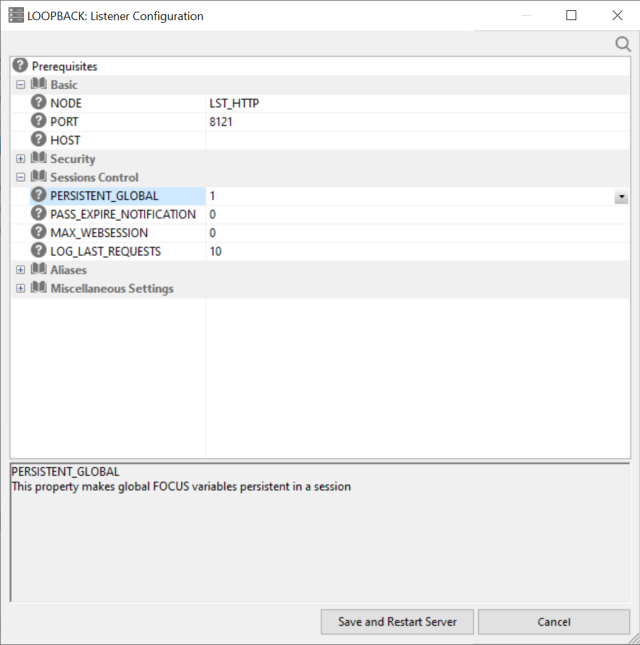
- Click Save and Restart Server.
The values of any global variables will now be kept active as long as you stay connected to the server.