Grouping and Controlling Simultaneous Execution of Flows
Often you need to define a process flow in which multiple steps occur simultaneously and where other steps cannot begin until all of the prior steps have been completed.
For example, suppose that you are creating an employee information data mart as a data target. However, the data mart requires data from two other independent data flows, one that loads data from a personnel database and one that loads data from an accounting database. You need to make sure that the data flow for the data mart does not run until the two feeder data flows have completed their runs.
By grouping the feeder data flows, you can enforce their simultaneous execution. Then, by adding a Wait object, you can ensure that the third data flow, the employee data mart, does not run until the other two have loaded the required data into their respective targets. This technique eliminates the need to estimate what time the first two flows end to schedule the third flow to run at that time.
You can also pass parameters to the procedures in a parallel group using the Properties pane for the flow by entering a value into the Parameters box.
Run a Group of Procedures and Wait
- Procedure
- Right-click an application directory in the navigation pane, point to New, and then click Flow.
- Click the Process Flow tab. A new workspace containing a Start object opens in the right pane.
- On the Flow tab, in the Insert group, click Parallel Group and drag it into the workspace, where it appears as an empty box with a border of dashes.
- Right-click the previous object in the workspace and draw an arrow connecting it to the Parallel group object.
- Drag a flow (it can be a data flow or another process flow) from the navigation pane into the Parallel Group object.
- Drag
another flow from the navigation pane into the Parallel Group object,
placing it below the previous object.
Note: You can group as many flows or procedures as you require in a Parallel Group object.
- On the Flow tab, in the Insert group, click Wait, and drag it into the workspace to the right of the Parallel Group object.
- Right-click the Parallel Group object, which now contains the multiple flows, and draw an arrow connecting it to the Wait object. Note that this is an unconditional connection.
- By default,
the Wait object simply waits until the flows in the Parallel Group
object complete their runs. If you want to limit the wait time,
double-click the Wait object to open the Wait attribute pane, as
shown in the following image.
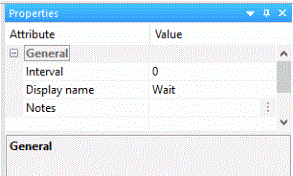
In the Interval text box, specify the maximum number of seconds to wait before running the next component in the flow.
- From the navigation pane or the Insert group, drag the next object into the workspace, to the right of the Wait object.
- Connect the Wait object to the object that follows it in the flow. By default, the processing will continue to the next object when the default condition is satisfied.
- If you
wish to change the default condition, double-click the connecting arrow
to open the Wait Condition Type window. See Wait Condition Type Dialog.
Change the condition to Timeout or Failure and click OK.
- Click the Save button to update the process flow.
Edit a Wait Connection Condition
- Procedure
- Drag a Flow, Procedure, or E-mail object into the process flow workspace, following a Wait object.
- Connect the objects.
- To view
or edit the connection condition, double-click the arrow connecting
the objects.
The Wait Condition Type window opens.
For a single connection, the default condition is Wait satisfied, represented by a green arrow.
For a second connection, the default condition is Timeout or Failure, which shows that either the Wait is not satisfied OR one of the procedures in the group failed. This is represented as a red arrow.
- Click an option button to change the condition, and then click OK to close the window.
- Click the Save button to update the process flow.
Wait Attribute Pane
To access the Wait attribute pane shown in the following image, from the process flow workspace, double-click a Wait object.
The Properties pane for a Wait object has the following fields and options:
Number of seconds to wait for a parallel group to finish running. The default value is 0.
An interval of 100 causes the process flow to wait up to 100 seconds or until all flows in the group have been completed.
The alternative display name of the object.
An annotation describing the object.
Wait Condition Type Dialog
To access the Wait Condition Type dialog shown in the following image, from the process flow workspace, double-click the arrow coming from a Wait object, or right-click it and select Edit Condition.
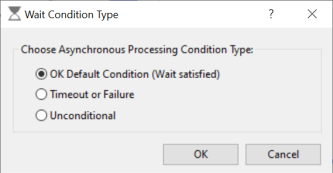
The Wait Condition Type dialog has the following fields and options:
If the grouped objects complete their runs successfully within the set time limit, the wait condition is satisfied and the next on-successful-completion step in the flow runs.
If the grouped objects do not complete their runs successfully within the set time limit, or one of the grouped objects fails, the wait condition is not satisfied and the next Timeout or Failure step in the flow is run.
The next steps run regardless of any conditions.