Creating a Data Flow Using a Target Based On a Predefined XML Schema
When creating an XML file, the format of the XML file is usually predefined by an XML schema definition or .xsd file. ibi Data Migrator lets you create a synonym from a schema definition and then map to that target in the same manner as a relational database table. An existing JSON document can also be used as a prototype for a synonym, which can then be used as a target.
Single-segment and multiple-segment schemas are supported.
This technique is divided into two parts. In the first part, you create a synonym for the XML file. In the second, you use that synonym as the target of a flow.
In the example, the data source is DMORD. The target is described by the schema dmxord.xsd.
Refer to the sample data flow DMORDXML, for the complete example.
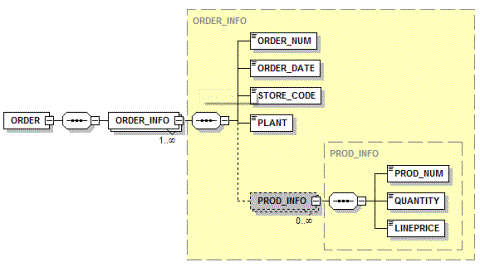
The following image shows the structure of the schema (dmxord.xsd), which is used to create a synonym to demonstrate this technique.
Creating a Synonym for an XML File
An XSD (XML Schema Definition) file contains a description of an XML file. This example shows how to create a synonym for dmxord.xsd, which is installed with your server.
- In the ibi Data Migrator desktop interface,
right-click the baseapp application directory
in the navigation pane, point to New, and then
click Synonym (Create or Update).
The Select adapter to configure or Select connection to create synonym dialog opens.
- Right-clickXML and click Configure.
- Right-click XML on the Adapters list, and click Create Metadata Objects.
The Create Synonym for XML dialog opens.
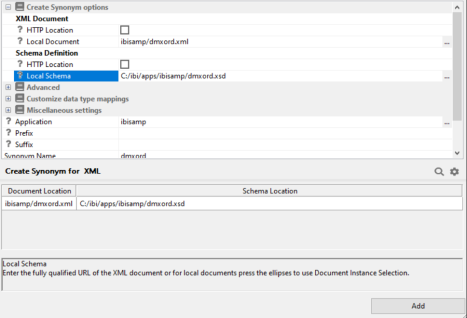
- Enter ibisamp/dmxord.xml as the location where the XML file is created.
- Click the ellipsis to open Local Schema. Expand
the Applications folder and ibisamp. Select dmxord.xsd and
click OK. The name ibisamp/dmxord.xsd appears
as the location of the XML Schema Definition that describes the
XML target, as shown in the following image.
- Click Add.
- Click Close in the confirmation window.
Creating an XML File
For a complete example, see the ibisamp/dmordxml flow.
In the ibi Data Migrator desktop interface:
- Right-click
an application directory in the navigation pane, select New,
and then click Direct Load Flow.
The Direct Load tab opens.
- Right-click the flow canvas and click Flow Properties. In the Properties panel, deselect Optimize Load.
- Drag the DMORD object from the ibisamp application directory in the navigation pane into the workspace, to the left of the line.
- Drag the DMXORD synonym from the baseapp application directory in the navigation pane into the workspace, to the right of the line.
- Double-click
the DMXORD object.
The Transformations window opens.
- Click the Automap button.
- Select the first row in the Expressions panel, ORDER_NUM, and click the Adjust Expressions button. In the XML target, the ORDER_NUM column is described as Decimal. This expression converts the character-valued column to a number.
- Click OK.
- On the Flow tab, in the Run group, click Run and select Submit. A Save Changes dialog opens. Click Yes.
- When the Save Procedure as dialog opens, enter dmxord2xml in the File Name field and click OK. Wait for the request to complete.
- On Windows,
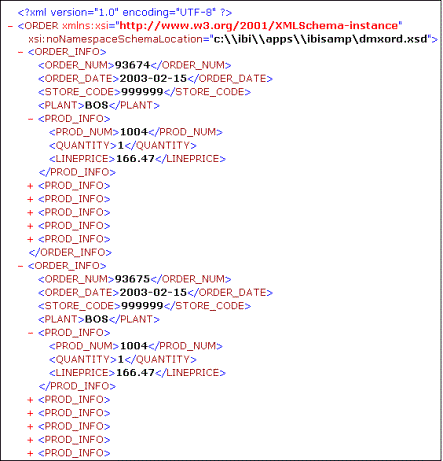
you can view c:\ibi\apps\baseapp\dmxord.xml in a browser
or in an XML editor. In the example shown in the following image,
note that the hierarchical structure of the source has been preserved.
There is one ORDER_INFO element which contains multiple PROD_INFO
elements.