Loading a Target Table Using the File Listener
You can use ibi Data Migrator to build a flow that automatically processes source files as they appear in a designated directory. This can be useful if, for example, source files are transferred by FTP from various locations throughout the day and need to be processed immediately.
Before you create and run the data flows discussed in this section, you must create the sample data and synonyms. For more information, see Create Sample Procedures and Data for Iteration. This creates source and target synonyms and four source data files used in the example.
To implement and run a real time flow:
- Create an application directory to receive files.
- Create a synonym with File Collection Parameters.
- Create a Data Flow that uses the File Listener.
- Run the flow and drop the files.
This fixed format file synonym corresponds to the layout of the source files that will appear in the designated directory. The fixed format file source is loaded to the target of your choice in real time.
Refer to the sample flow DMFLORD in the ibisamp directory for the completed example.
Create Listen and Archive Directories
For ibi Data Migrator to automatically process files when they arrive in a directory, you need to designate a directory for that purpose. It could be any directory that your server can access. For this example, we will create an application directory called listen.
In addition, if you want to keep a copy of the files after they are processed you need to designate a directory for that purpose too. For this example, we will create an application directory called archive.
- Right-click Application
Directories, select New, and
then click Application Directory.
The Create New Application dialog opens.
- For Application
name, type listen.
Clear the Add directory to APPPATH checkbox.
Click OK.
- Repeat steps 1 and 2 to create a directory called archive.
Create a Synonym With File Collection Parameters
Next you need a synonym with File Collection Parameters to control how the file listener processes files. We will start with a synonym that describes just the record layout of the source file, and add the parameters.
- In the navigation pane, expand the Application Directories folder, and then expand the ibisamp folder.
- In the ibisamp folder, double-click dmordflx to open the synonym. Note that the column named SOURCEFILE has a special ALIAS of INSTANCE. This field does not exist in the source file itself, but it will contain the name of the source file when it is read.
- Expand the Data Allocation and other related groups.
- Fill in the
synonym parameters, as shown in the following image.
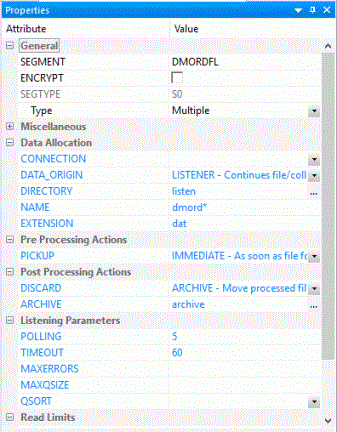
This creates a synonym that listens on the listen directory for files with names that start with dmord and an extension of data polling every 5 seconds until 60 seconds have passed without a new file. As files are processed they are archived to a directory archive. Files are processed as they arrive until 5 files or 50 records are processed.
- Click Save As in the Quick Access Toolbar to save the synonym in the application directory of your choice.
Create a Flow with a File Listener Source
A flow with a File Listener source can be either a Data Flow or a Direct Load Flow. For this example, use a Direct Load Flow.
In the ibi Data Migrator desktop interface:
- Right-click
an application directory, point to New, and then
click Direct Load Flow.
The Direct Load Flow opens.
- From the browser window, drag the source object DMORDFL that you created from its application directory to the left of the center line in the workspace.
- Drag the target object DMORDF from the ibisamp application directory to the right of the target line in the workspace.
- Right-click
the target object DMORDF and click Properties.
The Properties dialog opens.
- For the Prior to Load option, select Truncate table, if available. If not, select Delete all rows from table or Drop table. Click X to close the Properties page.
- Right-click
the target object and click Target Transformations.
The Transformations window opens.
Click the Automap button and click OK.
- Save the flow as DMXFLORD.
Create a Synonym for a File Listener with a Trigger
You can use ibi Data Migrator to build a flow that automatically processes source files as soon as a specific Trigger file is detected in an application directory. A trigger is typically used when processing needs to be delayed. For example, when using FTP to copy files, if you wait until this secondary file appears while a large file is being copied into a directory, the trigger file indicates when processing can begin.
The following example shows how to create a synonym in the baseapp application using an Adapter for Delimited Files. You can also create a synonym using the Adapter for a Fixed Format File or in any other application directory.
- Create Listen and Archive directories as described in the Create Listen and Archive Directories example.
- In the ibi Data Migrator desktop interface, right-click the baseapp application
directory, point to New, and then click Synonym
(Create or Update).
The Get Data dialog opens.
- Right-click the Delimited File node and
click Show local files.
The Select Data File dialog opens,
- Select the data
file from the Listen directory, as shown in the following image.
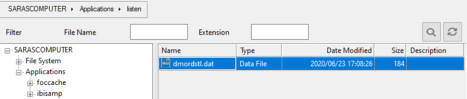
ibi Data Migrator creates the Master File for the File Listener synonym later, based on this file.
- The Create Synonym dialog opens.
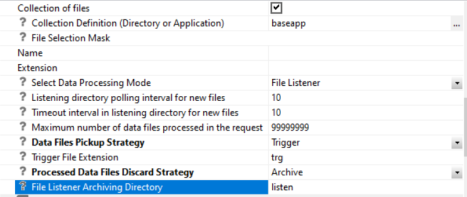
Enter the following values in the Advanced section:
- Select Collection of files.
- Select Trigger from the Data File Pickup Strategy dropdown menu.
- Enter the extension in the Trigger File Extension field. For example, if the file name that you listen to is myfile.csv, the trigger file name is myfile.csv.trg. The value for the Trigger File Extension will be trg.
- Select Archive from the Processed Data Files Discard Strategy dropdown menu.
- Enter the name of your Archive directory in the File Listener Archiving Directory field.
The options should appear as shown in the following image.
- Enter all attribute values that are needed for the Delimited File.
- Click Add.
Running a Flow With a File Listener Source
In this example, we will start the flow and then copy source files to the listen directory.
In the ibi Data Migrator desktop interface:
- Right-click DMXFLORD and click Submit.
- Copy the
following files, one at a time, from the ibisamp application directory
to the listen application directory:
dmordbos.dat, dmorddal.dat, dmordorl.dat, dmorstl.dat
Tip: For a Windows based server, you can use the Edit and Copy/Paste functions.Note: As the files are processed, you should see them disappear from the listen directory. This could take up to the timeout interval specified in the synonym. - Return to the ibi Data Migrator desktop interface. The source synonym has a timeout of 60 seconds, so you will see the Processing dialogue until the time has elapsed.
- When the
flow completes, on the Flow tab, in the Reports group, click View
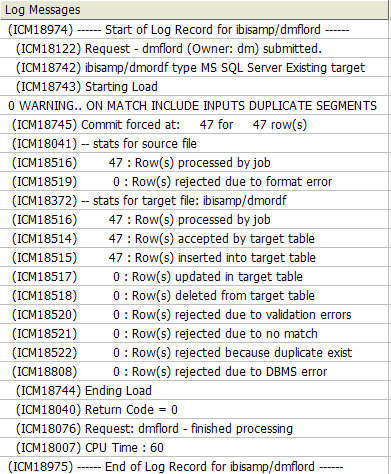
Last Log. You should see a report, like the following image,
that shows the total number of rows processed.
With the Discard option set to Archive, after each file is processed, it is copied to the archive directory, as shown in the following image.
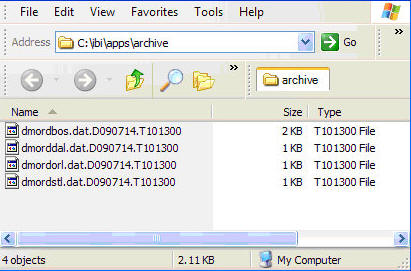
These files can be deleted, as they are no longer needed.