reUsing a Source Control System to Manage Procedures and Synonyms
Once you have created source control folders and created associations in the ibi Data Migrator desktop interface, the next step is to put the files under source control. In other words, you need to add them to a source control folder. You can add individual files or select a group of files from an application directory.
Files that have been added to a source control system need to be checked out before changes can be made. Checking files back in creates a history of their development.
Add Files to a Source Control System
To track and manage changes, ibi Data Migrator files must first be added to a source control system. This can be performed by the developers or the manager. In either case, each new file needs to be added to the source control system just one time. Once the file has been added to the source control system, the rest of the developers can attain the copy from the source control system by invoking Get Latest Version.
In the navigation pane of the ibi Data Migrator desktop interface:
- Procedure
- Right-click an application directory, multiselected objects,
an individual flow, stored procedure, or synonym, select Source Control,
and then click Add/Check In.
The Add/Check In Files dialog opens.
- Select the files that you want to add to the source control. Files that
are added are automatically checked in.
Tip: You can use the Select All checkbox to both select and deselect all the files.
- Optionally, you can check the files out by selecting the Keep files checked out checkbox.
- Optionally, you can add comments by typing them into the Comment text box. If you are adding multiple files, they all have the same comment.
- Click OK.
Note: The default listing for files in the Add/Check In dialog is by Type. To list them by name, click the Files column heading.
Icons display a lock to indicate that the files are under source control.
If you open your source control program, you see that the files from the ibi Data Migrator application directory have been added to the corresponding project folder. The synonym (dminv) has a .mas extension and the stored procedure (dmdefs) have a .fex extension. The flow (dmdemo) has two files stored in source control. The source code is stored in the file with the .fex extension. The file with the .etg extension holds the information required for the ibi Data Migrator desktop interface interface.
Add/Check In Files Dialog
The Add/Check In Files dialog is available by right-clicking an application directory, multi selected objects, an individual flow, stored procedure, or synonym, selecting Source Control, and then Add/Check In.
The Add/Check In Files dialog has the following fields options:
Allows you to select or deselect all of the files in the application directory.
Shows all of the files in the application directory. The files can be sorted by file name, type, or action.
Allows you to keep a file checked out that is being added or checked in. A source managed file must be checked out before you can change it.
Allows you to add comments for the files.
Get Latest Version From Source Control System
Once files have been added to source control, you can invoke Get Latest Version to attain a copy of the latest files from the source control system.
In the navigation pane of the ibi Data Migrator desktop interface:
- Procedure
- Right-click
an application directory, multi selected objects, an individual
flow, stored procedure, or synonym, select Source Control,
and then click Get Latest Version.
The Get Latest Version window appears.
- Click OK.
Note: If you invoke the Get Latest Version from application directory, the Get Latest Version dialog lists all the files that have been added to the source control system. There is a Select All option to get all the files from the source control system, or you can optionally select the individual files that you want.
Check Files Out of Source Control
For files that are being source managed, you must check them out before you can make and save changes. Until the files are checked out, they remain read only.
In the navigation pane of the ibi Data Migrator desktop interface:
- Procedure
- Right-click an application directory, multi selected objects,
an individual flow, stored procedure, or synonym, select Source Control,
and then click Check Out.
The Check Out dialog opens.
- Select the files that you want to check out.
Tip: You can use the Select All checkbox to both select and deselect all the files.
- Optionally, add comments by typing them into the Comment text box. If you are checking out multiple files, they all have the same comment.
- Click OK.
Icons in the application directories display a red check mark to indicate that the files have been checked out.
Note: The default listing for files in the Check Out dialog is by Type. To list them by name, click the Files column heading.If you open the source control program, you see that the files that you checked out from the ibi Data Migrator desktop interface have been checked out of the source control program. These files are no longer read only, which allows you to change before checking them back in to source control.
If a data source has an Access File associated with it, the Access File also be automatically checked out, in the same way that an .etg file is checked in or out with its associated flow.
Note:- If you try
to edit a file that has been added to source management without checking
it out, the following message appears:
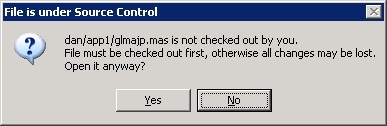
- If you try
to check out a source-managed file that has already been checked
out by another user, the following message appears:
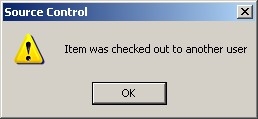
- If you try
to edit a file that has been added to source management without checking
it out, the following message appears:
Check Out Files Dialog
The Check Out Files dialog is available by right-clicking an application directory, multi selected objects, an individual flow, stored procedure, or synonym, selecting Source Control, and then clicking Check Out.
The Check Out Files dialog has the following fields and options:
Allows you to select or deselect all of the files that have been checked in and/or added to the application directory.
Shows all of the files that have been checked in or added to the application directory. The files can be sorted by file name, type, or action.
Allows you to add comments for the files.
Check Files Into Source Control
After you have changed files, you must check them back into your source control system to maintain a record of those changes. Files that are checked in are copied back to the server.
In the navigation pane of the ibi Data Migrator desktop interface:
- Procedure
- Right-click an application directory, multi selected objects,
an individual flow, stored procedure, or synonym, select Source Control,
and then click Add/Check In.
The Add/Check In dialog opens.
- Select the files that you want to check in. Only files that have
been checked out have Check In as the possible action. The action
for files that have not been added to source control is Add File.
Tip: You can use the Select All checkbox to both select and deselect all the files.
- Optionally, you can keep files checked out by selecting the Keep files checked out checkbox.
- Optionally, you can add comments by typing them into the Comment text box. If you are checking in multiple files, they all have the same comment.
- Click OK.
Note: The default listing for files in the Add/Check In dialog is by Type. To list them by name or action, click the Files or Action column headings.
Undo a Check Out From Source Control
If you decide that you do not want to change a file, you can undo its checkout from the source control system. The file becomes read-only again, and source control maintains the version as it existed before the file was checked out.
In the navigation pane of the ibi Data Migrator desktop interface:
- Procedure
- Right-click an application directory, multi selected objects,
an individual flow, stored procedure, or synonym, select Source Control,
and then click Undo Check Out.
The Undo Check Out dialog opens.
- Select the files whose checkout you want to undo.
Tip: You can use the Select All checkbox to both select and deselect all the files.
- Click OK.
Note: The default listing for files in the Undo Check Out dialog is by file name. To list them by Type, click the Type column heading.
Undo Check Out Dialog
The Undo Check Out Files dialog is available by right-clicking an application directory, multi selected objects, an individual flow, stored procedure, or synonym, selecting Source Control, and then clicking Undo Check Out.
The Undo Check Out Files dialog has the following fields and options:
Allows you to select or deselect all of the files that have been checked out.
Shows all of the files that have been checked out from the application directory. The files can be sorted by file name or type.
View the History, Versions, and Differences of a File
The source management history records of a file each date and time it was checked in, as well as the user involved.
In the navigation pane of the ibi Data Migrator desktop interface:
- Procedure
- Right-click an individual flow, stored procedure, or synonym, select Source
Control, and then click History.
The History dialog opens, showing the flow, stored procedure, or synonym.
- Click OK.
The History Options dialog opens.
- Optionally, use the Include Labels or Labels
Only checkboxes to show labeled activity.
Note: Labels can be useful to distinguish versions of a particular file. You can assign labels from the History Details dialog that is available from the ibi Data Migrator desktop interface History of dialog.
- Optionally, use the From and To fields to specify a date range for the history.
- Optionally, use the User field to specify the history for a
specific users activity.
The History of dialog opens, showing the user, date, and time for each check-in.
Deploy Latest Files From Source Control to Central Application Directory
The manager can deploy the latest files from source control to central application directory. Since the working directory of a manager is the central application directory, all they need to do is invoke Get Latest Version from each application directory or an individual flow, stored procedure, or synonym.
In the navigation pane of the ibi Data Migrator desktop interface:
- Procedure
- Right-click
an application directory, multi selected objects, an individual
flow, stored procedure, or synonym, select Source Control,
and then click Get Latest Version.
The Get Latest Version dialog opens.
- Click OK.
Note: If you invoke the Get Latest Version from the application directory, the Get Latest Version dialog lists all the files that have been added to the source control system. There is also a Select All option which gets all the files from the source control system.