Configuring the Adapter for SharePoint SitesSelected
A Sites.Selected permission is available for applications under the Microsoft Graph Sites set of permissions. Selecting this permission for your application will, by default, result in your application not having access to any SharePoint site collections. Granting permission for an application to a given site collection can be done by an Administrator.
Specify a SharePoint Permission for the Application
- Procedure
- To specify a SharePoint permission for an application, you need to remove the AllSites.Read and AllSites.Write Microsoft Azure permissions.
- Apply the SharePoint permission for the application to the specific site.
Browse to:
http://tenant.sharepoint.com/sites/siteName/_layouts/15/appinv.aspx
where:
tenantRepresents an organization.
siteNameIs the site name. Each site contains a single top-level site and subsites below it.
- Locate and paste the App ID value into the App ID field, and click Lookup.
This will populate the remainder of the form, as shown in the following image.
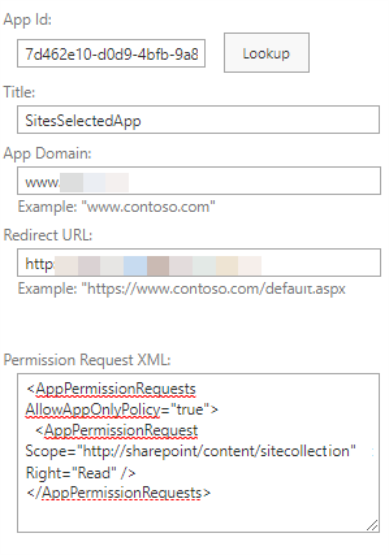
- Use an XML block similar to the following to grant "Read" access to the site.
<AppPermissionRequests
AllowAppOnlyPolicy="true">
<AppPermissionRequest
Scope="http://sharepoint/content/sitecollection"
Right="Read" />
</AppPermissionRequests>
- Click Create.
Note:
- You can control the permission level by changing the value for Right. The choices are "Read", "Write", "Manage", and "FullControl".
-
Do not change the Scope attribute. This is not a placeholder and does not represent a site path. To assign permissions for a different site, you must do so through the appinv.aspx page of that site.
Now, you need to specify Graph Permissions for the application.
Specify the Graph Permissions for the Application
- Procedure
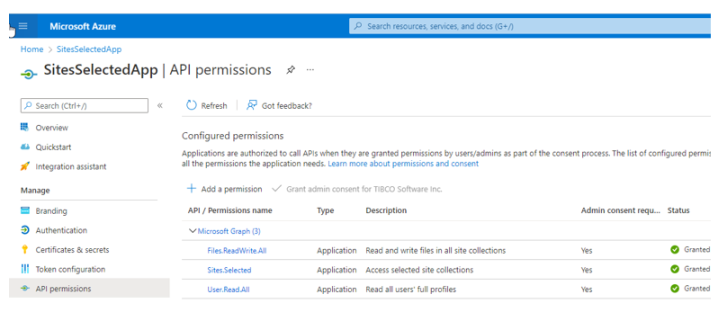
- On the API permissions pane, replace the Sites.ReadWrite.All permission with the Sites.Selected permission, as shown in the following image.
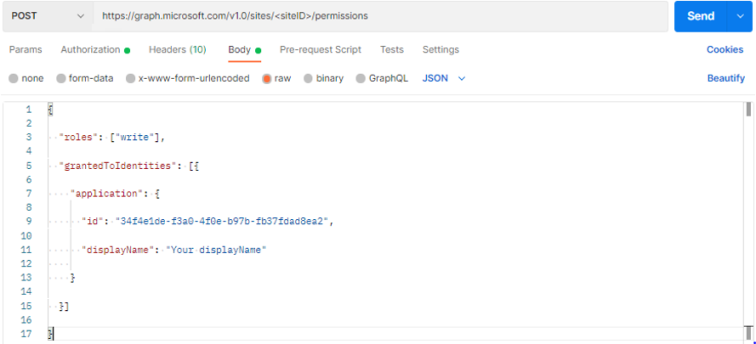
- Grant permission for the application to a given site collection. This can be done with Graph-Explorer (see https://developer.microsoft.com/en-us/graph/graph-explorer), Postman (see Use Postman with the Microsoft Graph API - Microsoft Graph | Microsoft Docs) and Powershell.
You must repeat this for each site the application needs to access.
The following image shows an example of how to set a "write" role, using Postman.
 Note:
Note:- The role can be "read" or "write".
- In Postman, replace the siteId with the actual siteId, which will be a GUID.
For more information, see the following documents:
Create permission - Microsoft Graph v1.0 | Microsoft Docs
Microsoft Graph permissions reference - Microsoft Graph | Microsoft Docs
Set Connection Attributes the SitesSelected Application
- Procedure
- From the Connect parameters pane, select the OAuth Client Credentials security authentication method.
- For the Token URL, use the v2.0 token URL.
The following image shows an example of the Connect parameters pane.
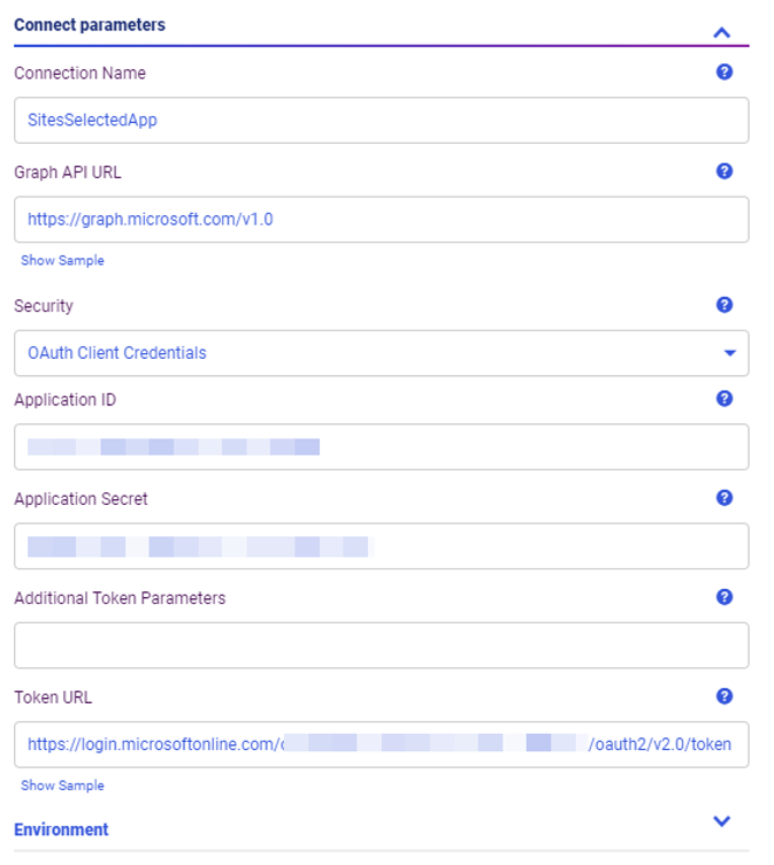
TABLE Request
Metadata should be created manually. This can be done using CREATE SYNONYM command. The Site ID should be known in advance.
The following is an example of a TABLE request. The allowed site should be specified with WHERE filter.
TABLE FILE SITES
PRINT DISPLAYNAME ID
WHERE ID EQ 'tibcosw.sharepoint.com,9xxxx2b6-xxxx-46a7-a304-a5ccxxx879c1,xxxxxxxx-6xxf-4xx3-bdb7-xxxxxxxxxxxx'

WHERE ID EQ 'ID of the selected site' - info returned
WHERE ID EQ 'ID of NOT selected site' - access Denied
WHERE ID EQ 'ID of root site' - info returned