Creating a Google Project
A Google project must be available before you can configure the Adapter for Google Cloud Storage.
Create a Google Project
- Procedure
- Enter the following URL in a web browser:
https://console.developers.google.com/project
If you are not already signed into Google, a sign-in screen for the Google Cloud Platform opens, as shown in the following image.

- Enter an email address for the Google account that has
administrative rights to the Google Analytics environment, and then
click Next.
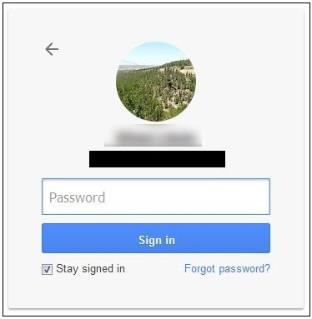
- Enter a valid password for the Google account, and then
click Sign In.
The Projects screen opens, as shown in the following image.

- Click CREATE PROJECT.
The New Project screen opens, as shown in the following image.

- Enter a name for your new project and then click Create.
The Library screen opens.
- Search for Google Cloud APIs and select Google Cloud APIs from the search results, as shown in the following image.

- Click Credentials in the left
pane.
Click the Create credentials dropdown list and select OAuth client ID on the Credentials screen, as shown in the following image.

The Create client ID screen opens, as shown in the following image.
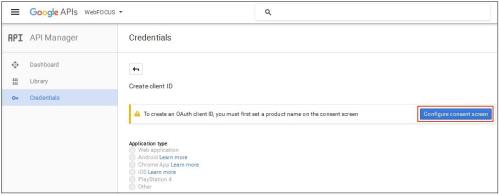
- Click Configure consent screen.
The OAuth consent screen opens, as shown in the following image.

- Enter a value in the Product name shown to users field
and click Save.
The Application type screen opens, as shown in the following image.

- Perform the following steps:
- Select Web application from the list of application types.
- Enter the host name and port used to access the WebFOCUS Reporting Server browser interface in the Authorized JavaScript origins field.
For example:
http://host.ibi.com:8121
If the WebFOCUS Reporting Server is installed as a standalone server, then
http://localhostshould be specified as the value in the Authorized JavaScript origins field. - Enter the host name and port used to access the WebFOCUS Reporting Server browser interface with oauth20.exe in the Authorized redirect URIs field.
For example:
http://host.ibi.com:8121/oauth20.exe
If the WebFOCUS Reporting Server is installed as a standalone server, then
http://localhost/oauth20.exeshould be specified as the value in the Authorized redirect URIs field.
- Click Create.
The OAuth client screen opens, which displays your
client IDandclient secretvalues, as shown in the following image.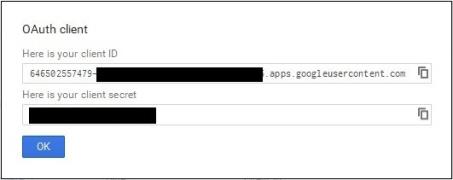
The client ID and client secret values are required to configure the Adapter for Google Cloud Storage.
- Click OK.