Importing Data from a TIBCO Data Virtualization Source Using a Data Flow
You can import data from the TIBCO Data Virtualization source using the data flow feature in WebFOCUS. You can select a target from the list of adapters to store this data. The following procedure shows how to import data from the TIBCO Data Virtualization source.
Import Data from TIBCO Data Virtualization Source Using a Data Flow
You must configure the Adapter for a TIBCO Data Virtualization and create a synonym before importing data from it. For more information, see Configure the Adapter for TIBCO Data Virtualization and Creating Synonyms.
To select the target for data imported from the TIBCO Data Virtualization source:
- Procedure
- On the WebFOCUS Reporting Server browser interface Applications page, select the application directory where the synonym for the Adapter for TIBCO Data Virtualization is saved.
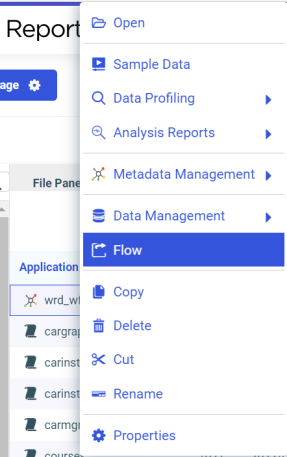
- Right-click the synonym and select Flow, as shown in the following image.
The Data Flow tab opens with the TIBCO Data Virtualization source already added in the data flow.
- To import data from the TIBCO Data Virtualization source, click Targets on the navigation bar, and then in the Targets pane, select New Target.
The new target appears in the content area.
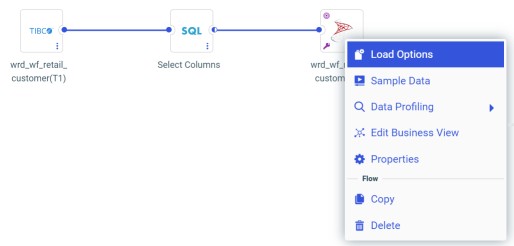
- In the content area, right-click the target and select Load Options, as shown in the following image.
- In the Adapter list, select the target adapter to store the imported data and then click OK, as shown in the following image.

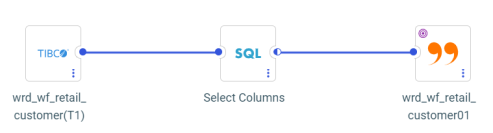
The target icon changes to display the logo of the selected adapter.
Here the selected adapter is Delimited Files (CSV/TAB), as shown in the following image.
- Save and run the data flow.
View the log file for data flow details.