Configuring AWS IAM and AWS S3
This section describes how to configure AWS IAM and AWS S3 needed for the operation of the Adapter for AWS S3.
Configure AWS IAM and AWS S3
- Procedure
- Create a policy in AWS to be able to successfully integrate the AWS S3 Adapter with AWS S3. This policy needs to be linked to the AWS userid that is requiring AWS S3 access.
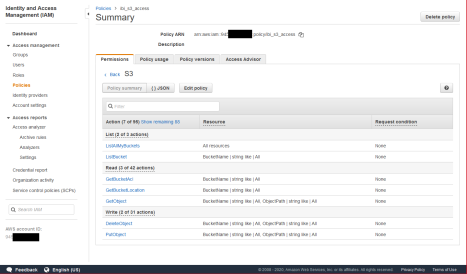
The minimum permission actions needed for S3 are ListAllMyBuckets, ListBucket, GetBucketACL, GetBucketLocation, GetObject, DeleteObject, and PutObject, as shown in the following image.
- Create an Access Key ID and Secret Access Key.
An Access Key ID and Secret Access Key are needed to configure the Adapter for AWS S3.
The following link to the AWS documentation describes how to create these keys:
- Create a Bucket in AWS S3.
An AWS S3 Bucket is used to store files.
Each AWS S3 Adapter connection contains a specific Bucket to read and write files.
- Enter the following URL in a web browser.
https://s3.console.aws.amazon.com/s3
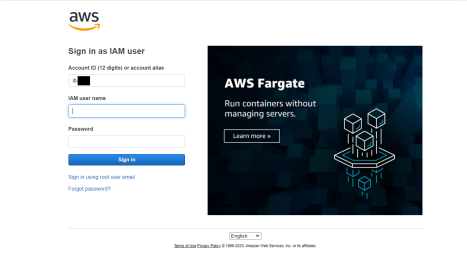
If you are not already signed into AWS, a sign-in dialog for AWS opens, as shown in the following image.
- Enter valid AWS account credentials that have access to AWS S3, and click Sign in.
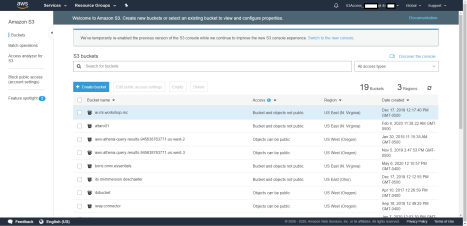
The AWS S3 screen opens, as shown in the following image.
- Click + Create bucket.
The Create bucket panel opens, as shown in the following image.
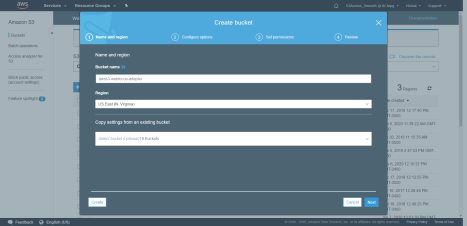
- Enter a Bucket name that is unique across all existing Bucket names in Amazon S3.
Select a Region, for example, US East (N. Virginia).
- Click Create to create a bucket that will use the configuration and permission defaults.
- Enter the following URL in a web browser.