Configuring the Adapters for Fixed-Format and Delimited Files
You can configure the Adapters for Fixed-Format and Delimited Files from the WebFOCUS Reporting Server browser interface or the ibi Data Migrator desktop interface. In addition, for each type of file, you must specify the location of the data files you wish to access. You can define the location, either by:
- Including a FILEDEF command in a supported server profile. This approach enables you to quickly change the physical file name associated with the metadata.
- Specifying the location when you create a synonym. This approach enables you to define the data file location in the Master File.
Configure the Adapters for Fixed-Format and Delimited Files
You can configure the adapter from either the WebFOCUS Reporting Server browser interface or the ibi Data Migrator desktop interface.
- Procedure
- From the WebFOCUS Reporting Server browser interface Applications page, click Get Data.
- In the WebFOCUS Reporting Server browser interface, click the (+) button, and find the adapter on the page or, in the ibi Data Migrator desktop interface, exapnd the Available folder if it is not already expanded.
- In the ibi Data Migrator desktop interface, expand the appropriate group folder and the specific adapter folder. The group folder is described in the connection attributes reference.
- Right-click
the adapter name and/or version and select
Configure.
The Add Adapter to Configuration pane opens.
- Enter values for the parameters required by the adapter, as described in the chapter for the specific adapter you want to configure.
- Click
Configure. The configured adapter is added to the
Configured list in the
WebFOCUS Reporting Server browser interface or in the Adapters
list in the ibi Data Migrator desktop interface resources tree.
In the WebFOCUS Reporting Server browser interface, the adapter remains on the Available Adapters list with an asterisk to indicate that at least one connection has been configured. You can configure additional connections from either the Configured or Available list by right-clicking the adapter and clicking Add Connection.
Configure a Connection to an FTP Server for Delimited and Fixed-Format Files From the ibi WebFOCUS Reporting Server browser interface or the ibi Data Migrator desktop interface
An FTP Server can be used as a source for delimited and flat files by configuring a connection to the server. First, you must configure an adapter.
To configure a connection to an FTP server:
- Procedure
- From the
WebFOCUS Reporting Server browser interface Applications page,
click
Get
Data.
or
From the ibi Data Migrator desktop interface, expand the Adapters folder.
In the WebFOCUS Reporting Server browser interface, the Get Data page opens showing your configured adapters. In the ibi Data Migrator desktop interface, the Adapters folder opens.
- Right-click the Fixed-Format Files or Delimited Files folder and select Add Connection.
- The Add Connection to FTP Server for... window opens
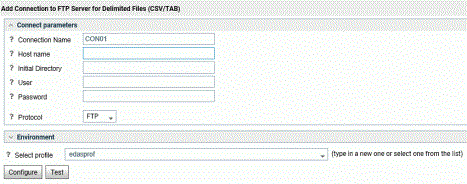
- Enter the Connection Parameters. See the FTP Connection Parameters below for details.
- Click Configure.
FTP Connection Parameters
These are the connection parameters for FTP.
|
Parameter |
Value |
|---|---|
|
Connection Name |
Name for this connection, default is CON01 Note: To
use the Connection Name, you need to specify it in the CONNECTION
attribute of the synonym located in the Data Allocation section.
|
|
Host Name |
Name or IP address of FTP Server |
|
Initial Directory |
Directory on FTP server on initial connection |
|
User |
User ID to connect to FTP server or anonymous |
|
Password |
Password to connect to FTP or an email address |
|
Profile |
Profile on server to add this connection |
Configure Multiple Users for Bulk Load Using the SFTP Protocol
When you configure Bulk Load using SFTP, you create an auxiliary connection with its own user ID, for example, user1. If a user connects to the server with a different user ID, for example, user2, and wants to initiate bulk load using that same auxiliary connection, user2 must create a key file specific to user2 and attach that key to the user1 ID.
In the following procedure:
- The server is referred to as dmhost.
- The SFTP server is referred to as sftphost.
- The user connected to the server is referred to as userdm.
- The user configured in the connection to the SFTP server is referred to as usersftp.
Perform the following steps to configure userdm to be able to initiate bulk load using the SFTP auxiliary connection:
- Procedure
- On sftphost, issue the following commands to create the directory for the keys.
/home/usersftp/$  mkdir .ssh
/home/usersftp/$  cd .ssh
Issue the following command to create a file named authorized_keys that will contain your authorized keys.
/home/usersftp/$ .ssh $ touch authorized_keys
- On dmhost, issue the following commands to enable usersftp to connect to sftphost from dmhost.
/home/userdm/$ sftp usersftp@sftphost
sftp> exit
- On dmhost, optionally verify known_hosts to make sure that sftphost is listed there.
/home/userdm/$  cd .ssh
/home/userdm/.ssh $  ls -ltr -a
/home/userdm/.ssh $  cat known_hosts
/home/userdm/.ssh $  cd
You should see the remote host name listed, in the first position in the file.
- Create keys on dmhost.
/home/userdm/$ ssh-keygen -t rs
- On dmhost, append the public key of userdm to the authorized_keys file on sftphost.
/home/userdm/$ append id_rsa.pub authorized_keys
or
/home/userdm/$ cat ~/.ssh/id_rsa.pub | ssh usersftp@sftphost
      "cat >> /home/usersftp/.ssh/authorized_keys"
This will ensure that usersftp can connect to sftphost using the userdm ID.
- Use the following command to connect using SFTP on dmhost password-less to sftphost.
/home/userdm/$  sftp usersftp@sftphost
sftp> ls
sftp> exit
- Start the server on dmhost. Connect to the server on dmhost:
http://dmhost:8117
When connecting, use the OPSYS security provider and user ID userdm.
- Issue the following command from the server profile, edasprof.prf of dmhost to establish a connection for a fixed format file to sftphost.
ENGINE FIX SET CONNECTION_ATTRIBUTES conTest 'sftp://sftphost'/usersftp,:'mydir1' - Test the connection. The result should be:
User has read access to the FTP server directory
User has write access to the FTP server directory.
Successful test for the connection conTest.
Specify the Location of a Fixed-Format or Delimited File on UNIX, Windows, or in an IBM i IFS or z/OS HFS File System
FIXED data sets may be allocated with the FILEDEF command
FILEDEF FILE1 DISK filename [(LRECL lrecl RECFM recfm]
where:
Is the full path and file name of the data file.
Is the record length in bytes. This parameter is optional. If you omit it, it is calculated based on the metadata description.
The left parenthesis preceding the optional parameters is required.
Is the record format. Specify F for fixed format, V for variable format. This parameter is optional. If you omit it, the default is fixed format.
Specify the Location of a Fixed-Format or Delimited File in a z/OS PDS or Data Set
FIXED data sets may be allocated using JCL
//FILE1 DD DISP=SHR, DSN=dataset_name
or file definition
FILEDEF FILE1 DISK //'dataset_name' [(LRECL lrecl RECFM recfm]
where:
Is the fully qualified data set name.