Configuring the Adapter for Google Drive
This section describes how to configure the Adapter for Google Drive.
Configure the Adapter for Google Drive
- Procedure
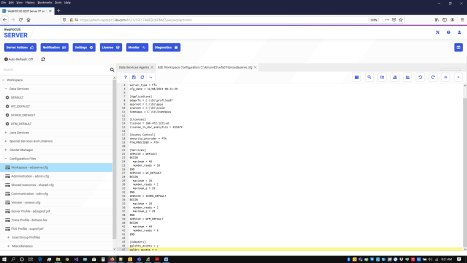
- On the WebFOCUS Reporting Server browser interface Workspace page, expand Configuration Files, edit the Workspace configuration file (edaserve.cfg), and add the attribute ggldrv_access = y under the Adapters section, as shown in the following image.
- Click the Save and Restart Server icon.
- Edit the server profile (edasprof.prf), and copy the Google Sheets connection command.
- Paste the copied connection command into the edasprof.prf file and change the adapter name from GGLSHTS to GGLDRV on the copied connection, as shown in the following image.
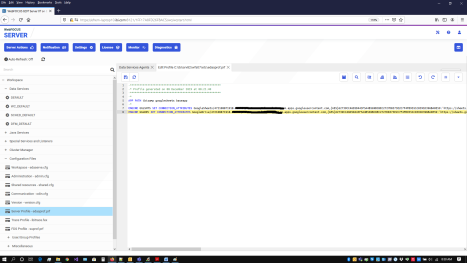
Optionally, you can change the connection name for the Google Drive connection.
- Click the Save icon.
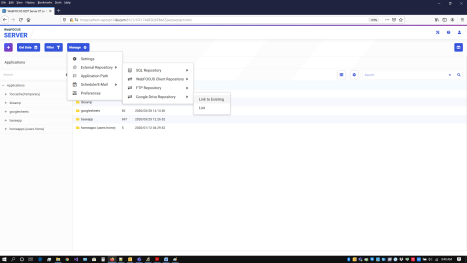
- From the Application view of the WebFOCUS Reporting Server browser interface, click Manage, then External Repository, then Google Drive Repository, then Link to Existing, as shown in the following image.
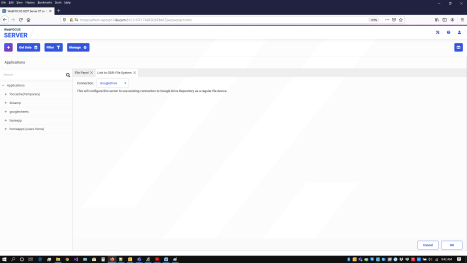
- Choose the connection name for Google Drive, as shown in the following image.
- Click OK.
A Google Drive application configuration screen opens, as shown in the following image.
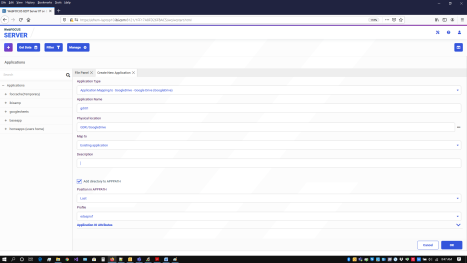
- Perform the following steps:
- Enter a new Application Name and, optionally, a Description for the application.
For example:
- Application Name: googledrive
- Description: Google Drive
- From the Map to dropdown box, select New application (directory will be created).
- Enter a new Application Name and, optionally, a Description for the application.
- Click OK.
Depending on the Internet speed and the number of files on the Google Drive, the mapping process could take a number of minutes to complete.
When complete, the message Command executed successfully will appear.