Preparing the i Access Environment (ODBC)
The Adapter for i Access (SUFFIX=SQLIIA) is available for configuration in ODBC and JDBC modes on Windows. Only JDBC mode is available on UNIX/Linux environments. This chapter is about the preliminary setup steps that must be done to use the Adapter in ODBC mode, obtaining and installing the ODBC drivers, and then using the Windows ODBC Data Source Administrator tool to configure an ODBC DSN that points to an IBM i machine as a data source.
Setting Up the ODBC Environment on Windows
Setting up the ODBC environment on Windows consists of:
- Getting and installing the ODBC drivers
- Configuring an ODBC DSN instance
Get and Install the ODBC Drivers
IBM i Access Client Solutions (ACS) software provides several downloadable packages, depending on need. The Terminal Emulation and Navigator Tool core functionality is included in one zip file. The other add-on applications, including the ODBC drivers, are in separate zip files, based on platform.
The Windows zip file that is needed for ODBC is IBMiAccess_v1r1_WindowsAP_English.zip.
The simplest way to obtain the drivers is to do an internet search on IBM i ACS (Access Client Solutions) software, open the page, and click the Downloads tab. You may be blocked from the page or download, unless you are a registered and logged in user. Registration for the IBM website is free.
The installation instructions are:
- Download the zip file.
- Unzip the file. You must do an actual unzip and then browse into the zipped directory.
- Navigate to the Image64a subdirectory.
- Run Setup.exe, accepting all default prompts.
When the installation is complete, it creates an IBM i Access Client Solutions folder on the Windows menu and adds IBM i Access ODBC drivers to the Windows ODBC Data Source Administrator tool.
Configure an ODBC DSN Instance
The Windows menu icons are not used for our needs, the Windows ODBC Data Source Administrator tool (64-bit) must be used.
- Procedure
- If you do not have an icon on your
desktop to start the Windows ODBC Data Source
Administrator tool (64-bit),
type ODBC in the Windows
search bar. This should display two ODBC Data Sources
application icons, one marked for 64-bit and the other for 32-bit.
Select the 64-bit application to bring up the ODBC Data Source
Administrator tool, as shown in the following
image.
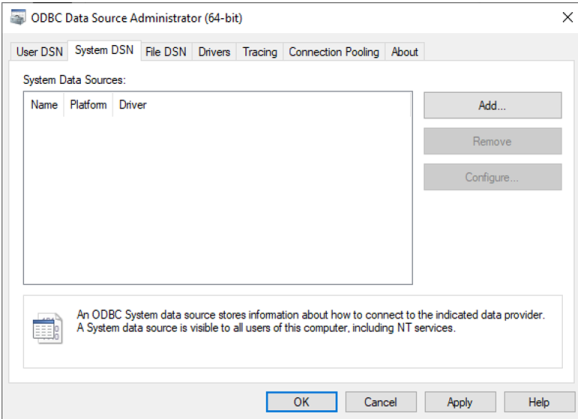
- On the System DSN tab, click Add.
The Create New Data Source dialog opens with a list of drivers, as shown in the following image.
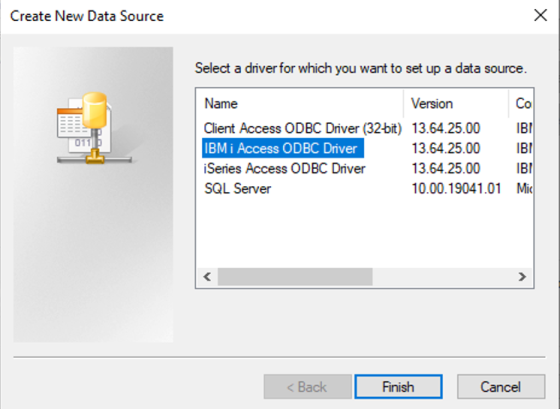
- Select IBM i Access ODBC Driver or iSeries Access ODBC Driver. These drivers are the same.
- Click Finish.
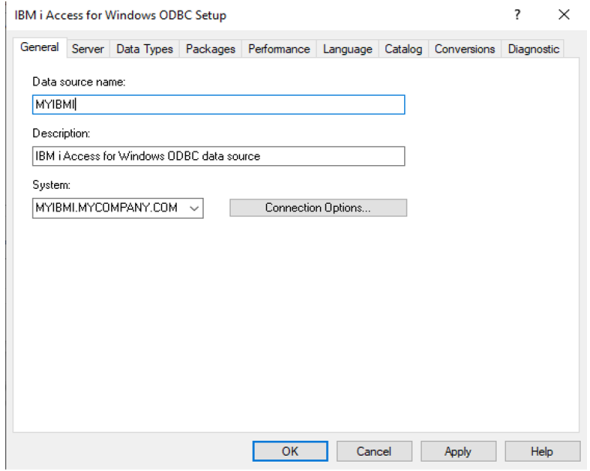
The IBM i Access for Windows ODBC Setup dialog opens.
- Type a data source name or use the source machine name and type the actual machine name in
the System input box, as shown in the following image.
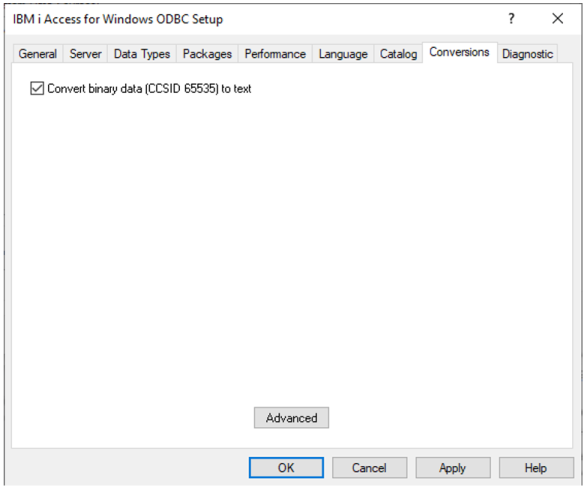
- Before clicking OK or Apply, on the Conversions tab, check the
Convert binary data option, as shown in the following
image.
- Click OK to save.
You can now close the ODBC Data Source Administrator tool.
- Open the WebFOCUS Reporting Server browser interface and proceed to the Get Data page to start the configuration step.