Configuring the Adapter for Cloudera Impala
Configuring the adapter consists of specifying connection and authentication information for each of the connections you want to establish.
Configure the Cloudera Impala Adapter
You can configure the adapter from either the WebFOCUS Reporting Server browser interface or the ibi Data Migrator desktop interface..
- Procedure
- From the
WebFOCUS Reporting Server browser interface Applications page,
click
Get
Data.
or
From the ibi Data Migrator desktop interface, expand the Adapters folder.
In the WebFOCUS Reporting Server browser interface, the Get Data page opens showing your configured adapters. In the ibi Data Migrator desktop interface, the Adapters folder opens.
- In the WebFOCUS Reporting Server browser interface, click the (+) button, and find the adapter on the page.
- Right-click Cloudera Impala and click Configure.
- In the URL box, type the URL used to connect to your Hive or Impala server. For more information, see Cloudera Impala Adapter Configuration Settings.
- In the Driver Name box, type the JDBC driver that you
are using from the following table:
Adapter
JDBC Driver Name
Apache Hive
org.apache.hive.jdbc.HiveDriver
Cloudera Impala
com.cloudera.impala.jdbc41.Driver
- Select the security type. If you are using Explicit,
type your user ID and password.
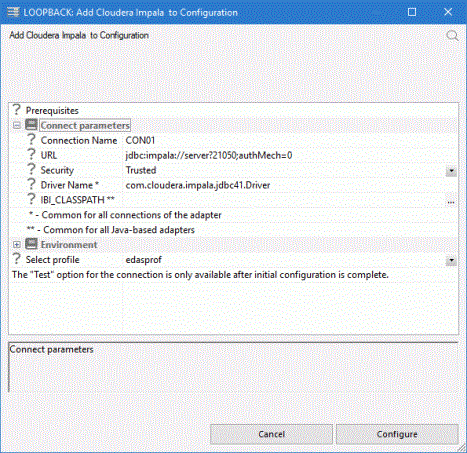
The following image shows an example of the configuration settings used:
- Select edasprof from the drop-down menu to add this connection for all users, or select a user profile.
- Click Test. You should see a list of data sources on your server.
- Click Configure.
Cloudera Impala Adapter Configuration Settings
The Adapter for Hadoop/Hive/Impala is under the SQL group folder.
Logical name used to identify this particular set of connection attributes. The default is CON01.
Is the URL to the location of the data source.
The URL used depends on which JDBC driver and which server you are connecting to.
|
JDBC Driver |
Security |
URL |
|---|---|---|
|
Hive |
None |
jdbc:hive2://server:21050/;auth=noSasl
|
|
Hive |
Kerberos (static) |
jdbc:hive2://server:21050/default; principal=impala/server@REALM.COM |
|
Hive |
Kerberos (user) |
jdbc:hive2://server:21050/default;principal=impala/server@REALM.COM; auth=kerberos;kerberosAuthType=fromSubject |
|
Impala |
None |
jdbc:impala://server:21050;authMech=0
|
|
Impala |
User name and password |
jdbc:impala://server:21050; authMech=3,UID=user,PWD=pass |
|
Impala |
Kerberos |
jdbc:impala://server:21050; AuthMech=1;KrbRealm=REALM.COM; KrbHostFQDN=server.example.com; KrbServiceName=impala |
where:
Is the DNS name or IP address of the system where the Hive or Impala server is running. If it is on the same system, localhost can be used.
Is the name of the default database to connect to.
Is the default port number for an Impala server.
Indicates that there is no security on the Impala server.
For a Kerberos enabled Impala server, this Is the name of your realm.
For further descriptions of the Impala JDBC driver options, see the Cloudera JDBC Driver for Impala manual.
Is the name of the JDBC driver, for example, org.apache.hive.jdbc.HiveDriver or com.cloudera.impala.jdbc41.Driver.
Defines the additional Java Class directories or full-path jar names which will be available for Java Services. Value may be set by editing the communications file or in the WebFOCUS Reporting Server browser interface. Using the WebFOCUS Reporting Server browser interface, you can enter one reference per line in the input field. When the file is saved, the entries are converted to a single string using colon (:) delimiters for all platforms. When editing the file manually, you must maintain the colon delimiter.
There are three methods by which a user can be authenticated when connecting to a database server:
- Explicit. The user ID and password are explicitly specified for each connection and passed to the database, at connection time, for authentication.
- Password Passthru. The user ID and password received from the client application are passed to the database at connection time for authentication.
- Trusted. The adapter connects to Impala as an operating system login using the credentials of the operating system user impersonated by the server data access agent.
Primary authorization ID by which you are known to the data source.
Password associated with the primary authorization ID.
Select a profile from the drop-down menu to indicate the level of profile in which to store the CONNECTION_ATTRIBUTES command. The global profile, edasprof.prf, is the default.
If you wish to create a new profile, either a user profile (user.prf) or a group profile if available on your platform (using the appropriate naming convention), choose New Profile from the drop-down menu and type a name in the Profile Name field (the extension is added automatically).
Kerberos
Connections to an Impala server with Kerberos enabled can be run in one of two ways:
- Static credentials. The same Kerberos credential is used for all connections. You must obtain a Kerberos ticket before starting the server.
- User credentials. Each user connecting to the server connects to Impala using credentials from the Impala Adapter connection in the server or user profile.
To set up connections to a Kerberos enabled Impala server:
- The WebFOCUS Reporting Server has to be secured. The server can be configured with security providers PTH, LDAP, DBMS, OPSYS, or Custom, as well as multiple security providers environment,
- In addition to the jar files listed above, the following jar
must be added to the CLASSPATH or IBI_CLASSPATH for the server:
/hadoop_home/client/hadoop-auth.jar
Kerberos Static Requirements
In this configuration, all connections to the Impala server will be done with the same Kerberos user ID derived from the Kerberos ticket that is created before the server starts.
- Create Kerberos ticket using:
kinit kerbid01where:
kerbid01Is a Kerberos ID.
- Verify Kerberos ticket using klist. A message similar to the following
should be returned:

- Before configuring the Impala Adapter connection to a Kerberos enabled instance, the connection should be tested. Log in to the system running Hive and use Beeline, the native tool, to test it.
- Start the server in the same Linux session where the Kerberos ticket was created. Log in to the WebFOCUS Reporting Server browser interface and click the Adapters tab.
- Right-click Cloudera Impala and click Configure. Use the
following parameters to configure the adapter:
URLEnter the URL. For the Apache Hive adapter, use:
jdbc:hive2://server:21050/default;principal=hive/server@REALM.COM
SecuritySet to Trusted.
- In the Select profile drop-down menu, select the edasprof server profile.
- Click Configure.
- Next, configure Java services. Click the Workspace tab and expand the Java Services folder.
- Right-click DEFAULT and click Properties.
- Expand the JVM Settings section. In the
JVM options box, add the following:
-Djavax.security.auth.useSubjectCredsOnly=false
- Restart Java services.
Once these steps are completed, the adapter can be used to access a Kerberos-enabled Hive instance.
Kerberos User Credentials Requirements
In this configuration, the connection from the server profile is used or each connected user has an Impala Adapter connection with Kerberos credentials in the user profile.
- Enable multi-user connection processing for Kerberos by
adding the following line to your profile (edasprof.prf):
ENGINE SQLIMP SET ENABLE_KERBEROS ON
- Configure the Impala Adapter Connection in the user profile
using the following values:
URL
For the adapter for Apache Hive:
jdbc:hive2://server:21050/default;principal=impala/server@REALM.COM;
auth=kerberos;kerberosAuthType=fromSubject
For the Cloudera Impala adapter:
jdbc:impala://server:21050;AuthMech=1;KrbRealm=REALM.COM; KrbHostFQDN=server.realm.com;KrbServiceName=impalaSecuritySet to Explicit
User and PasswordEnter your Kerberos user ID and password. The server will use those credentials to create a Kerberos ticket and connect to a Kerberos-enabled Hive instance.
Note: The user ID that you use to connect to the server does not have to be the same as the Kerberos ID you use to connect to a Kerberos enabled Hadoop cluster.Select ProfileSelect your profile or enter a new profile name consisting of the security provider, an underscore and the user ID. For example, ldap01_pgmxxx.
- Click Configure.
Troubleshooting
If the server is unable to configure the connection, an error message is displayed. An example of the first line in the error message is shown below, where nnnn is the message number returned.
(FOC1400) SQLCODE IS -1 (HEX: FFFFFFFF) XOPEN: nnnn
Some common errors messages are:
[00000] JDBFOC>> connectx(): java.lang.UnsupportedClassVersionErr : or: org/apache/hive/jdbc/HiveDriver : Unsupported major.minor version 51.0
The adapter requires Java 1.7 or later and your JAVA_HOME points to Java 1.6.
(FOC1500) ERROR: ncjInit failed. failed to connect to java server: JSS
(FOC1500) . JSCOM3 listener may be down - see edaprint.log for details
The server could not find Java. To see where it was looking, review the edaprint.log and set JAVA_HOME to the actual location. Finally, stop and restart your server.
(FOC1260)  (-1) [00000] JDBFOC>> connectx():  java.lang.ClassNotFoundException:
   org.apache.hive.jdbc.HiveDriver
(FOC1260) Check for correct JDBC driver name and environment variables.
(FOC1260) JDBC driver name is org.apache.hive.jdbc.HiveDriver
(FOC1263) THE CURRENT ENVIRONMENT VARIABLES FOR SUFFIX SQLIMP ARE :
(FOC1260) IBI_CLASSPATH : ...
 (FOC1260) CLASSPATH : C:\ibi\srv77\home\etc\flex\lib\xercesImpl.jar
The JDBC driver name specified cannot be found in the jar files specified in IBI_CLASSPATH or CLASSPATH. The names of the jar files are either not specified, or if specified, do not exist in that location.
[08S0] Could not establish connection to jdbc:hive2://hostname:21050/auth=noSasl:
java.net.UnknownHostException: hostname
The server hostname could not be reached on the network. Check that the name is spelled correctly and that the system is running. Check that you can ping the server.
[08S01] Could not establish connection to server:21050/default:
: java.net.ConnectException: Connection refused
The Impala server is not listening on the specified port. Start the server if it is not running, and check that the port number is correct.
 (-1) [00000] JDBFOC>> makeConnection():
 javax.security.auth.login.LoginException: Pre-authentication
 information was invalid (24)
The Kerberos user ID and password combination is not valid.