Configuring the JDBC Adapter for Jethro
Configuring the adapter consists of specifying connection and authentication information for each of the connections you want to establish.
Configure the Jethro JDBC Adapter
You can configure the adapter from either the WebFOCUS Reporting Server browser interface or ibi Data Migrator desktop interface.
- Procedure
- From the
WebFOCUS Reporting Server browser interface Applications page,
click
Get
Data.
or
From the ibi Data Migrator desktop interface, expand the Adapters folder.
In the WebFOCUS Reporting Server browser interface, the Get Data page opens showing your configured adapters. In the ibi Data Migrator desktop interface, the Adapters folder opens.
- In the WebFOCUS Reporting Server browser interface, click the (+) button, and find the adapter on the page.
- In the ibi Data Migrator desktop interface, expand the appropriate group folder and the specific adapter folder. The group folder is described in the connection attributes reference.
- Right-click the Jethro folder.
- Click Configure ODBC.
- In the URL box, enter the URL used to connect to your Drillbit. For more information, see Jethro URL Configuration Settings.
- In the Driver Name box, enter the following:
com.jethrodata.JethroDriver
- Enter your User and password. The default values are jethro/jethro.
- Click Test. You should see a list of data sources on your server.
- Click Configure.
Jethro URL Configuration Settings
The Adapter for Jethro is under the SQL group folder.
The URL configuration for the Jethro adapter is:
jdbc:JethroData:://host:port[;host:port]�/instance_name
where:
Is the name or IP addresses where the Jethro server is running.
Is the port number for Jethro. The default value is 9111.
Is the name of the Jethro server instance.
Troubleshooting
If the server is unable to configure the connection, a dialog opens with an error message. The message typically begins with the following:
(FOC1400) SQLCODE IS -1 (HEX: FFFFFFFF) XOPEN: nnnn
where:
Is the message number returned.
Some of the more common errors are:
(FOC1500) : (-1) [00000] JDBFOC>> connectx():
(FOC1500) : java.lang.UnsupportedClassVersionError:
org/apache/drill/jdbc/Driver :
(FOC1500) : Unsupported major.minor version 51.0
(FOC1479) ERROR CONNECTING TO SQL DATABASE
This indicates that your Java version is less than 1.7, which is required.
Configuring the ODBC Adapter for Jethro
Configuring the adapter consists of specifying connection and authentication information for the connection that you want to establish.
Note that the ODBC Adapter for Jethro is only available for servers running on Windows.
Configure the ODBC Adapter for Jethro
You can configure the adapter from either the WebFOCUS Reporting Server browser interface or ibi Data Migrator desktop interface.
- Procedure
- From the
WebFOCUS Reporting Server browser interface Applications page,
click
Get
Data.
or
From the ibi Data Migrator desktop interface, expand the Adapters folder.
In the WebFOCUS Reporting Server browser interface, the Get Data page opens showing your configured adapters. In the ibi Data Migrator desktop interface, the Adapters folder opens.
- In the WebFOCUS Reporting Server browser interface, click the (+) button, and find the adapter on the page.
- Right-click Jethro and click ODBC.
The Add Jethro ODBC to Configuration dialog opens, as shown in the following image.
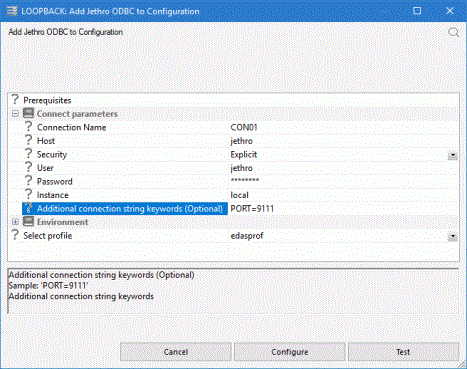
- Enter the values for the parameters as described in Connection Attributes for the ODBC Adapter for Jethro
- Click Configure.
Connection Attributes for the ODBC Adapter for Jethro
The following list describes the connection attributes for which you can supply values. To complete the attribute declaration, click the Configure button.