Managing Kafka Metadata
When the server accesses a data source, it needs to know how to interpret the data that it finds. For each data source the server will access, you create a synonym that describes the structure of the data source and the server mapping of the Kafka data types.
Creating Synonyms
Synonyms define unique names (or aliases) for each data structure that is accessible from a server. Synonyms are useful because they hide the location and identity of the underlying data source from client applications. They also provide support for extended metadata features of the server such as virtual fields and additional security mechanisms.
Using synonyms allows an object to be moved or renamed while enabling client applications to continue functioning without modification. The only modification required is a redefinition of the synonym on the server. The result of creating a synonym is a Master File and Access File based on a given Kafka topic.
Create a Synonym
- Procedure
- From the WebFOCUS Reporting Server browser interface Application page, click Get Data.
- On the
Configured Adapters section of the page, in Simple Mode, right-click an adapter
and click
Show
Connections. Right-click a connection.
Depending on the type of adapter you choose, one of the following options appears on the context menu.
- Show DBMS objects. This option opens the page for selecting synonym objects and properties.
- Create metadata objects. This option opens the page for selecting synonym objects and properties.
- Show files. This option opens a file picker. After you choose a file of the correct type, the page for selecting synonym objects and properties opens.
- Show local files. This option opens a file picker. After you choose a file of the correct type, the page for selecting synonym objects and properties opens.
- Show topics. This option opens the page for selecting synonym objects and properties for topics within the environment.
- Enter values for the parameters required by the adapter as described in the chapter for your adapter.
- After
entering the parameter values, click
Add.
This button may be labeled Next, Create Synonym, Create Base Synonyms, Create Cluster Synonym, or Update Base Synonyms.
The synonym creation process for most adapters has been consolidated so that you can enter all necessary parameters on one page. However, for some adapters such as LDAP, continue clicking Next until you get to a page that has a Create Synonym button.
The synonym is created and added under the specified application directory.
Synonym Creation Parameters for Kafka
The Create Synonym for Kafka page is shown in the following image.
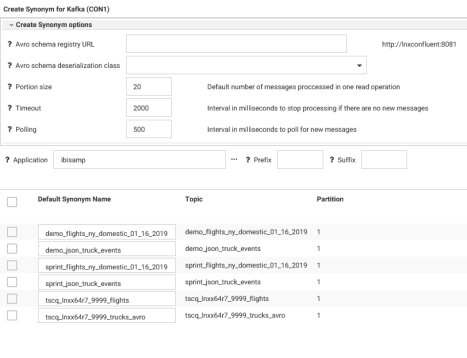
The following list describes the parameters for which you will need to supply values, and related tasks you will need to complete in order to create a synonym for the adapter. When you have configured the parameters and made the selections you need, click the Create Synonym button on the ribbon, which generates the synonym based on your entries.
To create synonyms for one or more Kafka topics, right-click a connection and click Show Topics. The Create Synonym for Kafka page opens on which you can select synonym objects and configure the following properties for topics within the Kafka environment.
Create Synonym for Kafka (Step 1 of 2)
Is the URL to the Apache Avro data serialization system.
Select the class used to deserialize the Avro Schema.
Is the default number of messages processed in one read operation. The default value is 20.
Is the Interval, in milliseconds, to stop processing if there are no new messages. The default value is 2000.
Is the Interval, in milliseconds, to poll for new messages. The default value is 500.
Create Synonym for Kafka (Step 2 of 2)
Select the checkboxes next to the topics for which you want to create synonyms.
Indicates the name that will be assigned to the synonym. To assign a different name, replace the displayed value.
Managing Synonyms
Once you have created a synonym, you need to do the following to create a proper response segment dependent on the delimiter.
- Open the synonym in the Synonym Editor by double-clicking the synonym name or right-clicking the synonym name and clicking Open.
Depending on the Topic, the Message Value can delimit the components of each message in a variety of ways, for example, JSON, Pipe, or Comma. Pivoting this field will create a new segment in the synonym that has a field for each item within the Message Value.
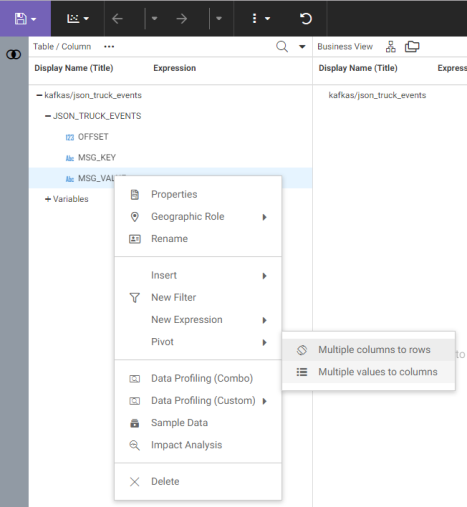
- Pivot the field containing the message values by right-clicking the field, clicking Pivot, and clicking Multiple values to columns, as shown in the following image.
The Select Mapping Source page opens in which you can enter a number of rows to sample for structural analysis of the column to be pivoted. The default value is 1000.
- Click Next.
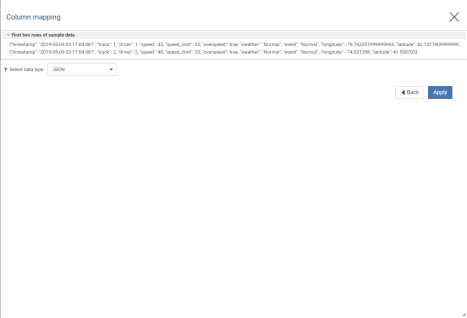
The Column Mapping page opens on which you can select the data type. A couple of rows of sample data are listed, as shown in the following image.
- Click Apply.
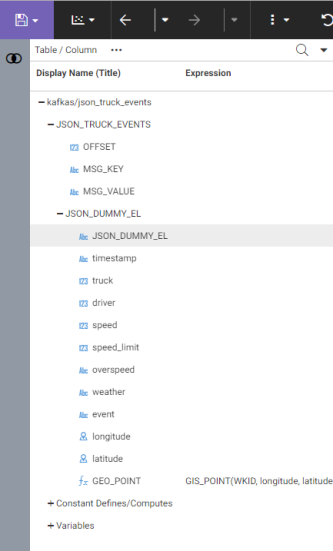
A new segment is added to the synonym that lists each item from the JSON object as a separate field, as shown in the following image.
- Save this synonym for use in reporting and messaging.